

A lot of Intune admins waited for the feature Intune driver update management. Now it is here. In this blog post I want to describe whats behind this feature, how it works and how you can start with.

What is driver management?
Driver management is a new Feature wich was added on June 26, 2023 to Intune.
Driver management is to controlling, updating, and maintaining windows drivers via Intune. With driver management the administrator can decide when or if an specific driver should be installed on the devices in the field to avoid compatibility or other issues. You can see a list of new drives which applies to your devices in the field.
Video material
Together with Niklas Tinner I had an nice chat about the Intune driver update management.
What are the pre requisites?
There are different prerequisites to activate / use the Intune driver management:
License:
- The tenant requires the Microsoft Intune Plan 1 subscription
- Azure AD Free (or greater) subscription
- You need a Windows Enterprise E3/E5/F3, Education A3/A5, Virtual Desktop Access E3 or E5 or M365 Business Premium license
Device:
- Windows 10/11 Pro, Enterprise, Education or Pro for Workstations
- Enrolled in Intune
- Hybrid AD joined or Azure AD joined
- Microsoft Account Sign-In Assistant (wlidsvc) must be able to run.
Configuration:
- You need a telemetry level of minimum required
- Not disable driver updates in the update settings
Network:
- Access to the Intune endpoints. You can test this with the following scrip
How does it work?
The Intune driver management is a feature on top of WUFB. It sycs the detected driver updates into Intune to show to the administrator which update is pending. The administrator can decide during the creation of the configuration which strategy he wants to follow:
- Automatic installation with the option to delay the installation for an defined number of days and the possibility to pause updates
- Manual installation where the administrator have to approve pending updates
The devices check daily in and report the pending updates to the Windows Update for Business Services (WUfB). This data is then processed and synced to Intune to show it in the Intune admin center.
The workflow looks like this: Hardware vendors mark an update as necessary or recommended. WUfB-DS syncs this information with Intune, which then performs a check to see if the update applies to the devices in the field. If it does, the update gets approved automatically. The device will then install this update during its next Windows Update scan.
Old versions of updates are moved to the ‘Other drivers’ section once a newer version is available. Once all devices have the newer version installed, the older one is removed from Intune’s list.
Recommended design
Create multiple policies to have an smooth and error less rollout. A typical strategy looks like this:
- Create a pre pilot policy with automatic installation directly after the release to a smal group of devices in the ideal case on Intune administrator devices. Test this update for some days.
- Create a pilot policy with some days (1-2) delay. Also this group should test the update for some days.
- Create a additional policy with automatic installation on all devices with an delay from 1-2 days from the pilot group.
If an issue occur with this driver you can pause this update for the other rings to avoid additional problems in the field. You can also create more rings and longer delays depending on you internal requirements and device count.

How to setup the feature?
- Open the Intune console
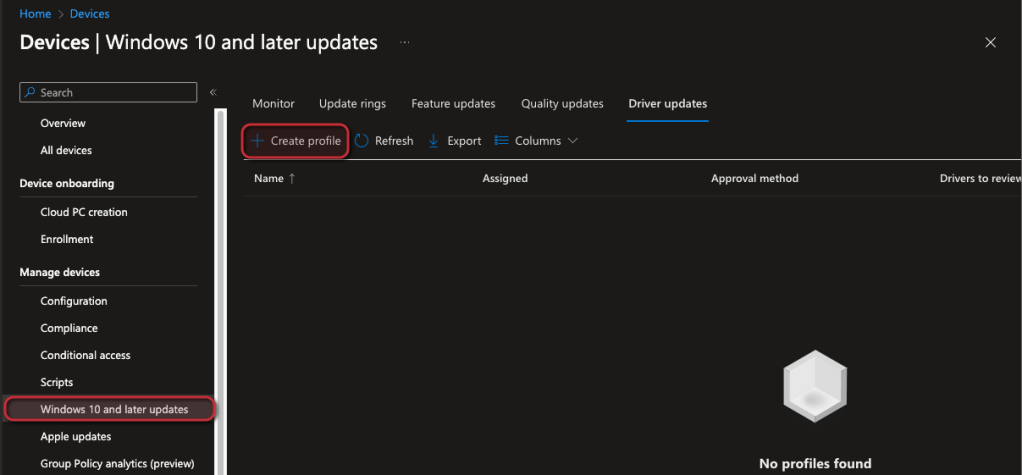
- Navigate to Devices -> Windows 10 and later updates -> Driver updates -> +Create profile
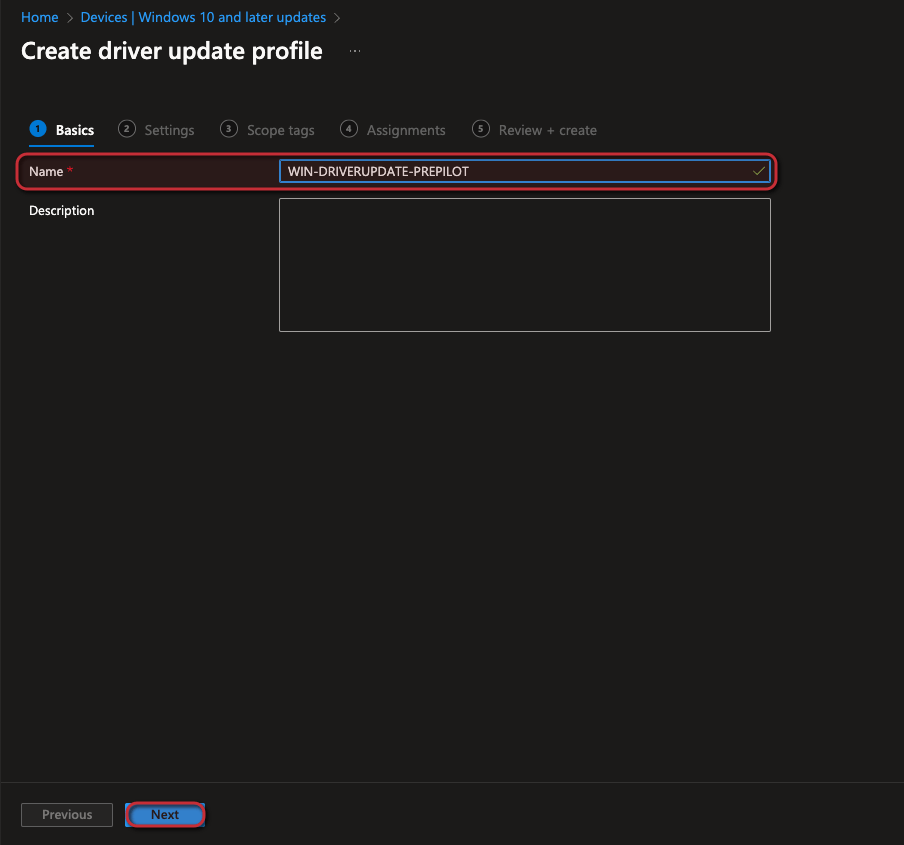
- Enter a Name and click Next
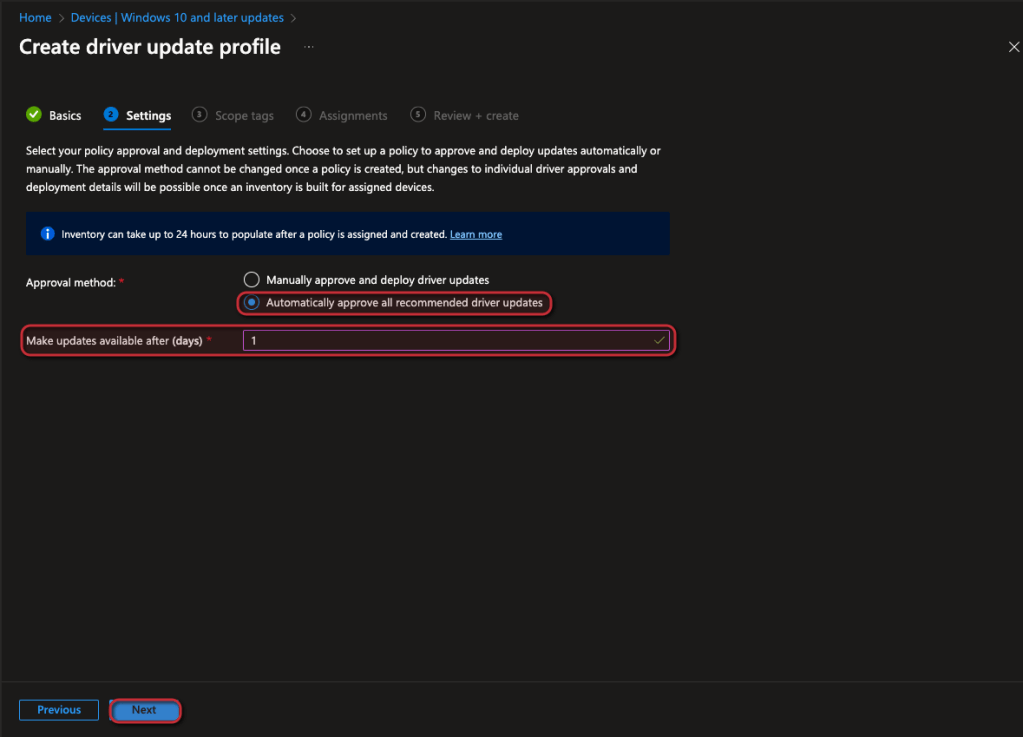
- Now you can select your Approval method.
- Manually (You have to approve the updates manual)
- Automatic (Automatic install with an delay and pause possibility)
- Select for automatic approval the daly in days
- Click Next
- Click Next ->Create a assignment in this case to a pre pilot group -> Click Next
- Click Create
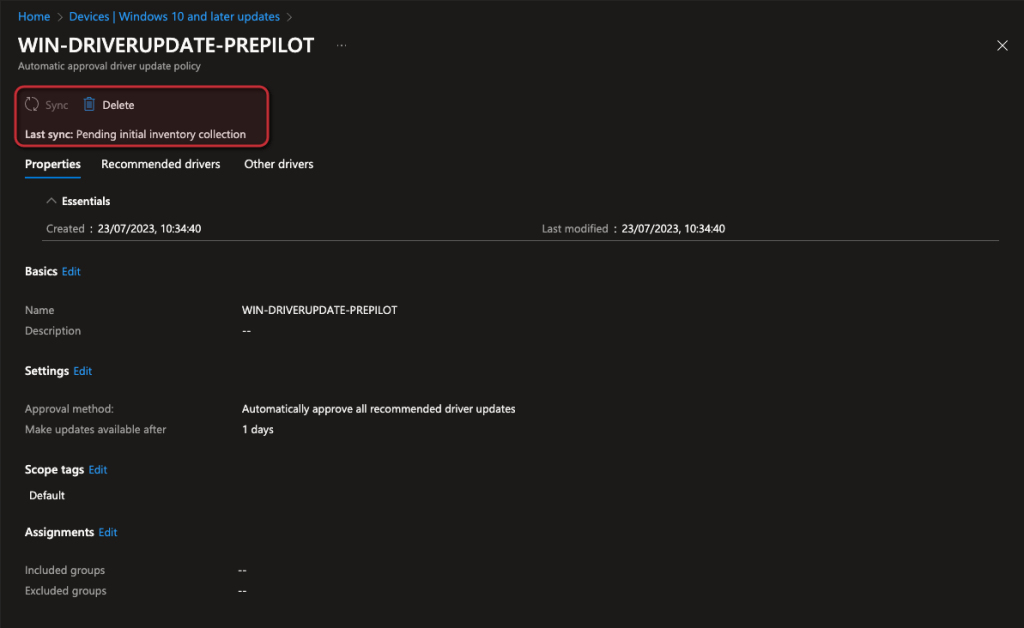
- Wait until the Sync from WufB is completed
- Go to the Recommended driver section and see the pending updates and how many devices are effected
 jannikreinhard.com
[…] Get started with Intune driver update management […]
LikeLike