
Ultimate MEM Tour Part 3: Endpoint Security in Intune
Explore Intune endpoint security in the original MEM Tour: baselines, compliance, Defender integration and policy management, with historical screenshots.
Welcome to the third part of my blog series. In this blog series, I’ll give you a tour through the features that Microsoft Intune offers us. In the last two blogs, we looked at the topics of device and application management. Today we would like to take a look at Endpoint Security in Intune. The biggest goal companies have is to protect their devices and data from outsiders. Every day there are new attack methods or threats that companies need to protect against. Microsoft Intune provides many Endpoint Security features that use the power of the cloud to achieve this goal. At the center of this Endpoint Security strategy is Microsoft Defender for Endpoint.
More blogs from this series:
- Part 1 – Devices
- Part 2 – Applications
- Part 3 – Endpoint Security – this blog
- Part 4 – Reports
- Part 5 – User and Groups
Where can I find Endpoint Security in Intune?
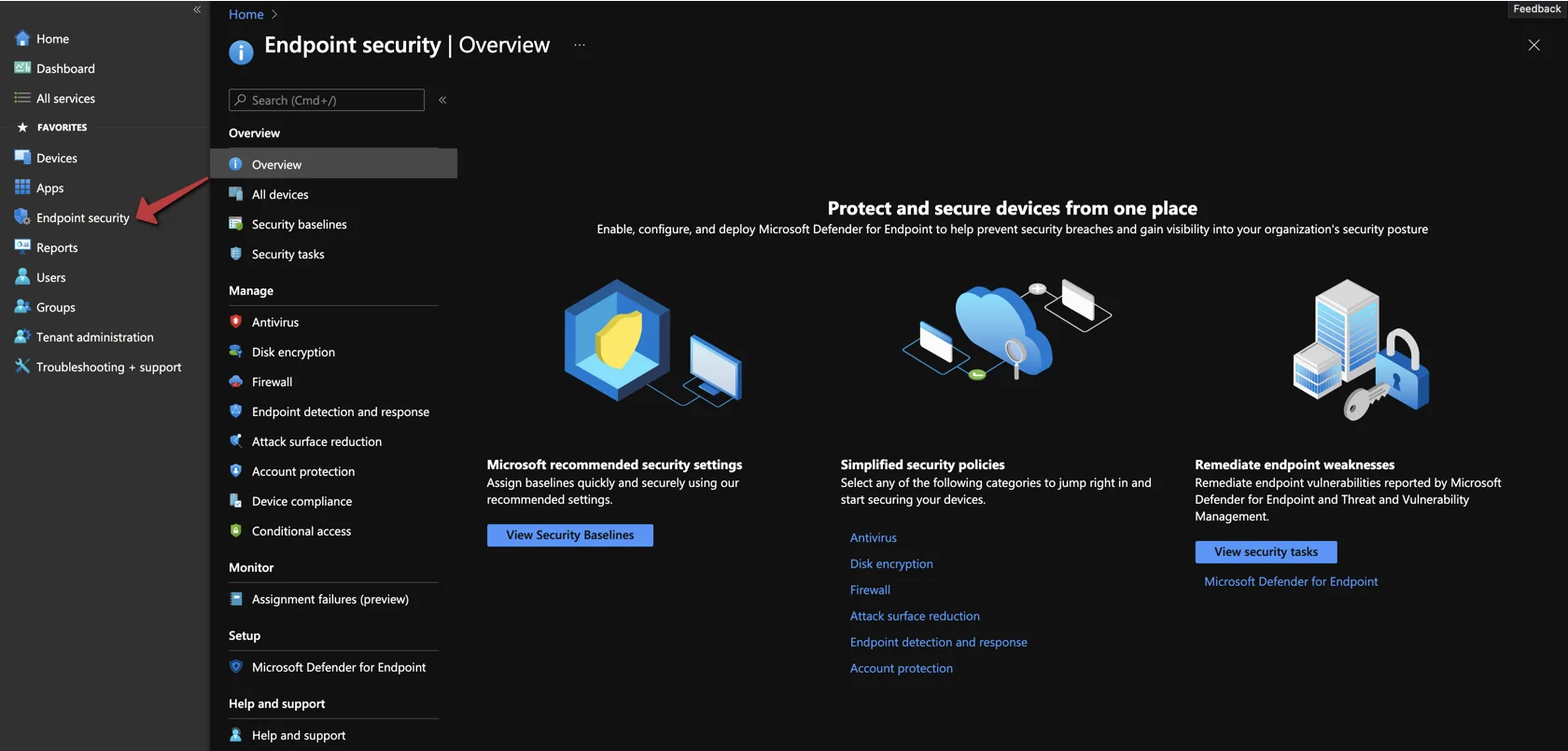
These features can be found in the Endpoint Security menu on the left side of the Intune admin center. At the center of this is Microsoft Defender for Endpoint.
When you open this menu, you will land on an Overview page. Here you will get tips for the first steps and a short explanation of what Endpoint Security is. The description from Microsoft is as follows:
Enable, configure, and deploy Microsoft Defender for Endpoint to help prevent security breaches and gain visibility into your organization’s security posture.
All devices
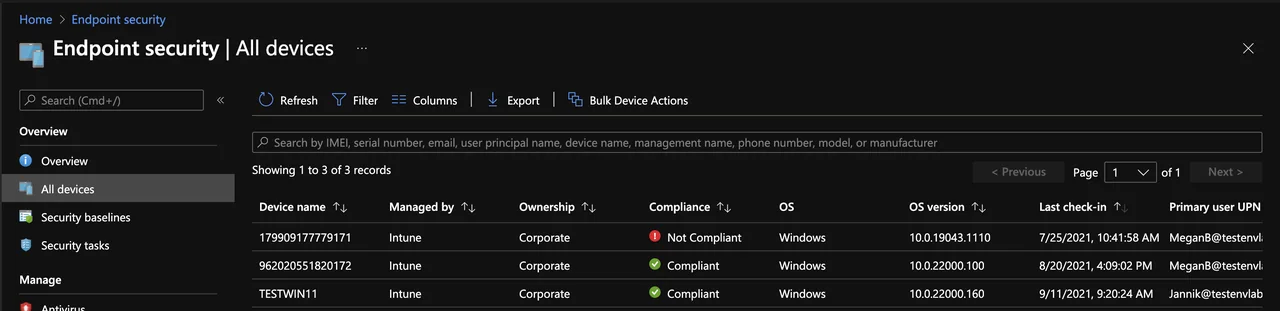
A similar menu is already familiar to us from the previous blogs. Here you get an overview of all devices and their security status. You can see the compliance state of the devices, which OS build they are running and when the last check-in to Intune was.
Security baselines
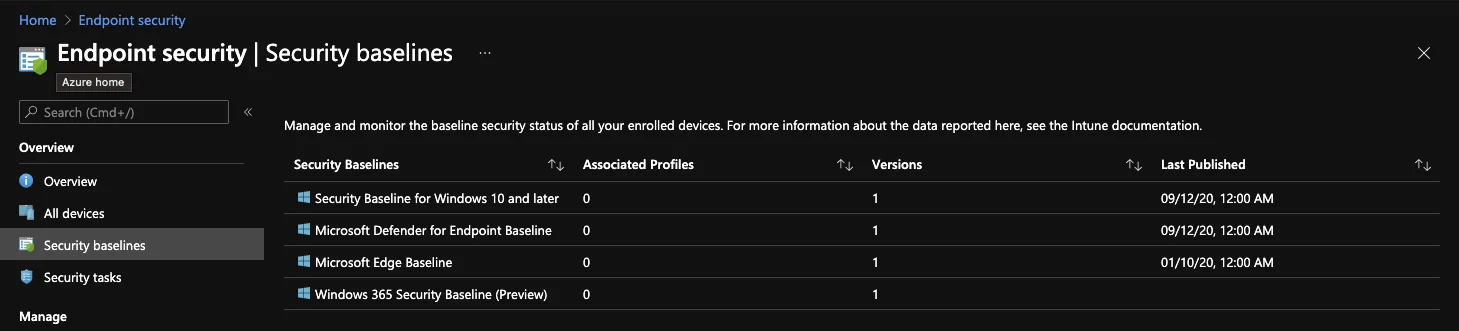
Security baselines are predefined security settings to make getting started with modern management on Windows 10 easier and more secure. These policies were created by security experts from the industry. These baselines are updated by Microsoft with each release of a new Windows version and form a core part of your Endpoint Security configuration. You can still customize the predefined settings when you create them.
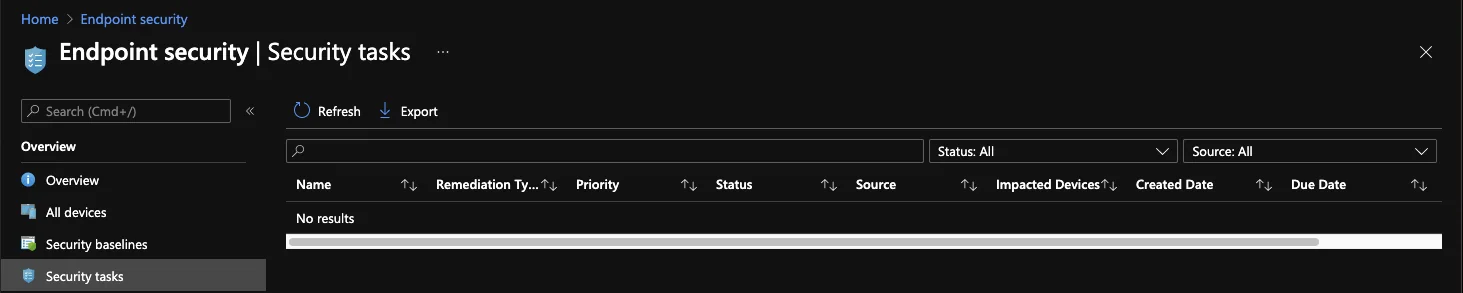
Security tasks
Microsoft Defender for Endpoint can be used to scan the entire environment for current threats. If a security event is detected in the Microsoft Defender portal that needs to be fixed in Intune, a security colleague can create a task to have an Intune colleague look at it. When the task is done, it can also be marked as done.
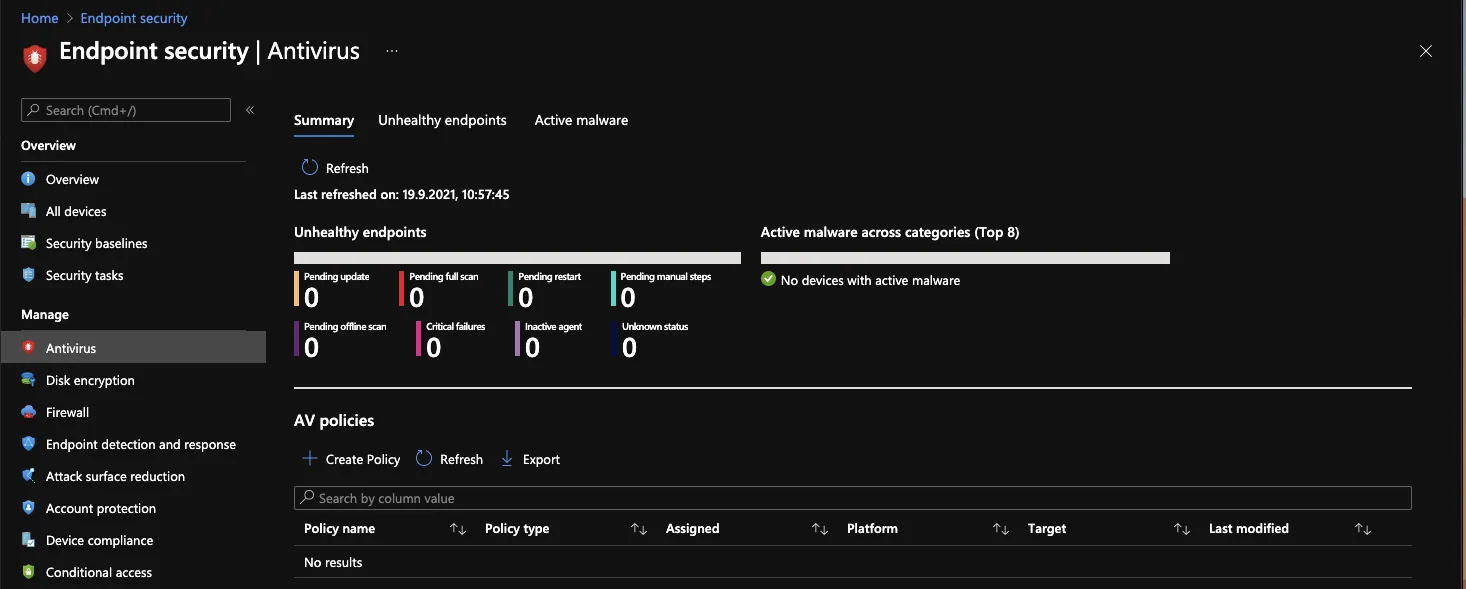
Antivirus and Endpoint Security policies
In this section you have on the one hand several reports and on the other hand you can create antivirus policies. On the home page you can see the health status of the endpoints and a count of active malware.
With the “Unhealthy endpoints” report you get a list of clients where the security status is not given, e.g.
Signature update overdue. In the “Active malware” report you get a list of active malware in your company.
You also have the possibility to distribute antivirus configurations for server operating systems. These must be integrated into the Configuration Manager.
There are 4 types of policies that can be created:
- Microsoft Defender Antivirus exclusions (Windows 10)
- Windows Defender Antivirus (Windows 10)
- Windows Security experience (Windows 10)
- Antivirus (macOS)
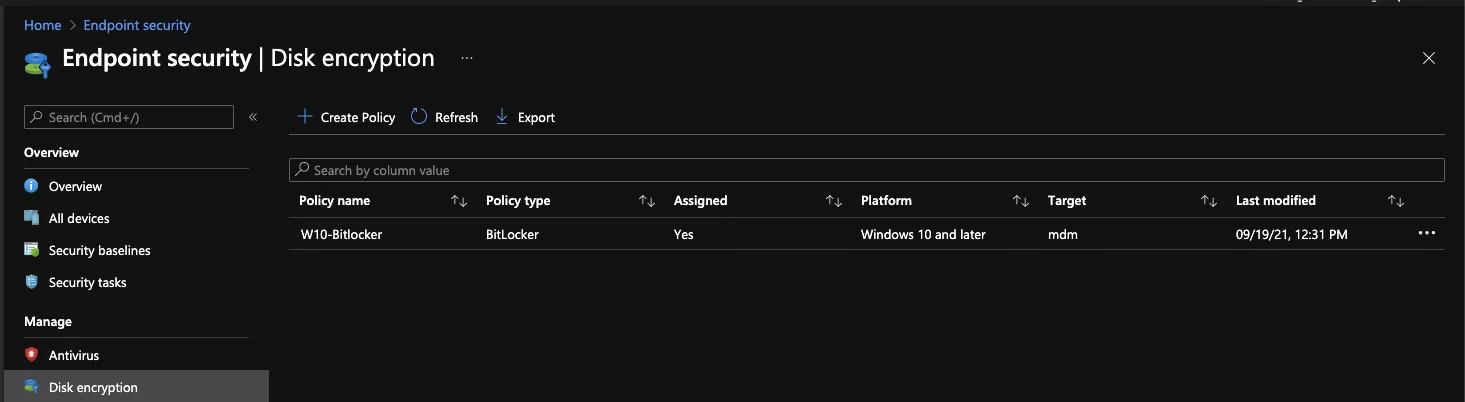
Disk encryption
In this section you can configure BitLocker on Windows or FileVault on Mac. Disk Encryption is a key Endpoint Security control that helps you protect your data on the device in case the device is lost or stolen.
Here you can configure the security as well as the usability of both services. The encryption keys are backed up in Intune.
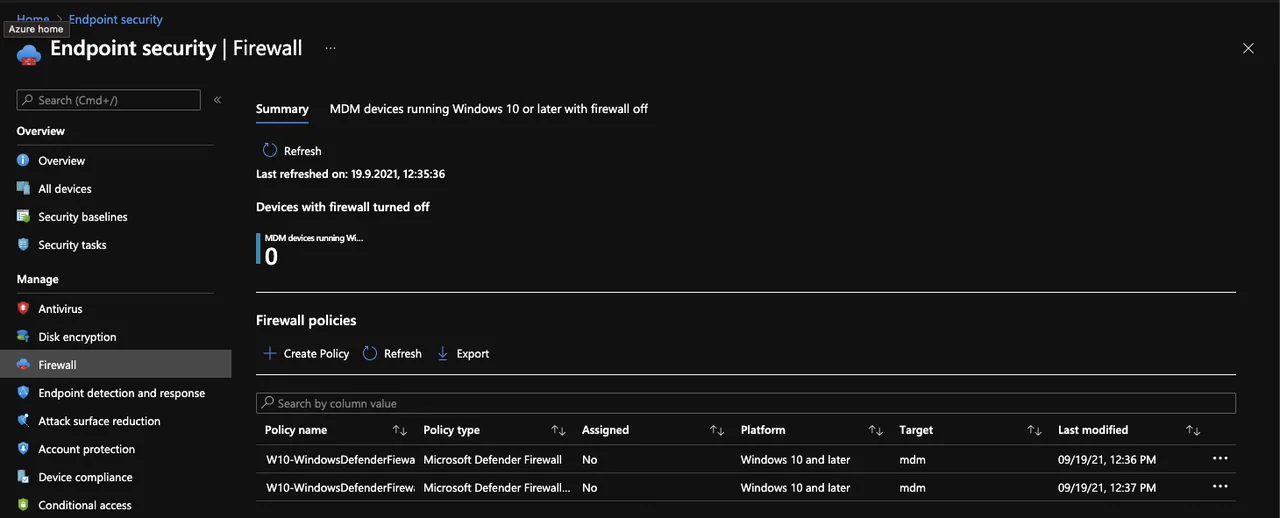
Firewall
Here you have 2 types of configuration. You can configure the general behavior of the firewall via “Microsoft Defender Firewall” and you can allow or block individual connections via “Microsoft Defender Firewall rules”.
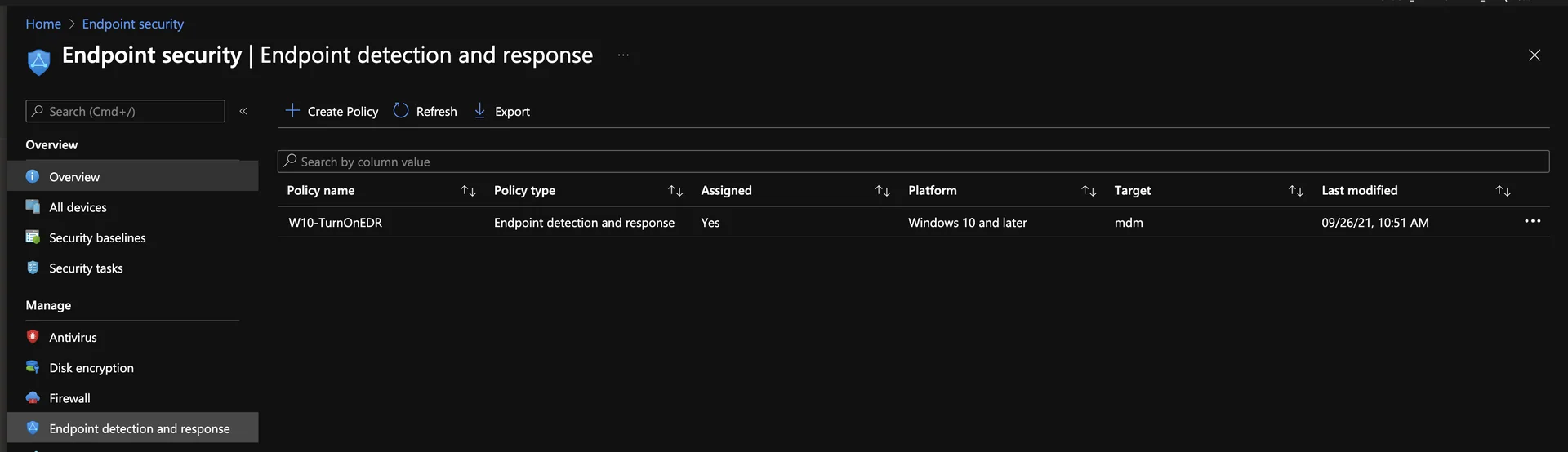
Endpoint detection and response
This Endpoint Security feature provides advanced attack detection by collecting cyber telemetry data that is applied in near real time. This data is retained for up to 6 months and provides analysts with the ability to go back to specific times when an attack occurred. This data can also be used for forensic capabilities. Here the options “Sample sharing for all files” and “Expedite telemetry reporting frequency” can be configured.
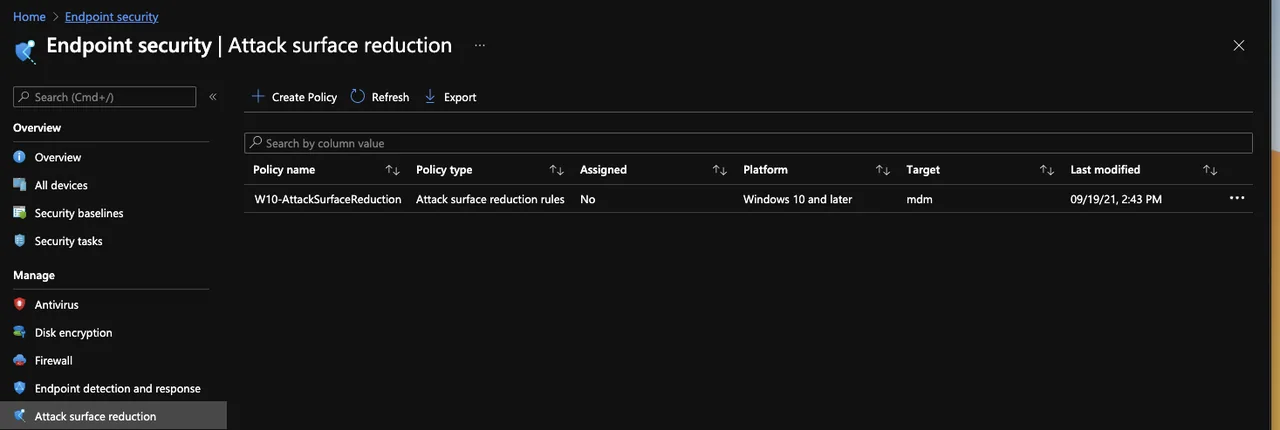
Attack surface reduction
ASR policies are mitigation options for known attack surfaces. As of today, there are 6 different types of policies that can be created.
Device control
Here you can configure how to handle external devices. For example, entire Bluetooth devices can be deactivated.
Attack surface reduction rules
Here the creation of subprocesses for some tools can be blocked or the behavior of script executions can be adjusted or blocked completely.
App and browser isolation
The Application Guard can be activated here. This function allows you to run browser sessions in a temporary sandbox, thus preventing access to the host system.
Exploit protection
Here you can upload an XML with a set of exploit protection. This can be applied to individual apps or to the OS. How you can create this XML is explained the Microsoft documentation.
Web protection
With this function, you can enable the Microsoft Defender web content filter or, for example, block the download of unverified files. You can also activate SmartScreen, which has a blocklist of malicious URLs that you must confirm before accessing the page.
Application control
Here you can configure the AppLocker application control. With AppLocker you can e.g. block only the execution of certain software. You can also configure the Windows SmartScreen here.
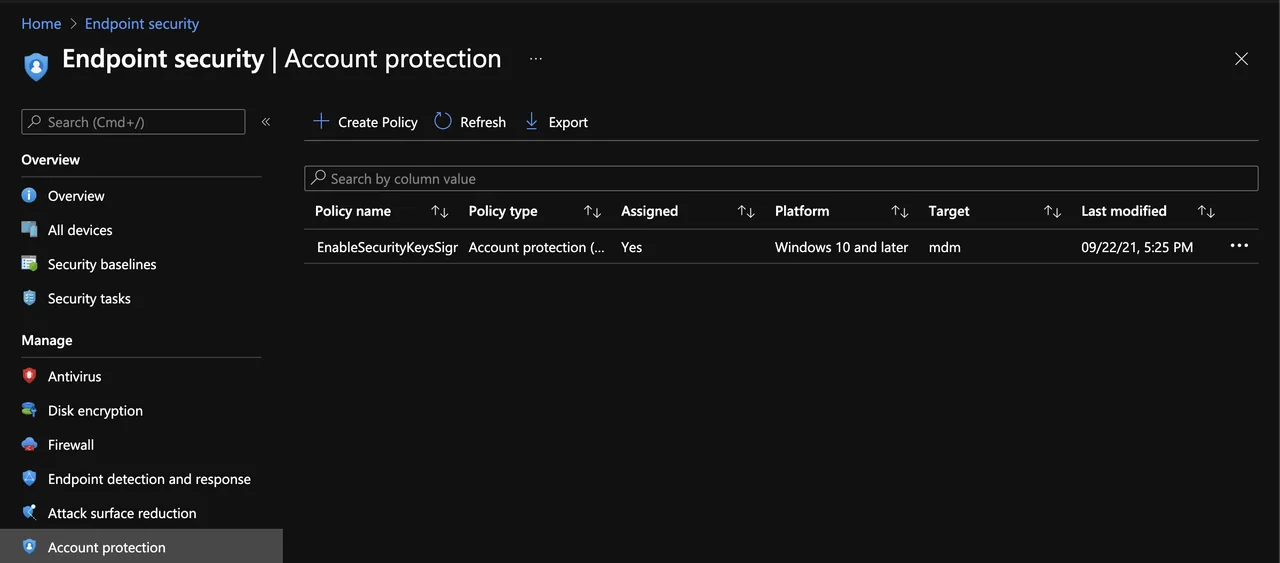
Account protection
This Endpoint Security feature is a preview feature. Here is a second place where you can configure Windows Hello for Business. The login with security keys and Credential Guard can also be activated in this menu. Windows Defender Credential Guard can be used to additionally secure credentials under Windows 10 and protect them from attacks.
Device compliance
Compliance policies are an essential part of Endpoint Security and can ensure the security of devices and the protection of corporate data. With the help of this policy, devices can be marked as compliant or not compliant. These are rules that define what a device must comply with, such as BitLocker encryption, a minimum OS version, etc.
This device status can be used for conditional access.
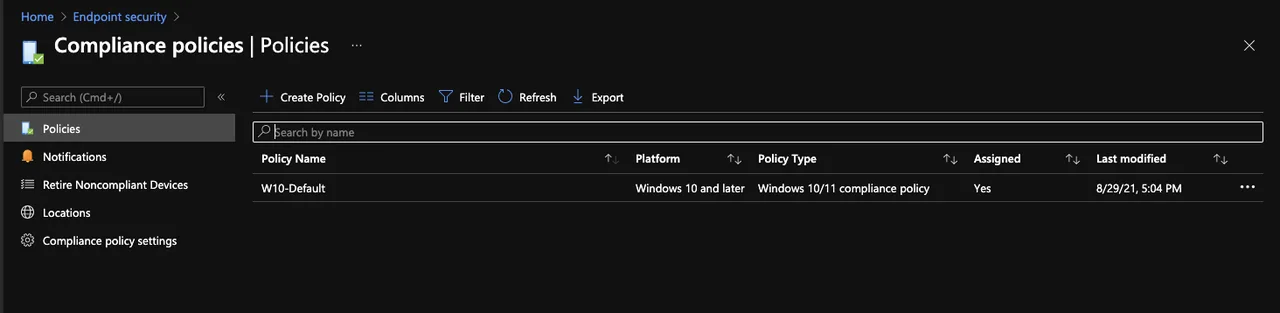
The device-management part of this series explains the compliance policy menus.
Conditional access
Conditional access extends your Endpoint Security posture, as access policies are definitions/instructions that a user or device must meet in order to access certain resources. For example, if you need to access certain data, a prerequisite may be that your device must be compliant.
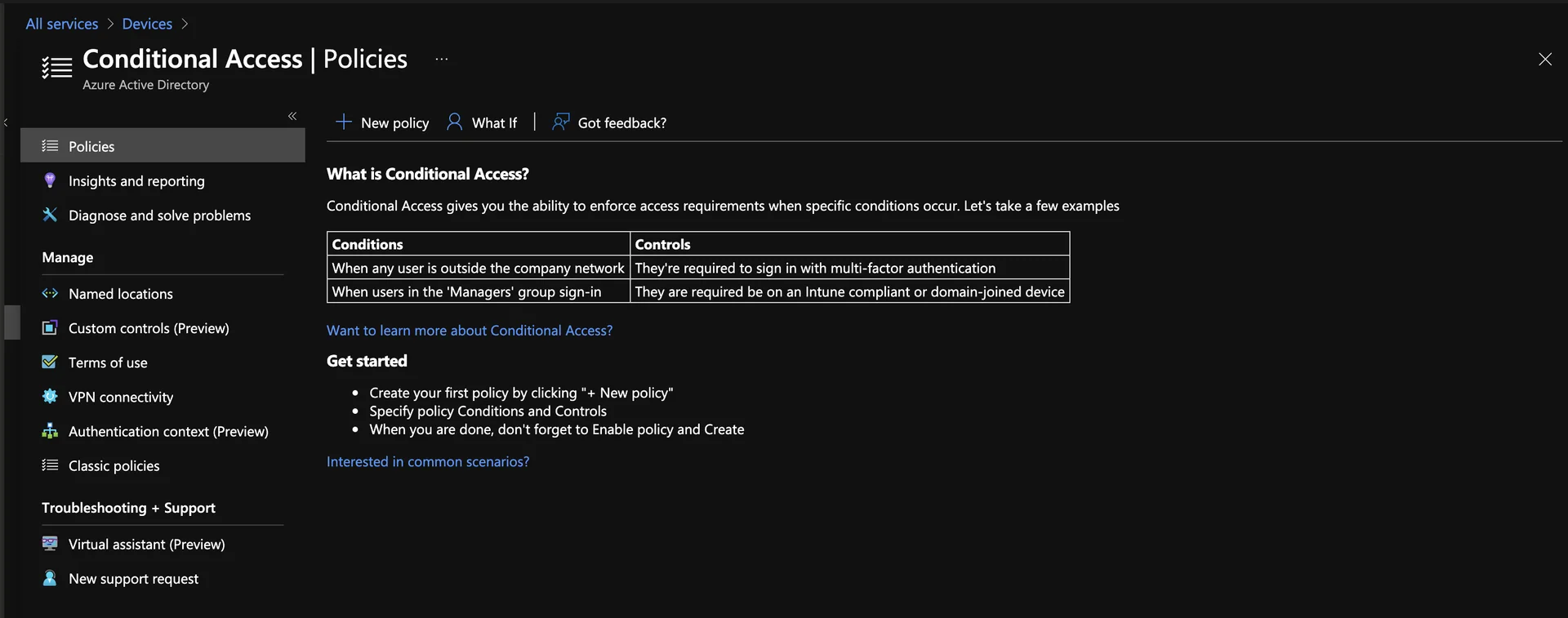
See the Conditional Access menu reference in the device-management article. It covers policies, reporting, locations, controls and support.
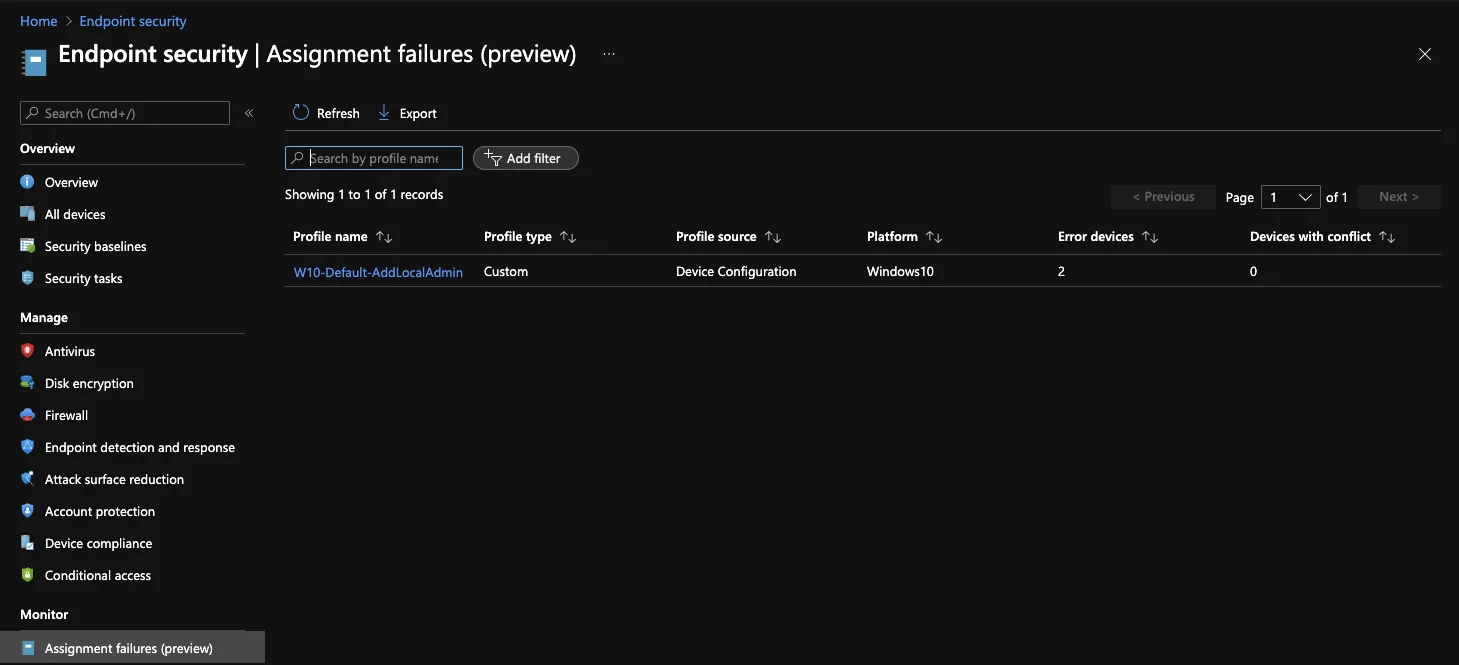
Assignment failures
Policies for which the assignment failed are displayed here. This can be a security risk if certain policies do not take effect on devices.
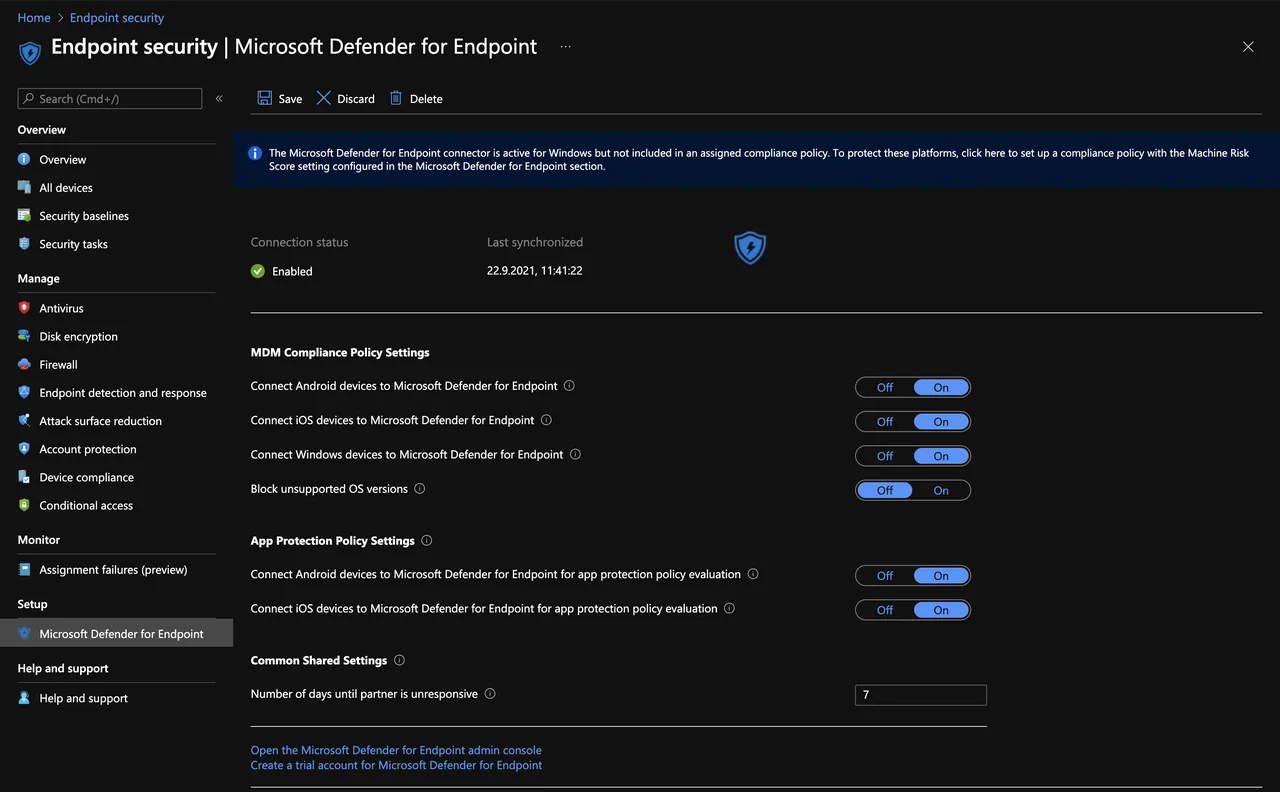
Microsoft Defender for Endpoint
In this menu you can enable Microsoft Defender for Endpoint, the heart of Endpoint Security, and connect it to Intune. Additionally you have here the possibility to provide the machine risk score for compliance policies. You will also find a reporting on how many devices Defender is installed on.
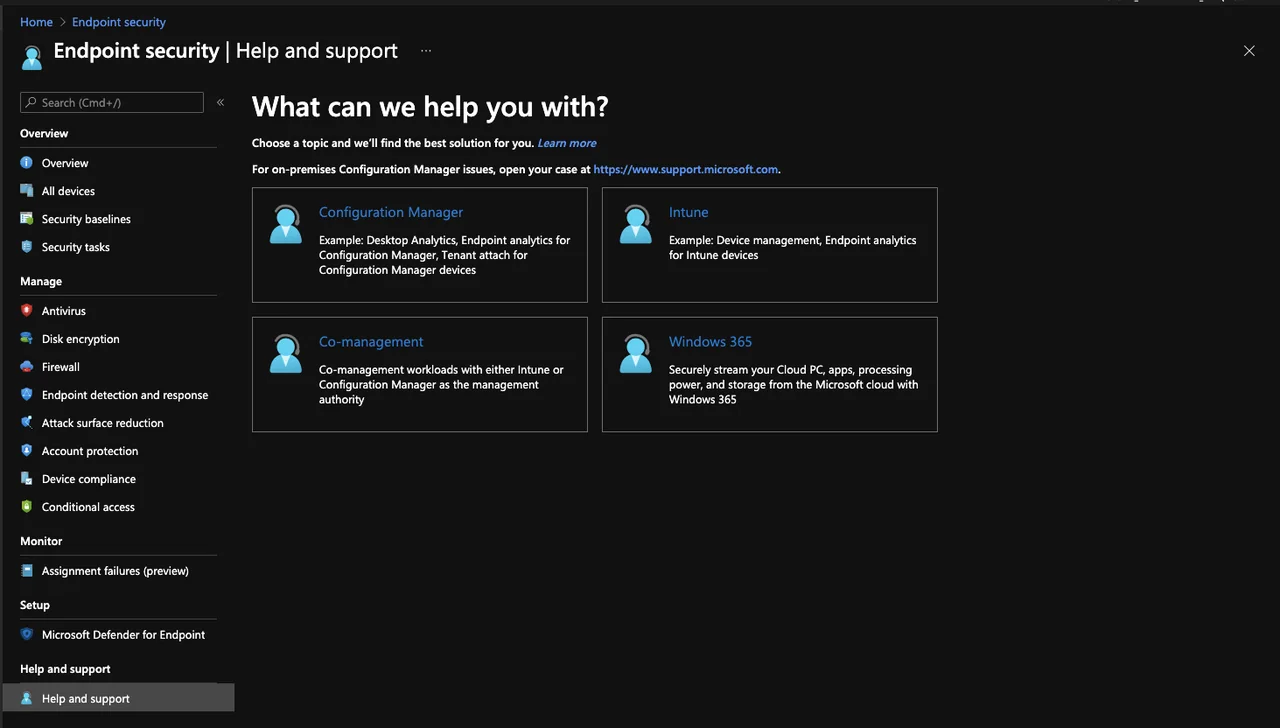
Help and support
For ticket creation and existing support cases, use the Help and support reference in the device-management chapter.
Microsoft has seen strong growth in its security business and continues to invest heavily in this area. This can also be seen in Intune. There are countless Endpoint Security features to increase the security in your company. Here we can also expect many new features in the future.
See you in the next part of this series.
Until then:
Stay healthy, Cheers
Jannik