
Build a No-Code Intune Copilot in Azure OpenAI Studio
Want an Intune Copilot without writing code? Follow this easy, step-by-step Azure OpenAI Studio guide to ground a smart chatbot on your Intune data.
This post walks you through how to build a no-code Intune Copilot in Azure OpenAI Studio — using only the Azure portal, your Intune tenant, and a Microsoft Graph app registration. By the end you will have a working chat interface grounded on Intune device data, deployable to Teams or as a custom web app.
The simplest approach to deploying a chatbot is to do so without any coding. If you want to take this idea further into a more advanced agent scenario, you can also check out how to build a Microsoft Intune AI Agent with Foundry. This is precisely what I aim to demonstrate. Such a chatbot can be tailored to utilize your custom documentation, knowledge articles, or any other resources you wish to integrate. This method simplifies the process, making it accessible even if you’re not well-versed in programming. By leveraging existing documents and knowledge bases, you can create a chatbot that is both informative and aligned with your specific needs and content.
Concept
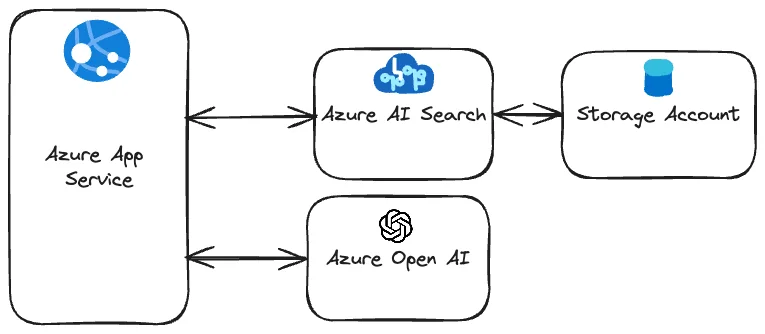
The deployment involves setting up a dedicated web page featuring a chat interface. This interface interacts with Azure AI Search, fetching content from your custom documents. The interface then seamlessly combines this content with user queries before forwarding them to Azure OpenAI services.
Setting Up the Intune Copilot Chatbot
Prerequisites
To initiate our first Chatbot Co-Pilot, certain prerequisites are necessary:
– Azure Blob Storage Account: For storing the documents.
– Azure AI Search Instance: To enable content retrieval and indexing.
– Azure OpenAI Account: For accessing the language models.
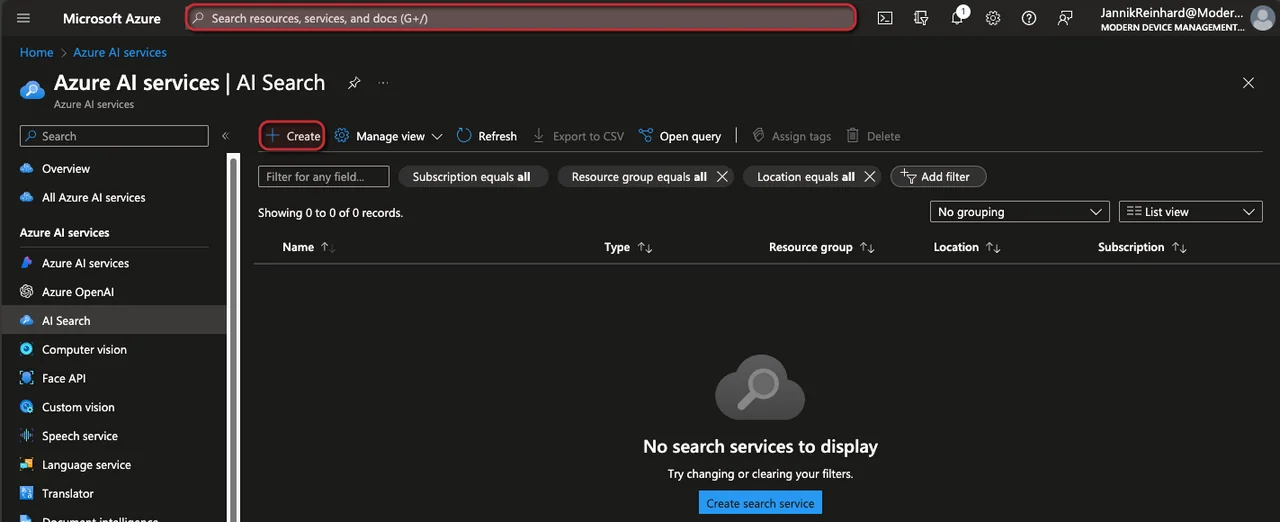
To set up Azure AI Search, follow these steps:
- Open the Azure Portal
- Search in the Search bar for Azure AI Search
- Click + Create
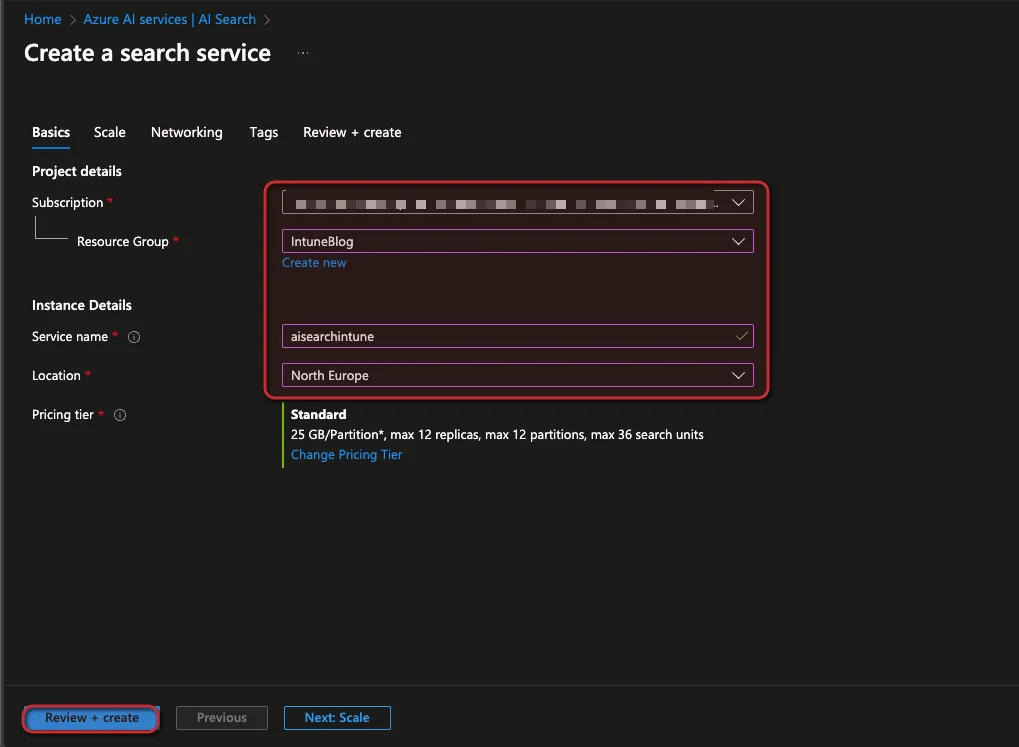
- Select the Subscription and Resource group, then enter a name and a location
- Click Review + create
Preparation
Before we wire up the Intune Copilot, we have to do some preparation steps. To do this, open the Azure AI Search service and select a Semantic ranker plan:
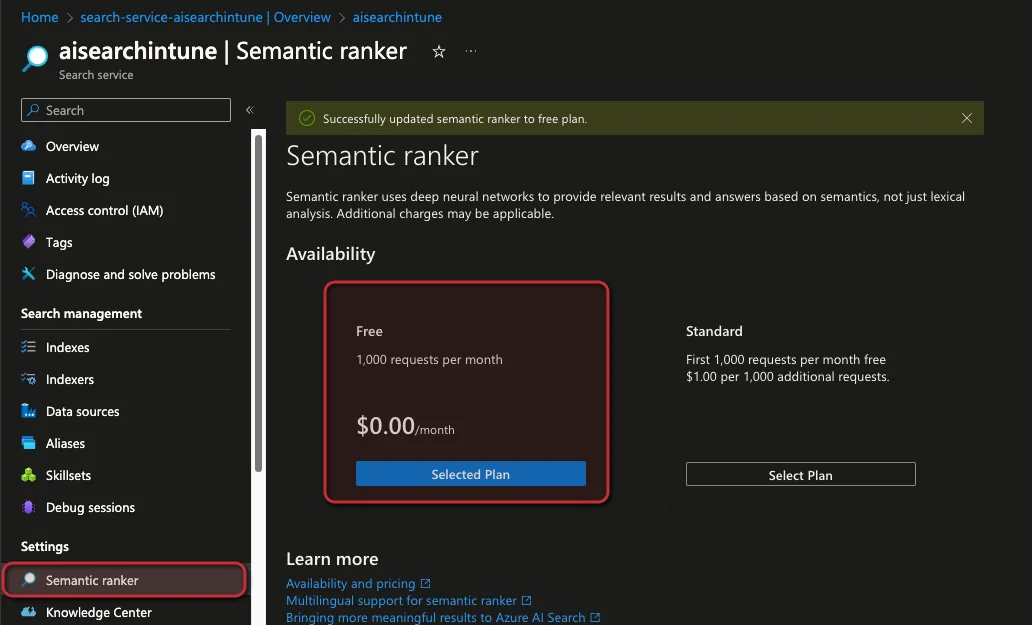
- After this, we can store our documents in a blob account. But before we can upload them, we need a container:
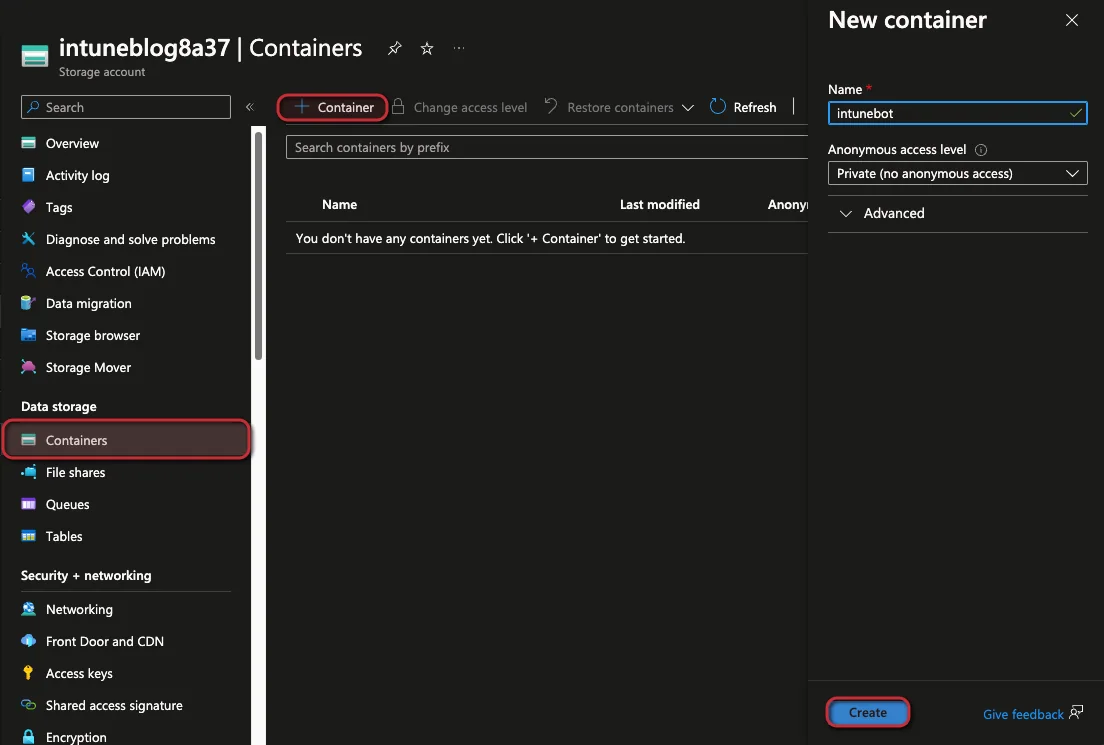
- Once the container is created you can upload the documents into this container
Setting up the chatbot
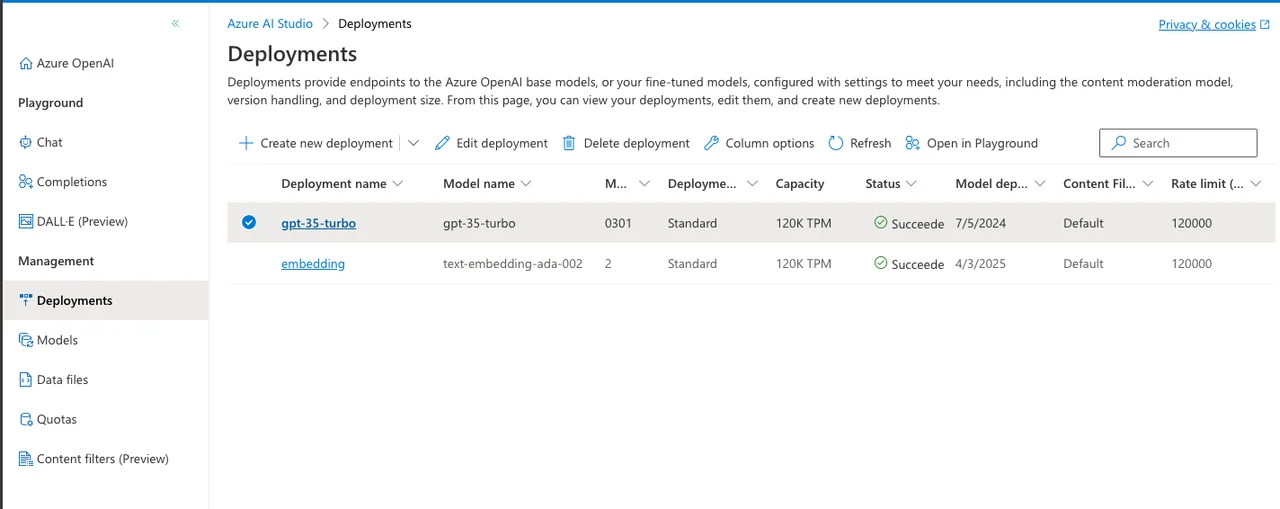
Open Azure OpenAI Studio and create a deployment of gpt-35-turbo and text-embedding-ada
- Go to the Chat section
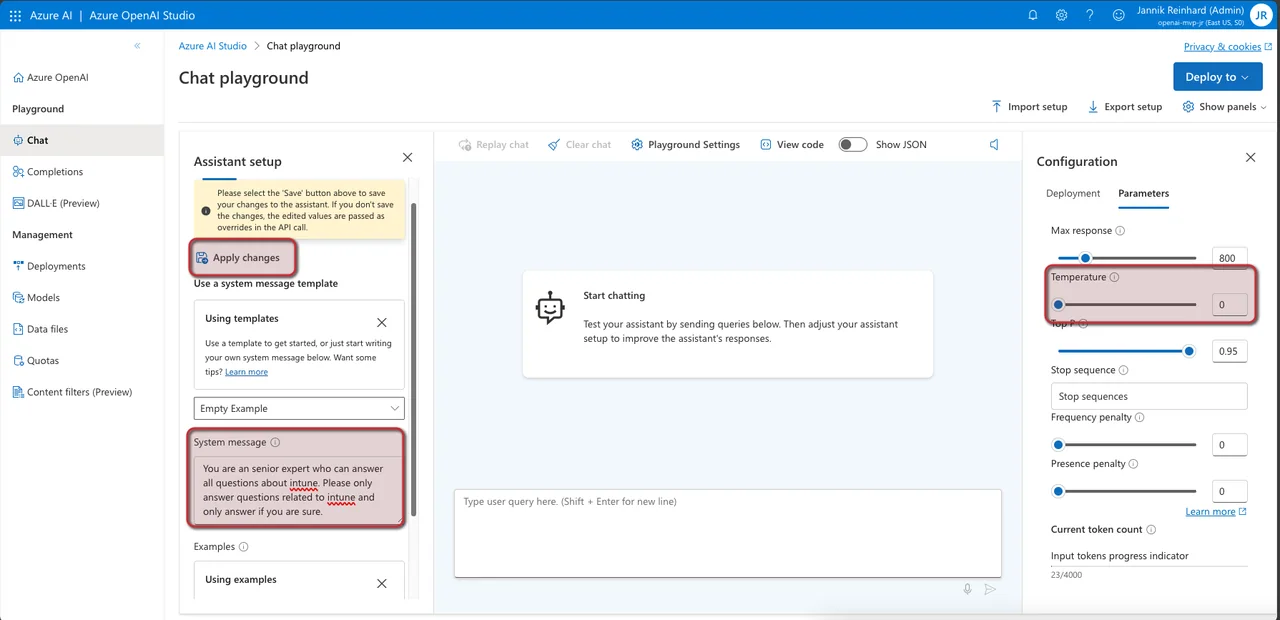
- The first step is to define a system message to instruct the chatbot what it is and what it should do. My example was (“You are a senior expert who can answer all questions about Intune. Please only answer questions related to Intune, and only answer if you are sure.”). Once this is done, click Apply changes.
- I changed the temperature to 0 to make sure that we have as little hallucination as possible
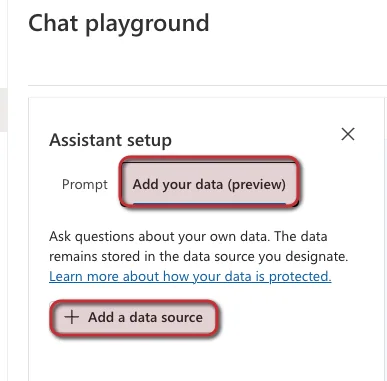
- Change the section to “Add your data” and click on + Add a data source
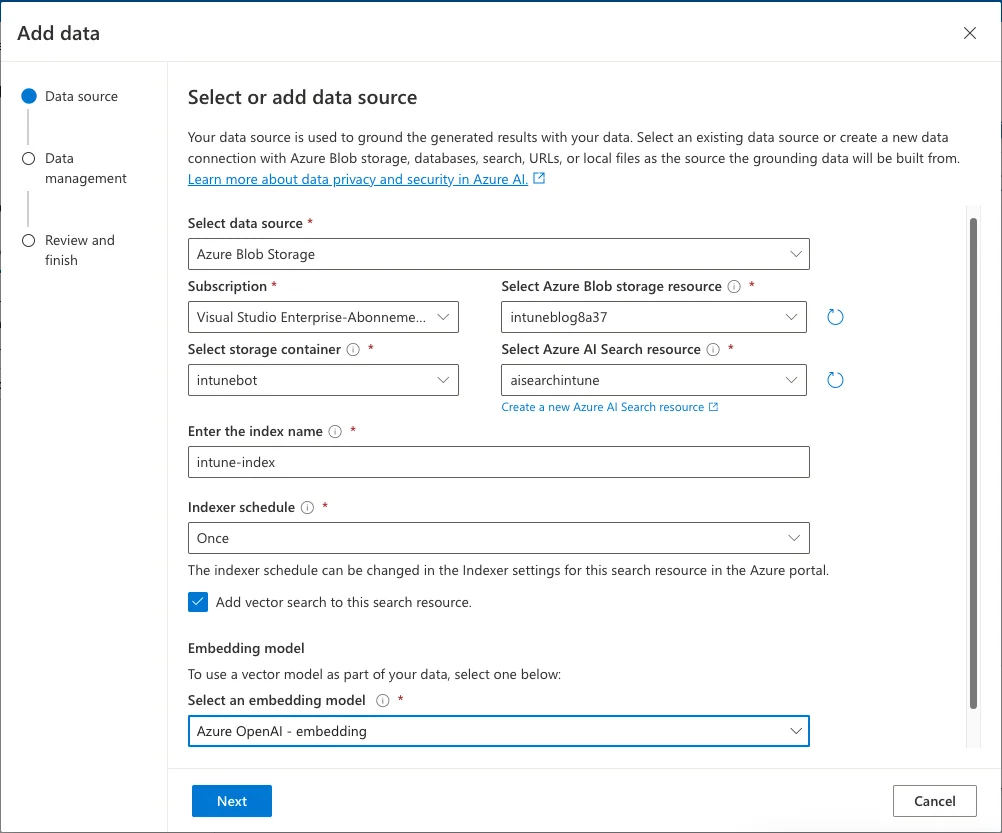
Now we have to configure the connection to the Blob and Azure AI Search. To do this, select Azure Blob Storage as the data source. After this, you have to select the subscription where your blob and your AI Search are located. Next, you have to enter a name for the index and select a schedule. In my case, I do not update the documents regularly, so it is sufficient to create the index once. To get better results, we also activate the Add vector search to this search resource flag and select our embedding model. When all these configurations are done, you can click Next.
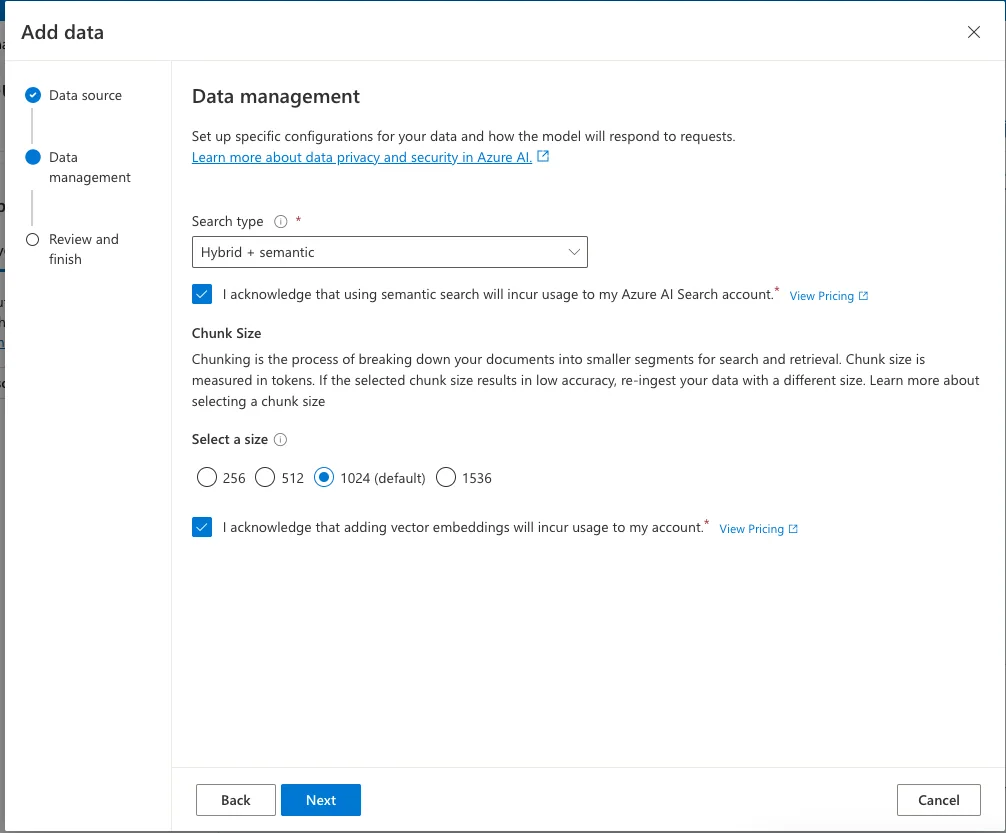
In the next window, we have to check the I acknowledge that using semantic search will incur usage to my Azure AI Search account and we have to select the chunk size. Thisis the process of breaking down large pieces of text into smaller segments. I selected the default settings here and checked the I acknowledge that adding vector embeddings will incur usage to my account. Click Next.
- Click Save and Close. The configuration can take some seconds.
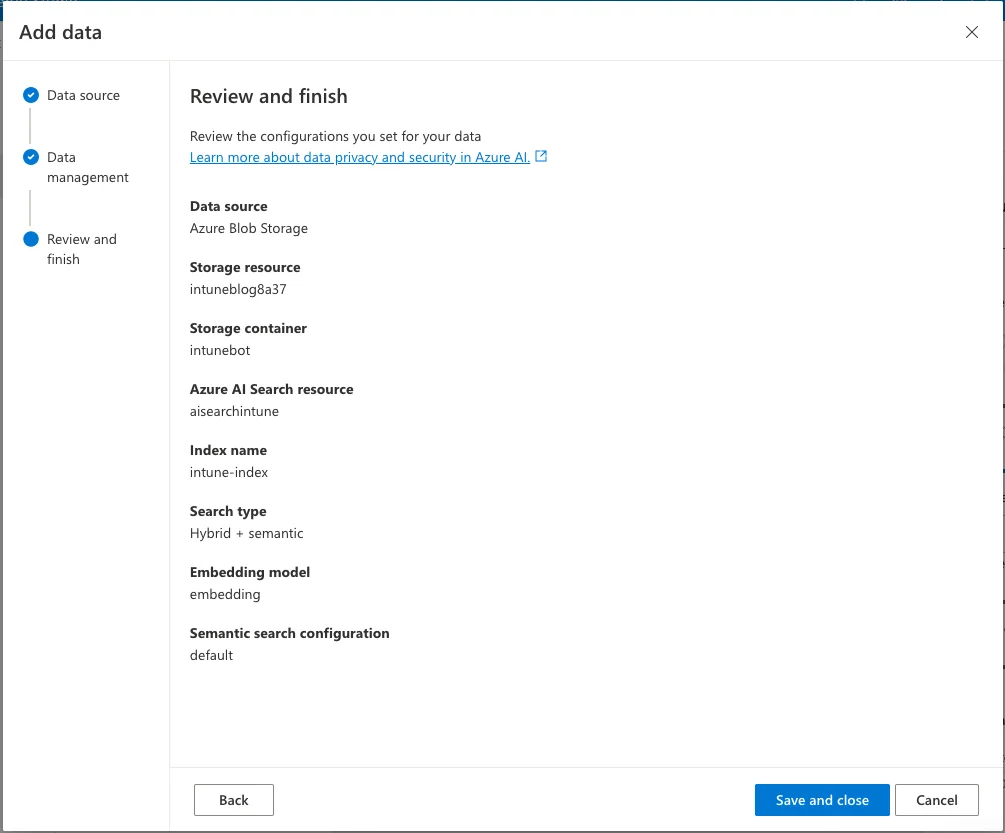
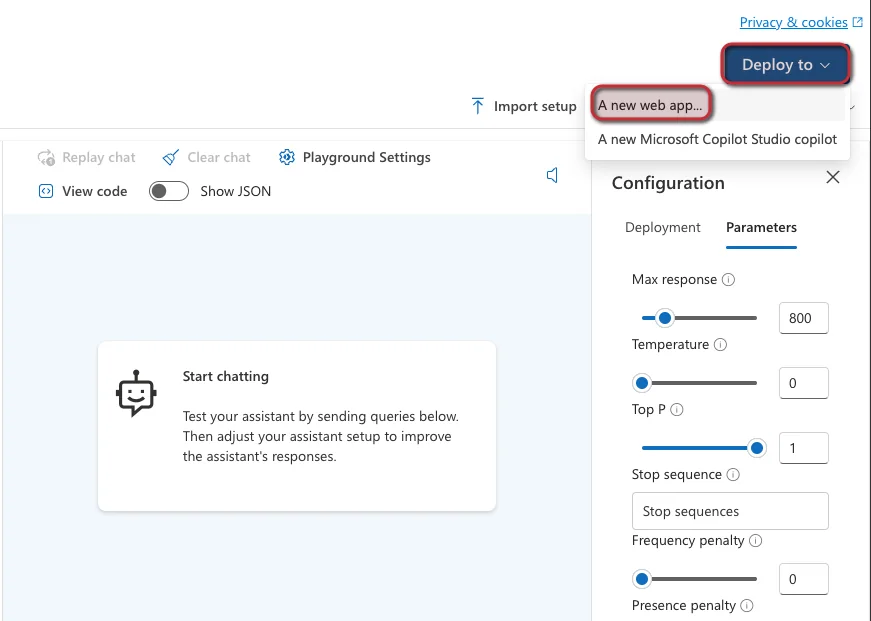
Now the integration with the search is also set up. The only thing we have to do now is deploy the webpage. Here, too, we have a very nice wizard that guides us through the whole deployment process.
Click here on Deploy and select “A new web app…“.
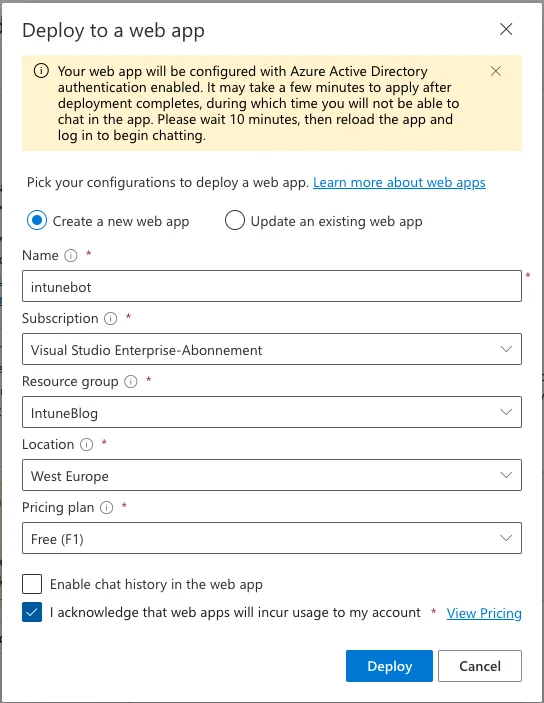
Now we have to select the subscription and resource group where the app service should be deployed, and we have to enter a name for the app. This name will later also be part of the URL. When you use Free as the pricing plan, you have no costs but also no SLAs for the web app. Then click Deploy.
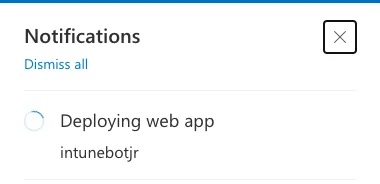
The deployment will take some minutes. Once the deployment is done you can open and test your bot.
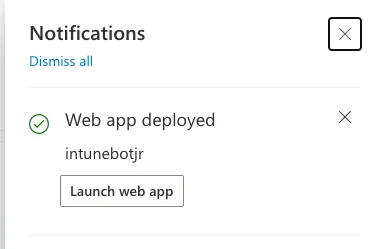
This is the default look and feel of your Intune Copilot. You can already use it to ask questions about your documents.
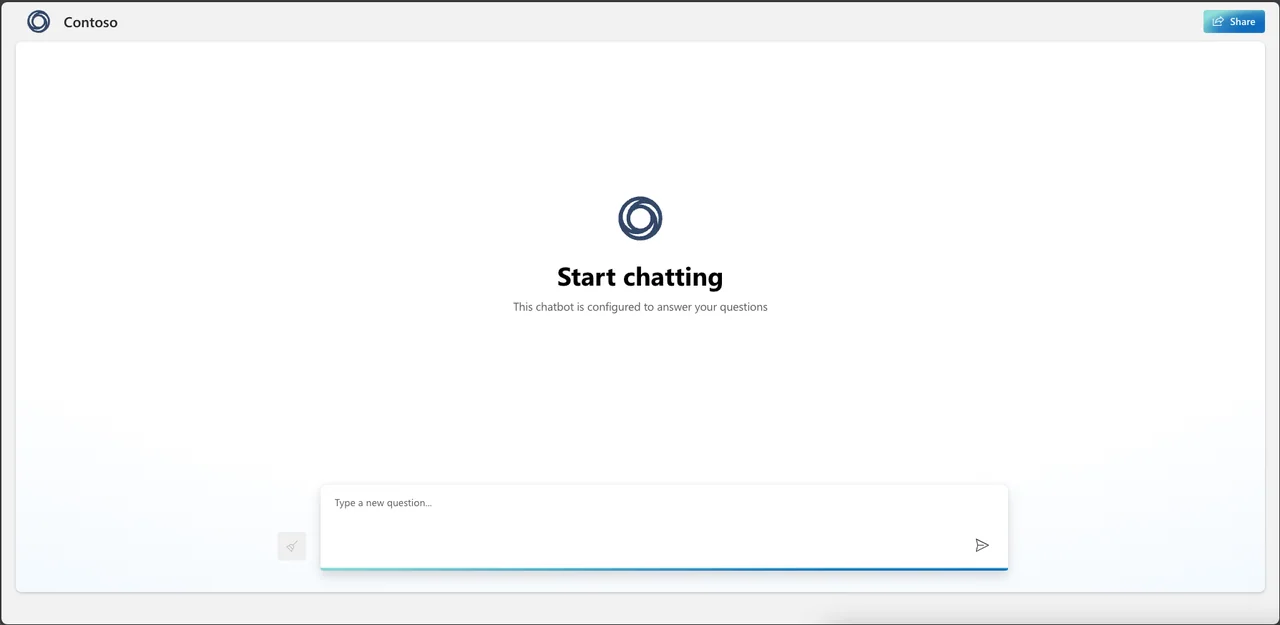
But let’s also have a quick look at how you can customize the look and feel of your Intune Copilot. For a deeper next step, check out how to build your custom GPT apps. For this you can clone this repository: the Microsoft sample app on GitHub, or read the official Azure OpenAI On Your Data quickstart on Microsoft Learn, and make the changes you want to do.
If you want to build another Copilot scenario, you might also like my guide on how to create your own Intune Co-Pilot using Copilot Studio.