
Automate Intune App Assignment Groups with Azure Runbooks
Automate the creation of Intune application assignment groups with an Azure runbook. Review the script, identity and group-naming choices before deployment.

Automatic assignment groups are useful when app deployment should stay consistent without manually creating a new Microsoft Entra group every time an Intune app is added. The pattern works best when group names, app names, and assignment intent follow the same convention.
In production tenants I recommend validating the assignment groups flow with one pilot application first. Check the created assignment groups, verify the Intune assignment, and document the naming rule before you let automation build assignment groups for a larger application catalogue.
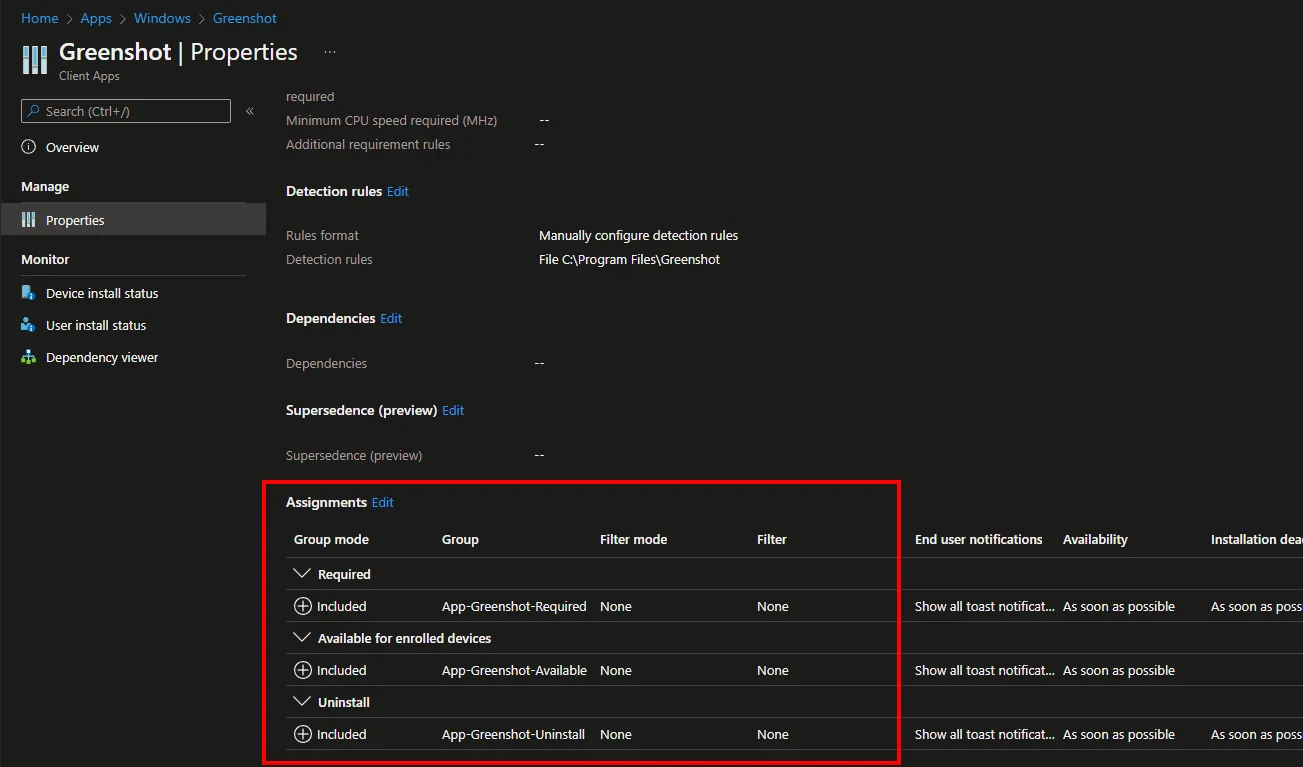
When creating a new app in the Intune admin center and not assigning it to AllUsers/AllDevices, this is always some work to create your own group for available/required and uninstall assignments for each app. You know I love automation. To save time and automate this work I will describe in this blog how you can create a runbook that takes this work completely over.
Create an App Registration
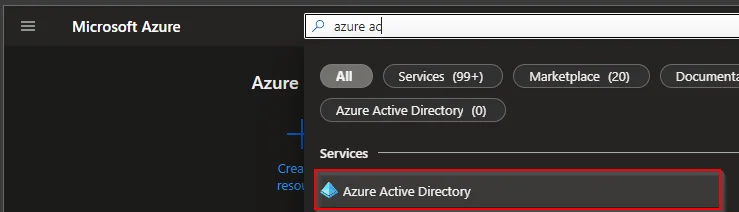
- Search for Microsoft Entra ID
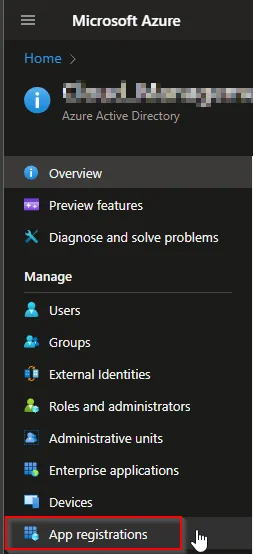
- Select App registration
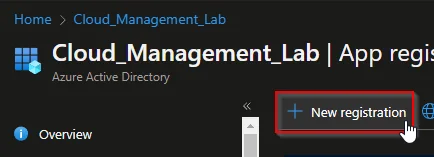
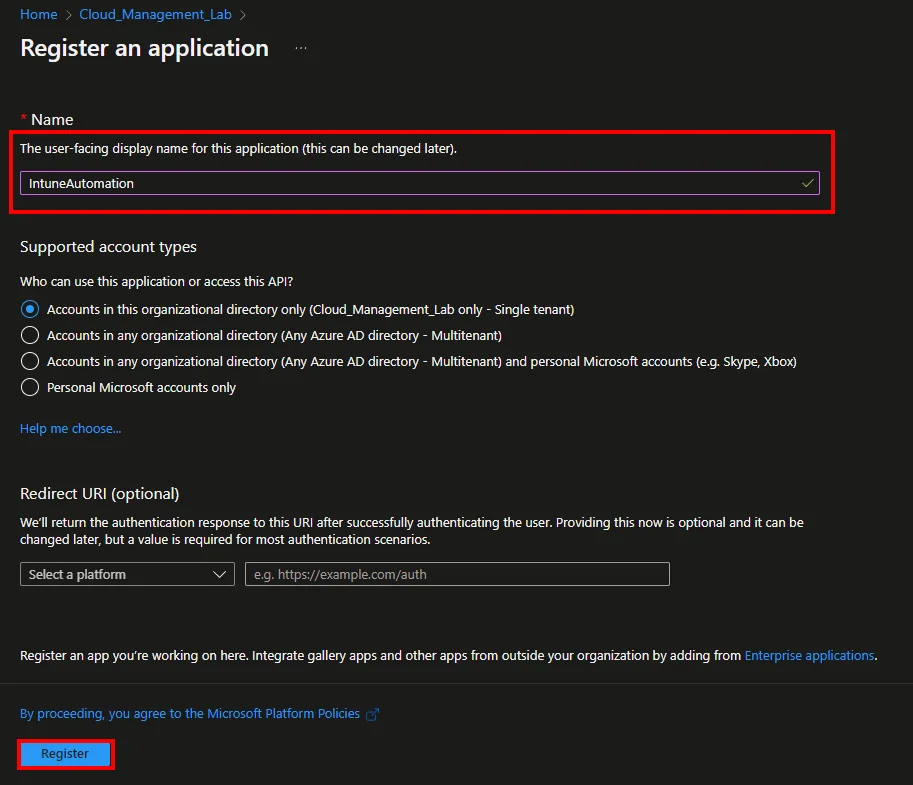
- Select +New registration
- Enter a Nameand click Register
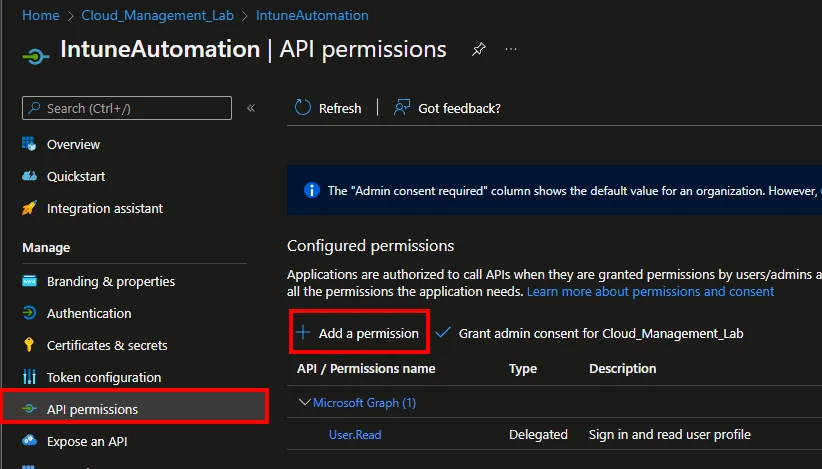
- Click API permissions and +Add a permission
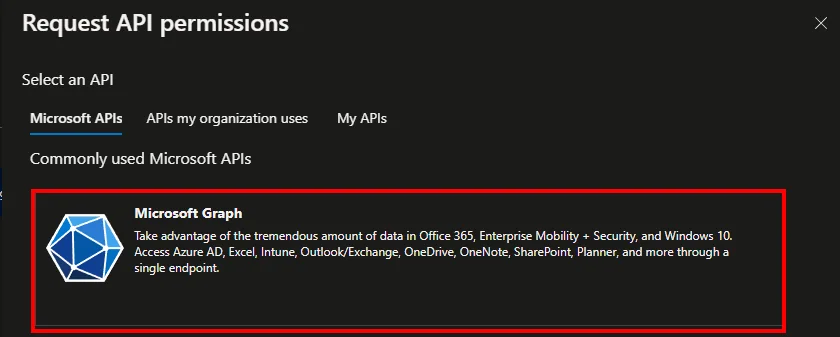
- Select Microsoft Graph
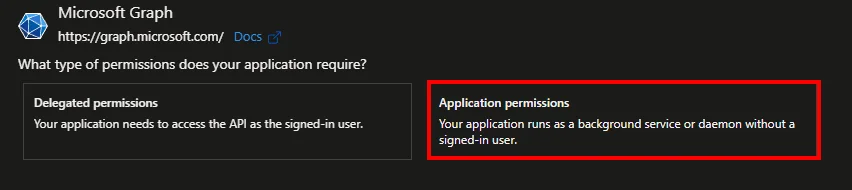
- Select Application permissions
- Search for DeviceManagementApps.ReadWrite.All and Group.Create
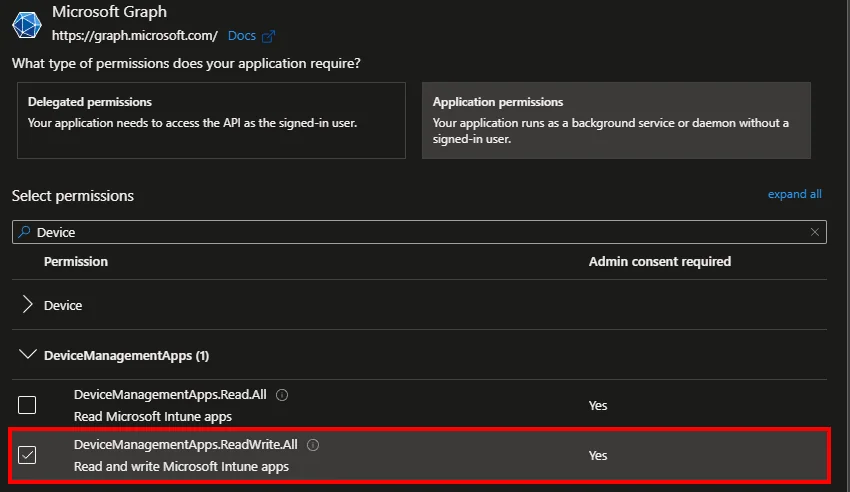
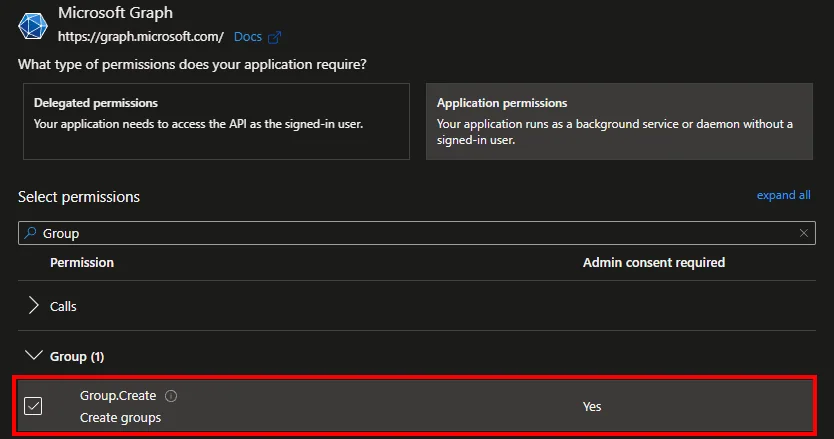
- Click Grant admin consent for *** and approve with Yes

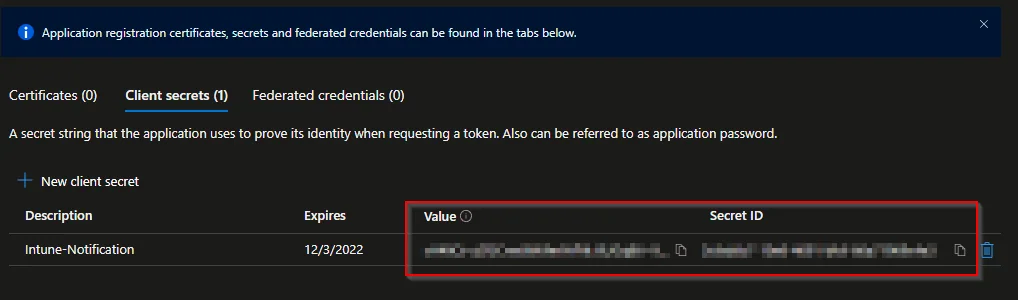
- Select Certificates & secrets and click +New client secret
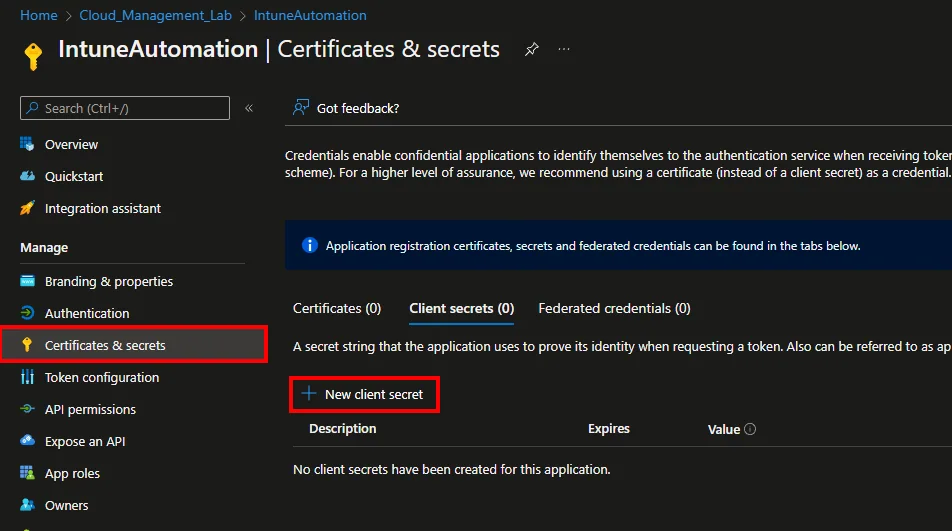
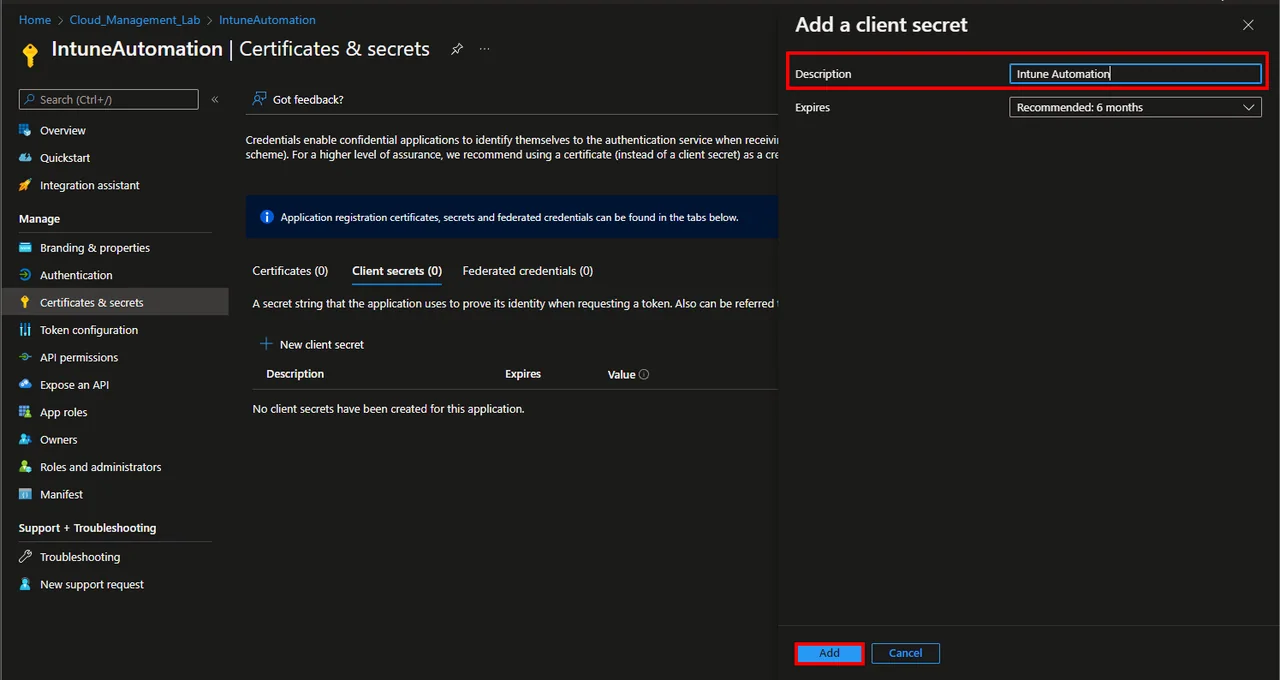
- Enter a Description and select a Expires time
- Click Add
- Copy and save the Value and the Secret ID
Create Automation Account
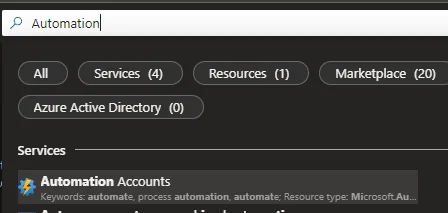
- Search for Automation Accounts
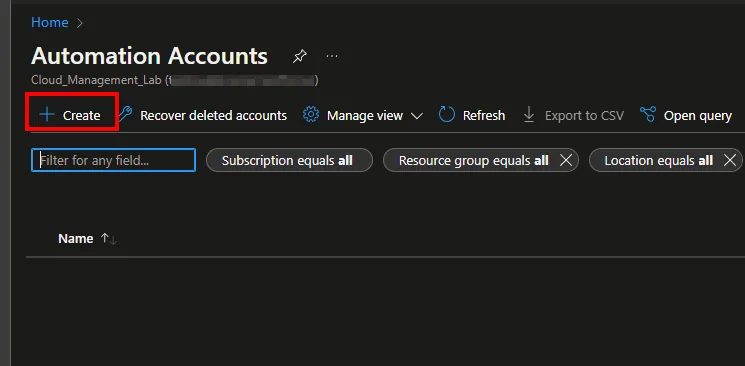
- Click + Create
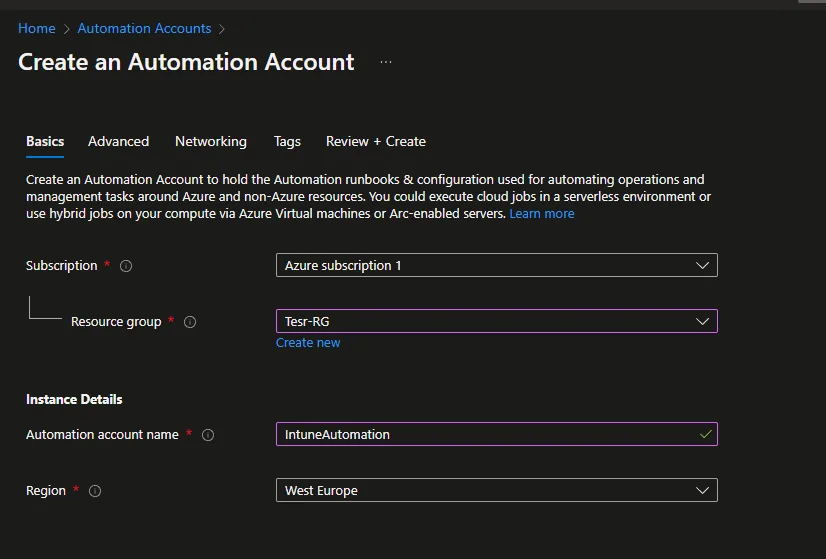
- Select a Subscription and a Resource group
- Enter an account name and select a Region
- Click Next
- Click Next
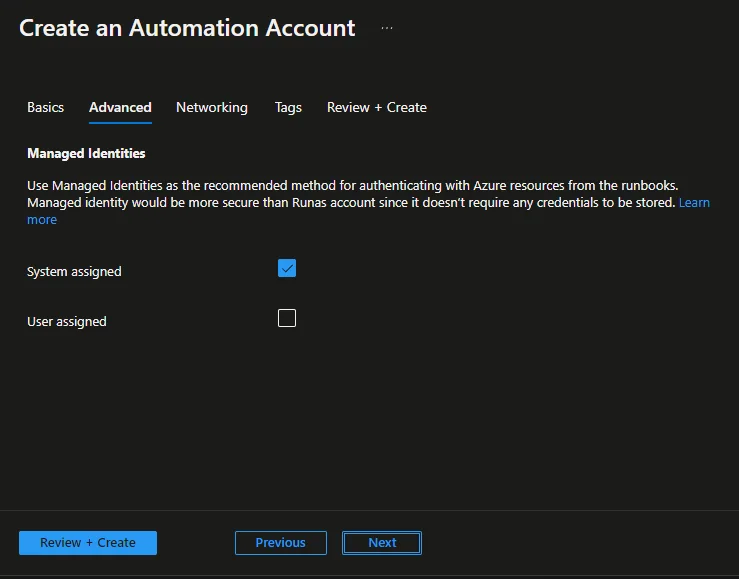
- Click Next -> Next -> Create
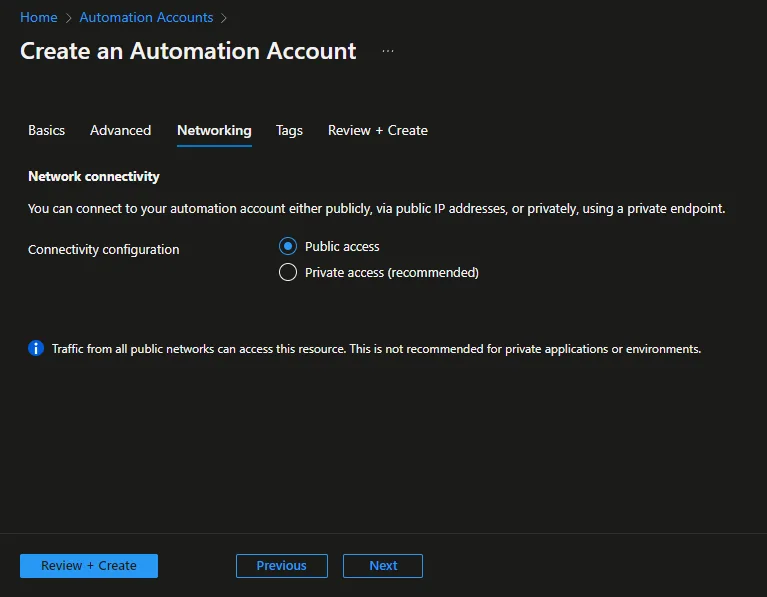
Create the Runbook for Assignment Groups
- Open the Automation Account
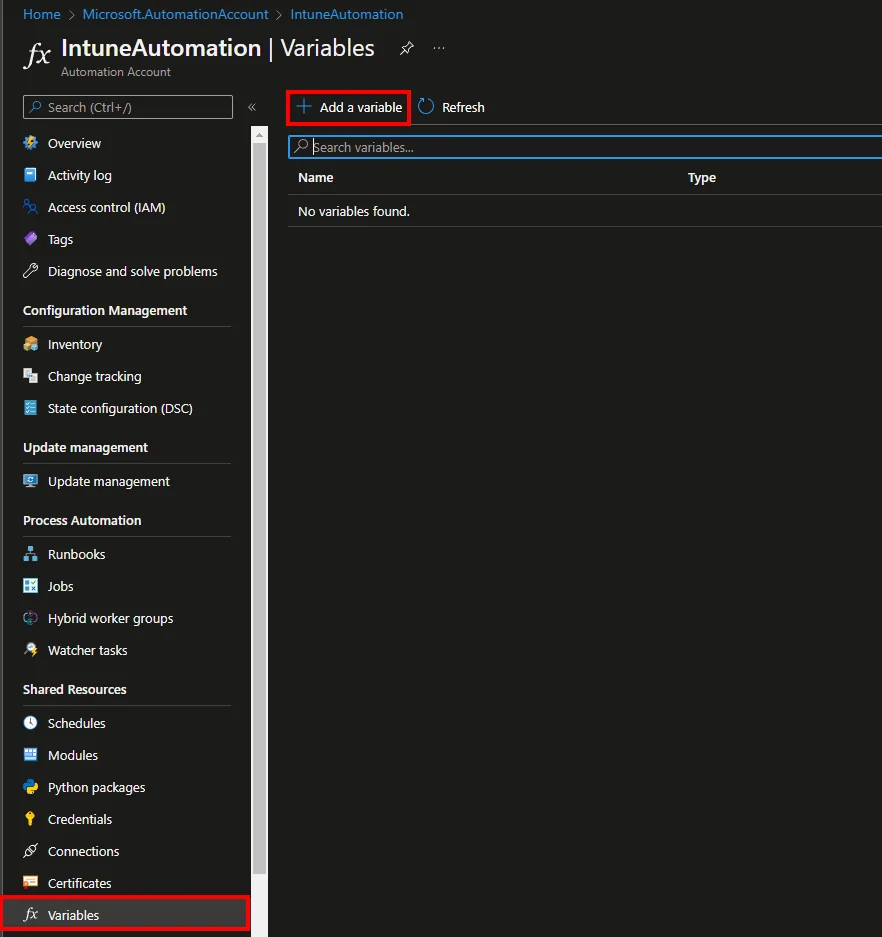
- Navigate to Variables and click + Add a variable
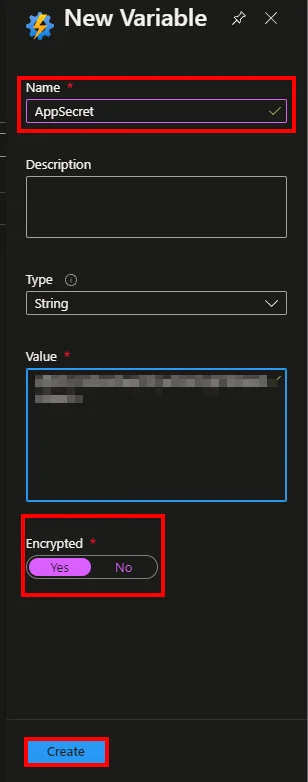
- Add the Secret Value and the App ID as Variable
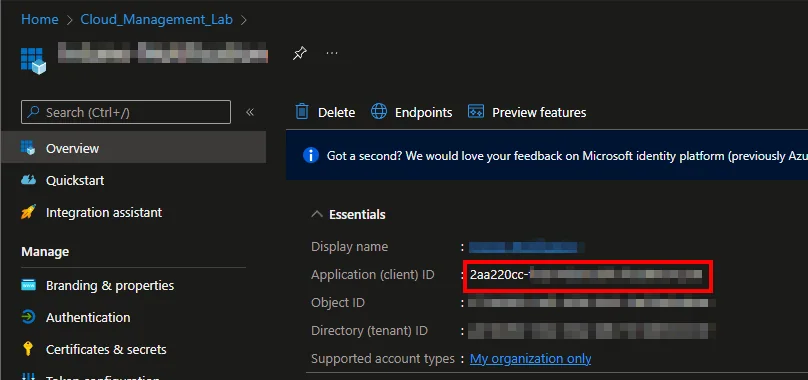
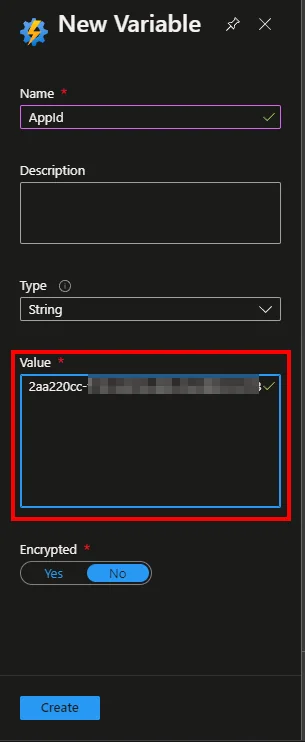
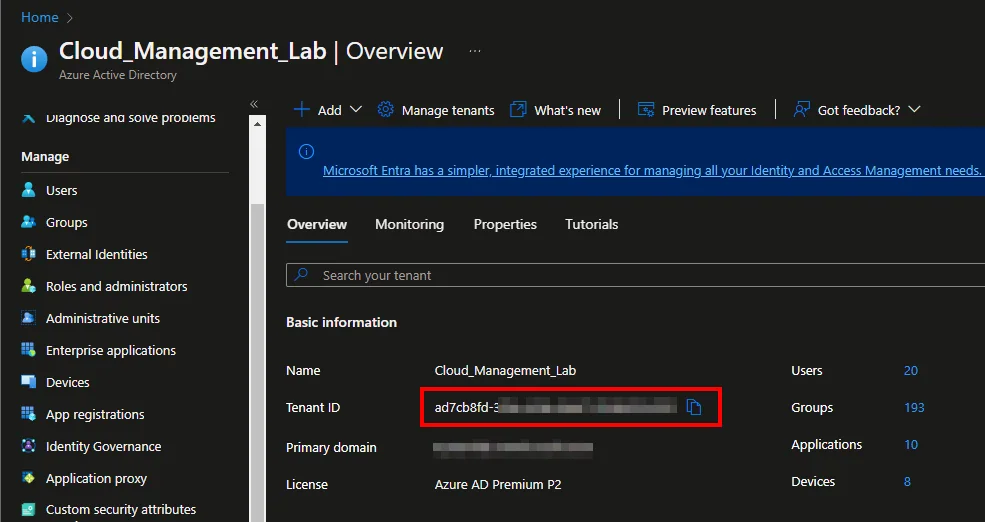
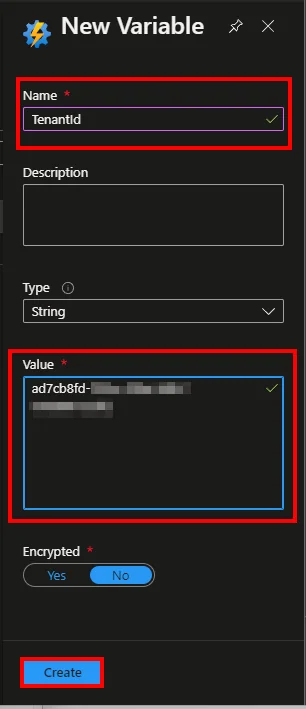
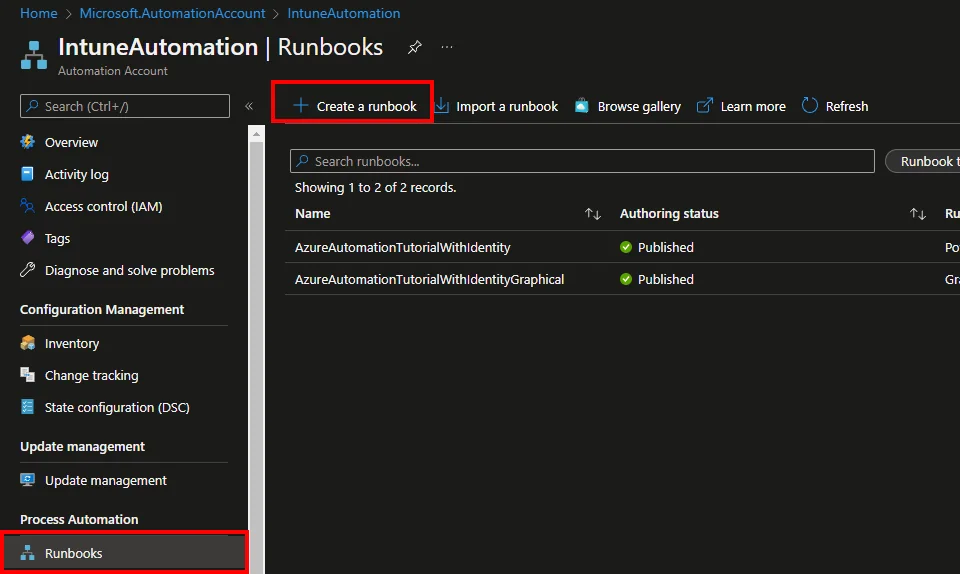
- Select Runbooks
- Click + Create a runbook
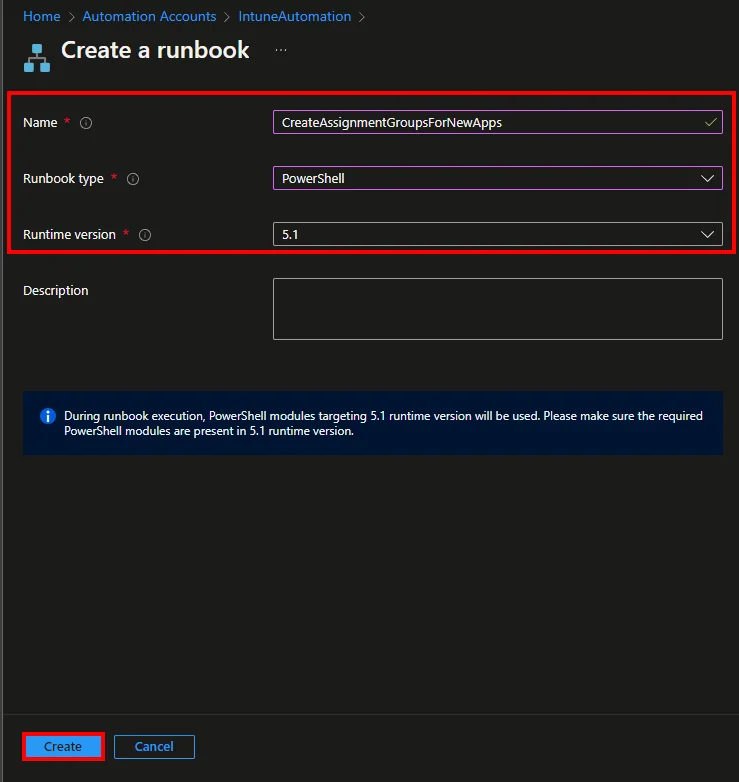
- Enter a Name
- Select PowerShell as Runbook type
- Select 5.1 as Runtime version
- Click Create
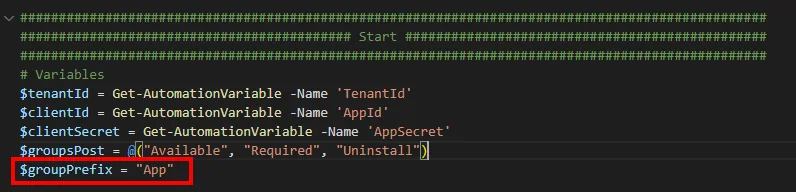
- Insert the Script from my Github repository
- Enter the group Prefix
- Save and test the script
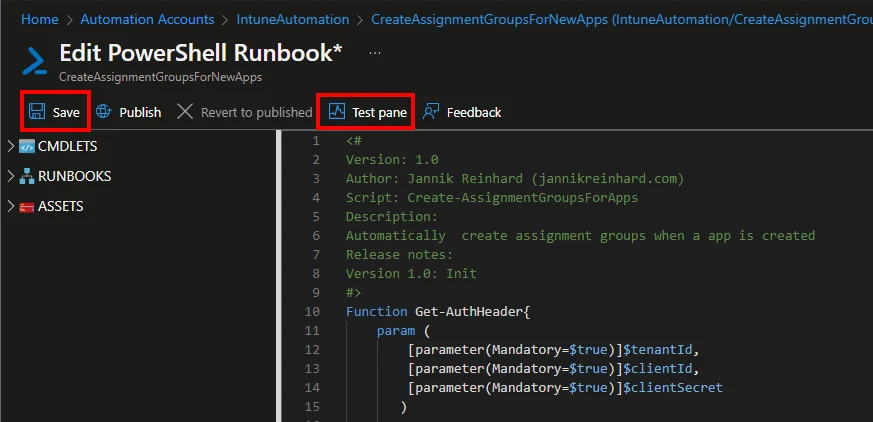
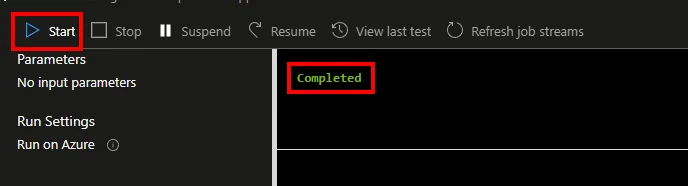
- Click Publish

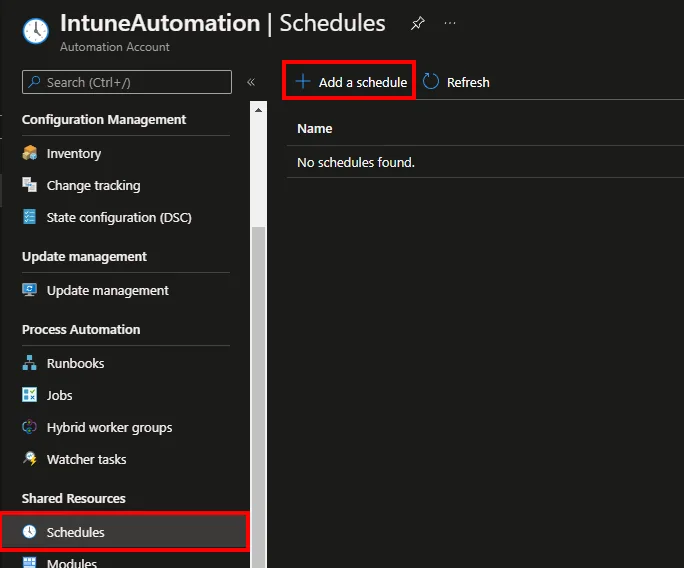
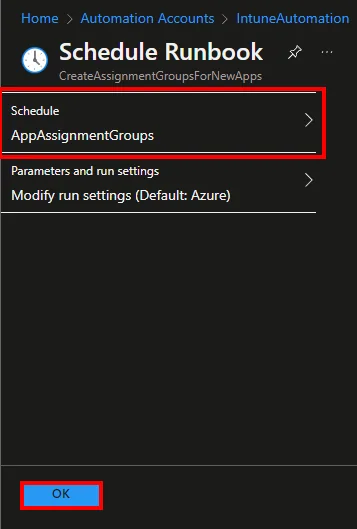
- Navigate to Schedules and click + Add a schedule
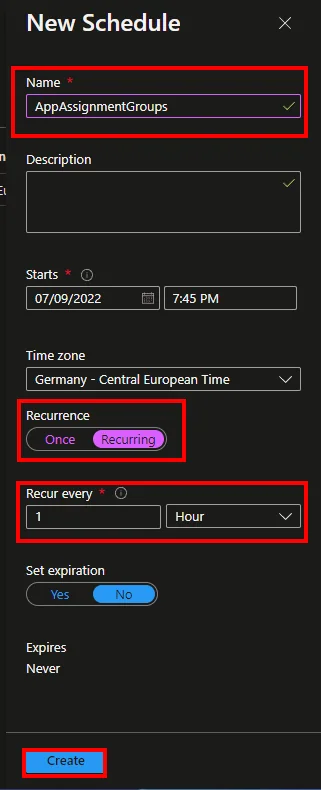
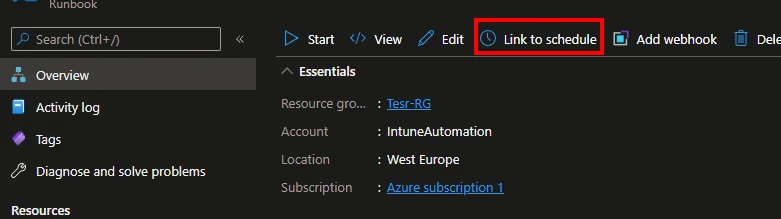
- Click Link to schedule and add the created schedule
Why this matters and common pitfalls
The real value of this approach shows up at scale. Once a tenant grows past a few dozen apps, manually creating an available, required, and uninstall group for every single application becomes a reliable source of typos, inconsistent naming, and forgotten assignments. By generating the groups from the app catalogue itself, you guarantee that every app follows the exact same convention, which makes later automation, reporting, and clean-up far easier.
A few pitfalls are worth calling out. First, the app registration needs both DeviceManagementApps.ReadWrite.All and Group.Create; if admin consent is missing, the runbook will fail silently on the group creation step. Second, run the runbook on a schedule that matches how often you add apps, hourly is usually overkill and only adds noise to your audit logs, while once or twice a day is plenty for most teams. Finally, decide up front whether the created groups are security groups, because converting a group type later is not possible and you would have to recreate and reassign everything.
A practical tip: keep the group prefix short but descriptive, for example App- followed by the application name and the intent, so a quick glance at Entra ID tells you exactly what each group does. Pair that with a dynamic membership rule or a Power Automate flow and you have a fully hands-off pipeline from new app to populated assignment group.
Conclusion
I think this automation around assignment groups can save a lot of work in everyday life if not every app is automatically made available to everyone but this is done via manual assignments, you have saved the entire work of creating the associated assignment groups. With Power Automate, you have countless possibilities to extend this for example, to fill these groups with devices or users based on CMDB data, or what is also possible is that for each app you can also attach AllUsers/AllDevices as available.
The script can of course be adapted as required to change for example, the group name composition. If you want to dig deeper into the underlying APIs, the official Microsoft Graph group documentation is a great reference.
For more ideas around app handling, check out Easy and Effective App Management in Intune. For the latest iteration, have a look at my new version of the Intune group assignment script.
Stay healthy, Cheers
Jannik