
Change Windows 11 Context Menu with Intune
Change Windows 11 Context Menu with Intune in minutes: a proven, step-by-step guide to restore the classic menu and make it reversible per user.
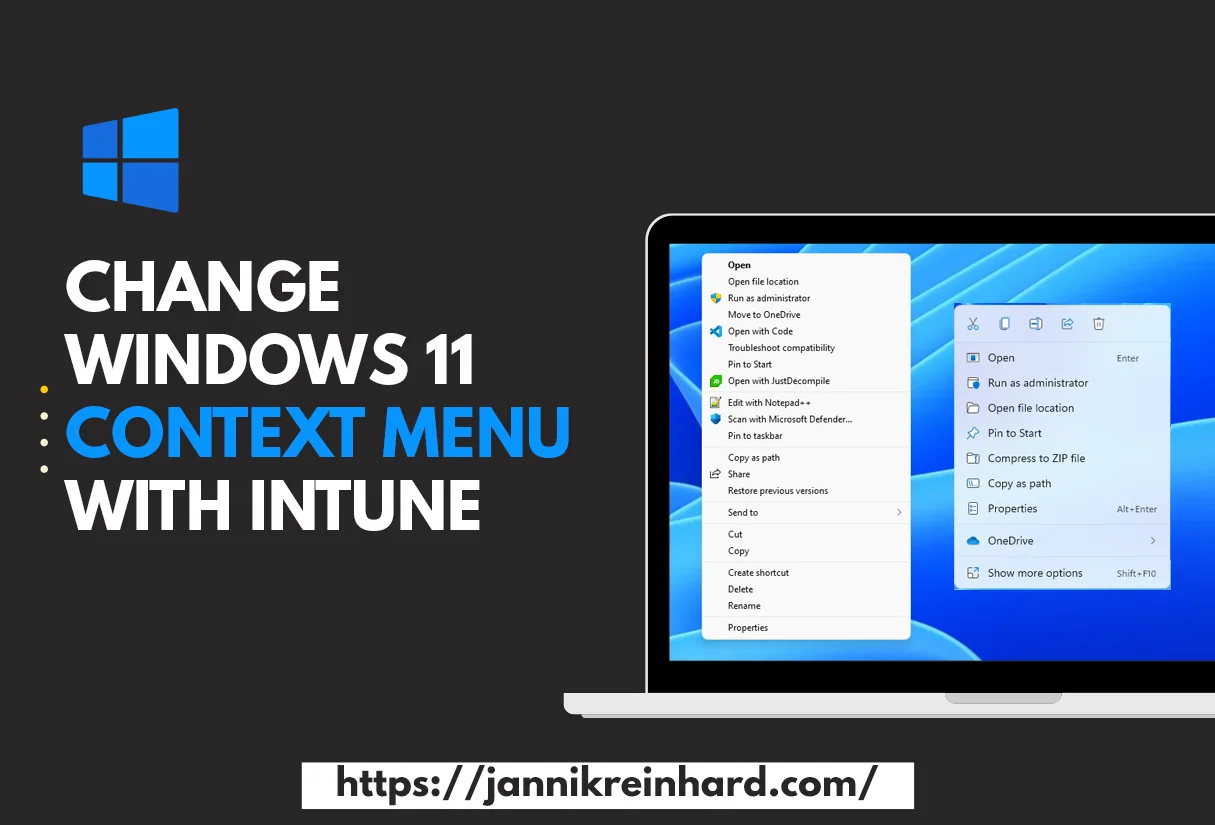
Want to Change Windows 11 Context Menu with Intune across your whole fleet? Windows 11’s redesigned right-click context menu has its fans and its detractors — some users love the cleaner default; others miss “Show more options” being a single click away. As an Intune admin you’ll get pulled into both camps, often by the same VIP. The good news is that the classic context-menu behaviour can be restored centrally with a single registry key, deployed cleanly through Intune via the Settings Catalog or a tiny PowerShell remediation. This post documents the registry tweak, the Intune deployment workflow, and how to make the change reversible per user.
Windows 11 has brought some changes to the Windows Explorer, including the way the context menu looks. By default, the context menu is reduced to the really necessary functions. This is sufficient for most users. However, if you often need functions that are not in the reduced view, then this can be a hindrance in the workflow. In this blog I want to show you how to get back the Windows 10 context menu with the help of Intune.
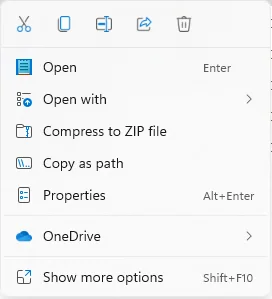
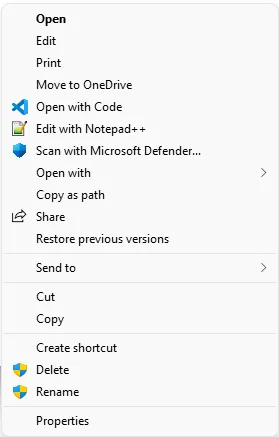
Why Change Windows 11 Context Menu with Intune
Before we get hands-on, it helps to understand why so many admins choose to Change Windows 11 Context Menu with Intune rather than letting each user fiddle with the registry on their own. The new menu hides commonly used commands behind the extra “Show more options” entry, which adds a click to everyday tasks like opening a file in a specific app or running a power-user shortcut. Multiply that by hundreds of devices and the lost time becomes real. By managing the setting centrally you keep every machine consistent, auditable, and easy to roll back — exactly what a managed environment should give you.
The mechanism behind the scenes is a single registry value under the current user’s CLSID blocker key. When that key exists, Windows Explorer falls back to the familiar Windows 10 layout. Because it lives in the user hive, the cleanest way to Change Windows 11 Context Menu with Intune is a script that runs in the logged-on user’s context, which is precisely the approach we use below.
How to change the Context menu
- Open the Intune admin center
- Navigate to Devices -> Scripts
- Click + ADD
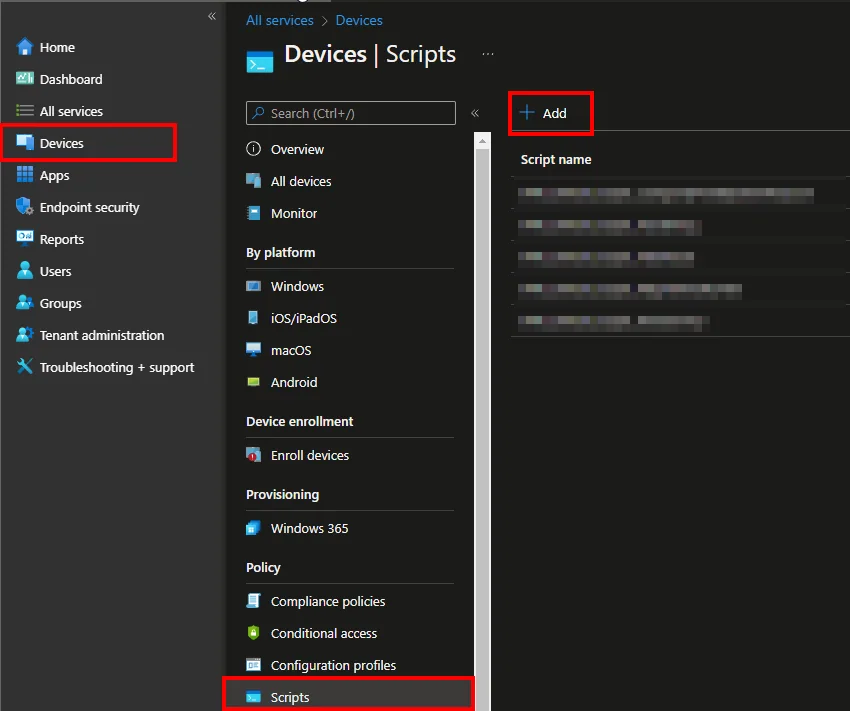
- Enter a Name
- Click Next
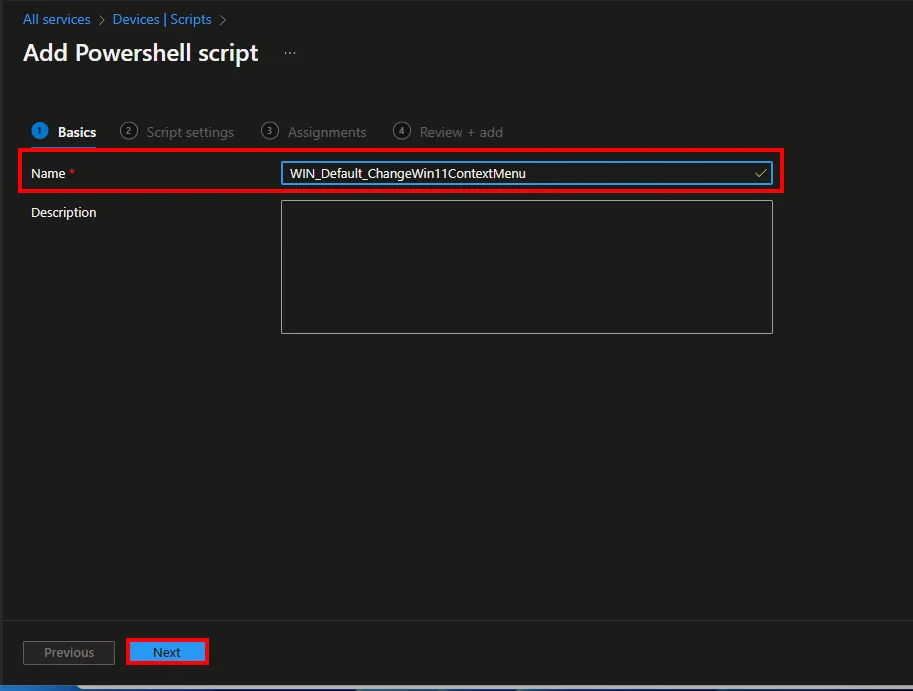
- Download the script from my GitHub repository
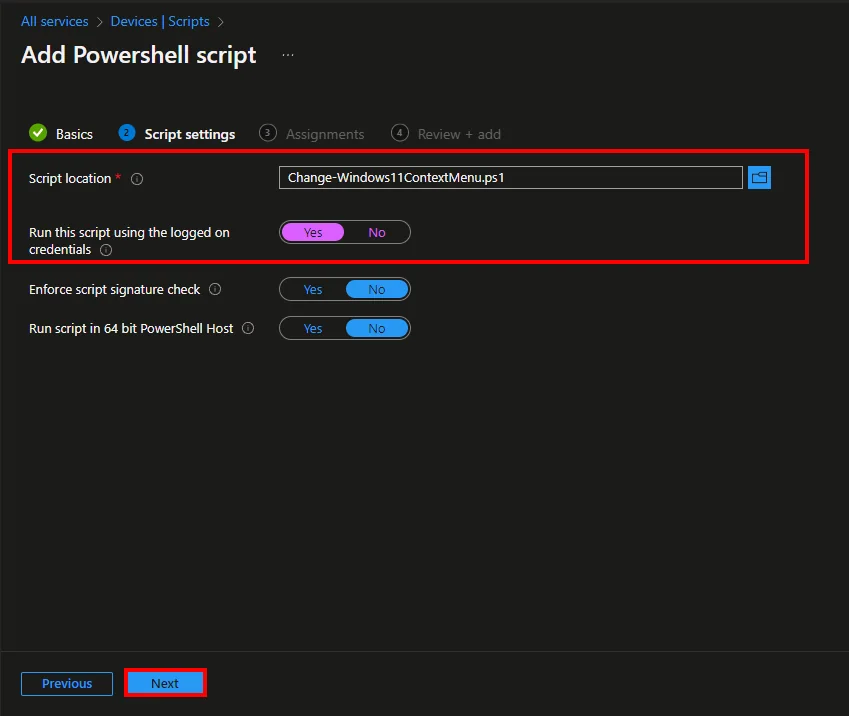
- Upload the script
- Select Run this script using the logged on credentials
- Click Next
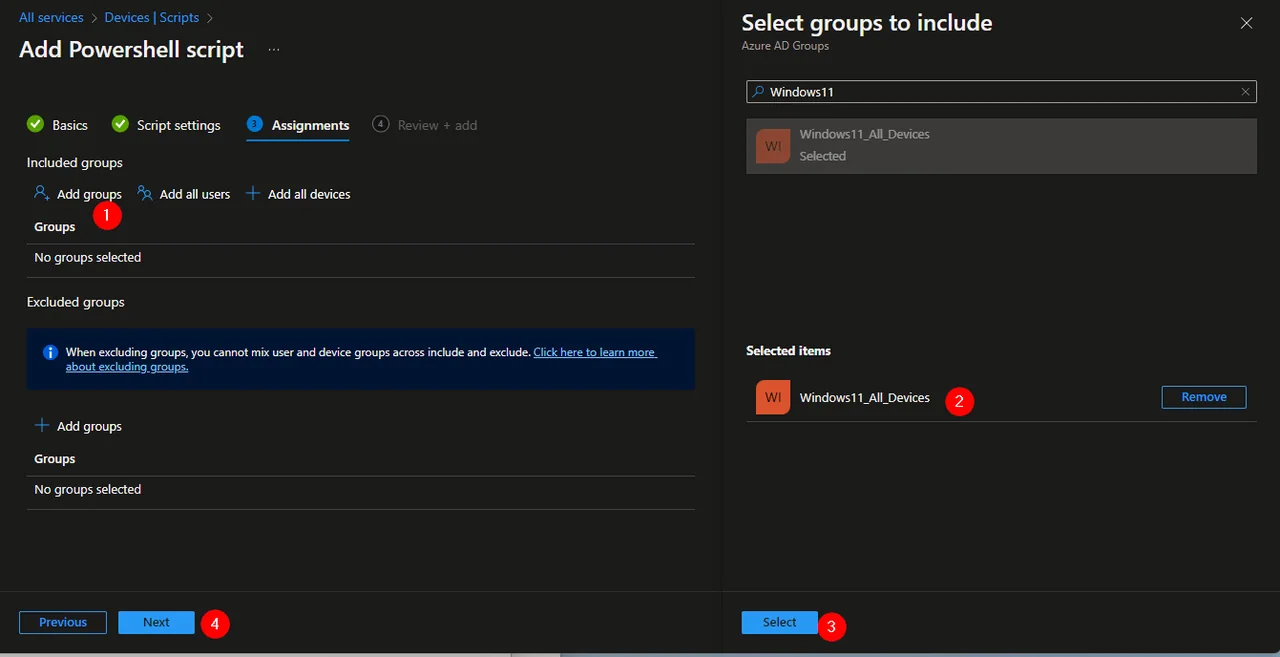
- Assign the Script to a Windows 11 group
- Click Next -> Create
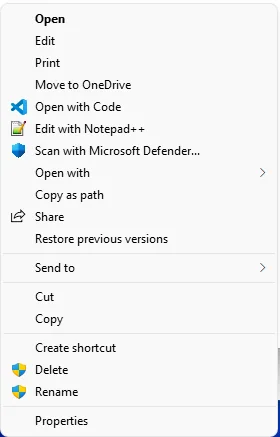
As soon as the script has been executed on the device and the device has been rebooted, the familiar Windows 10 context menu is back.
Deploying the registry tweak via Settings Catalog
The PowerShell remediation is the simplest path, but you can also Change Windows 11 Context Menu with Intune using a custom OMA-URI policy if you prefer configuration profiles over scripts. Both methods write the same per-user registry blocker key; the difference is purely operational. Scripts are quick to pilot and easy to remove, while a Settings Catalog or custom profile gives you the familiar assignment, reporting, and conflict-detection surface of a configuration policy. For very large estates, many teams standardise on a profile so the setting shows up alongside their other baselines.
If you want to dig into how user-context delivery and Win32/registry settings work under the hood, the official Microsoft Learn documentation on custom Windows settings is the canonical reference. It explains how OMA-URI paths map to the registry and how assignments evaluate per user versus per device.
Making the change reversible per user
One of the best reasons to Change Windows 11 Context Menu with Intune is that you can hand the choice back to your users without losing central control. Because the toggle is a single registry key, a companion “revert” script simply deletes that key and restarts Explorer, returning the modern Windows 11 menu. Pair the two scripts with two Entra ID groups — “classic menu” and “modern menu” — and a user can be moved between them on demand. That self-service flexibility keeps both camps happy while every change stays logged in Intune.
Conclusion
It only takes a few minutes to Change Windows 11 Context Menu with Intune, and the payoff is a consistent, reversible experience across every managed device. Whether you go with the PowerShell remediation or a Settings Catalog profile, the underlying registry key is the same, so pick whichever fits your operating model. For more Intune deep-dives, browse the rest of jannikreinhard.com, and if you have a slicker way to Change Windows 11 Context Menu with Intune, drop me a note.
Stay healthy, Cheers
Jannik