
How to Align the Windows 11 Taskbar Left with Intune
Want to align the Windows 11 taskbar to the left with Intune? Follow this easy, proven step-by-step guide to apply the registry fix across your whole fleet.
2026 status update: Windows 11 and its taskbar policy options are fully documented and no longer in the beta state described below. The original steps remain here for historical reference. Current documentation
For many users, the centered taskbar in Windows 11 is unfamiliar. To make the transition a bit easier for users, we’ll take a look at how to align the Windows 11 taskbar to the left like in Windows 10.
Why align the Windows 11 taskbar to the left?
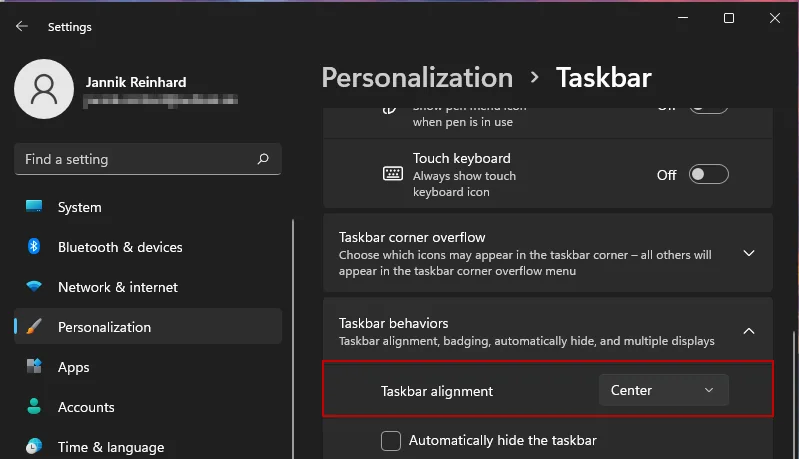
In the settings there is the possibility to change the taskbar alignment. However, we do not want to do this manually on all the clients, we are looking for a solution to set this setting centrally via Intune. Because Windows 11 is in the dev and beta channel there are no configuration policies for the new features available in Intune yet. So we have to find another way to align the Windows 11 taskbar across the fleet. You can read more about taskbar customization options in the official Microsoft Learn documentation.
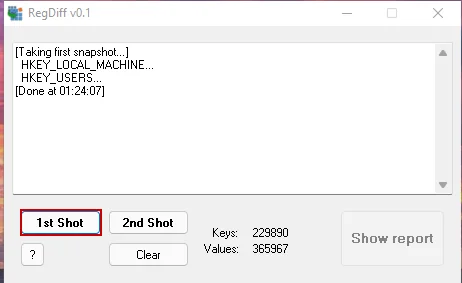
- First we want to find out what happens in the registry when we set the setting. For this we use the tool RegDiff and create a snapshot of the current registry state.
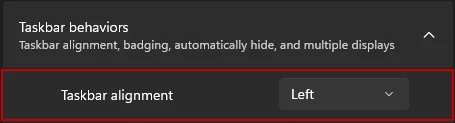
- Afterwards we change the Taskbar alignment to Left in the settings under Personalization -> Taskbar and take a 2nd snapshot of the registry.
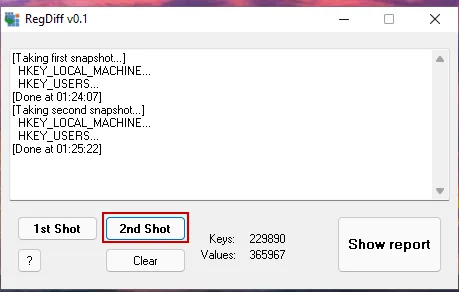
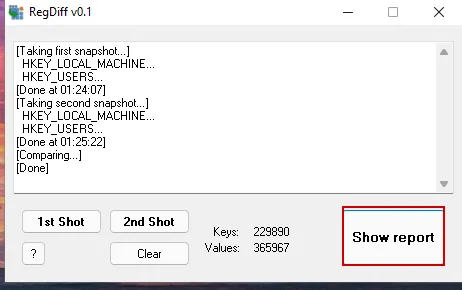
- When this is done we click on Report to view the changes in the registry between the 1st and 2nd snapshot.
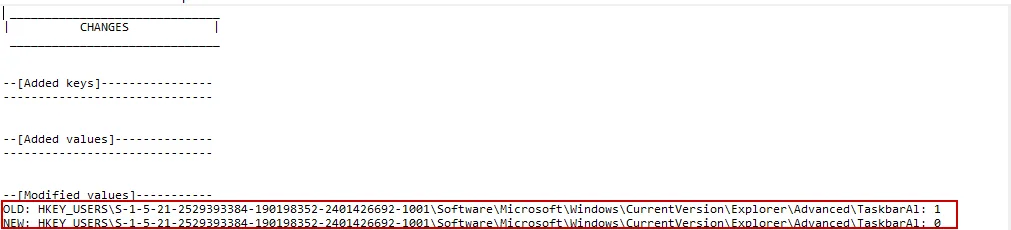
- In the file we can see the key that was changed from the setting. The value was changed from 1 to 0.
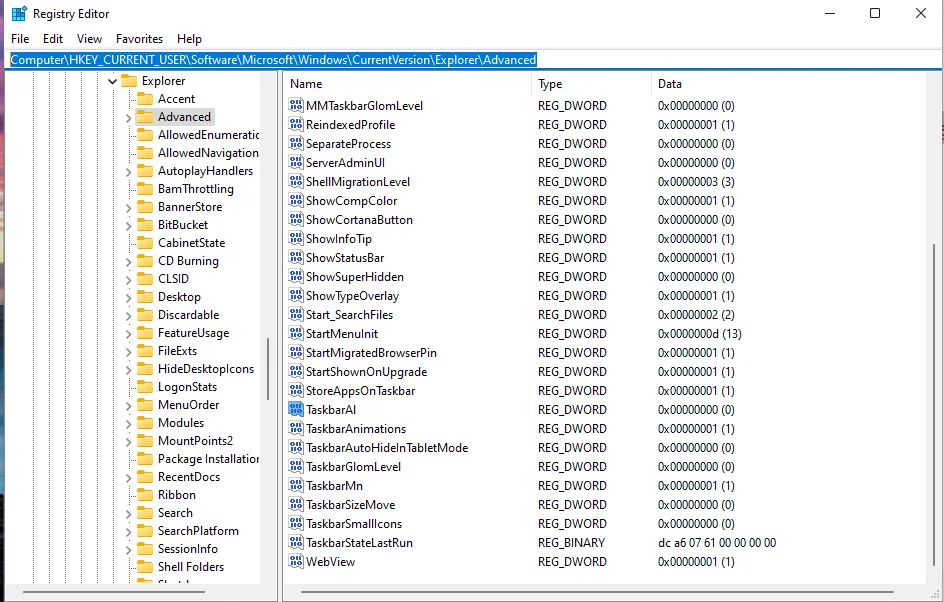
- If we look at the registry we can find more values to change the settings of the taskbar.
Deploy the script to align the Windows 11 taskbar via Intune
-
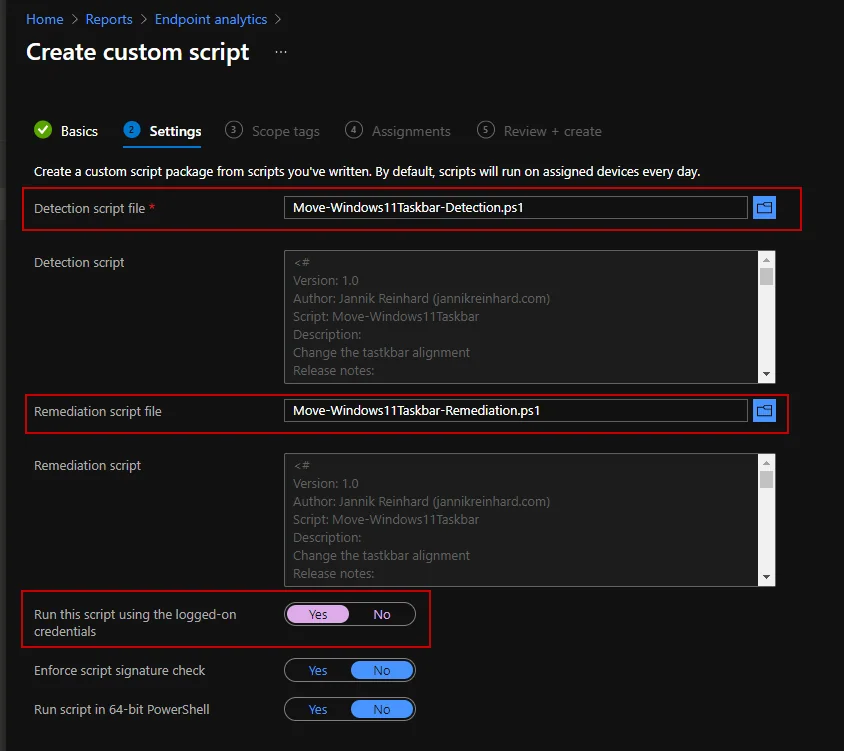
I have created a detection PowerShell script that checks if the Windows version is Windows 11 and a remediation script that sets the registry value. I have uploaded these scripts to my repository.
-
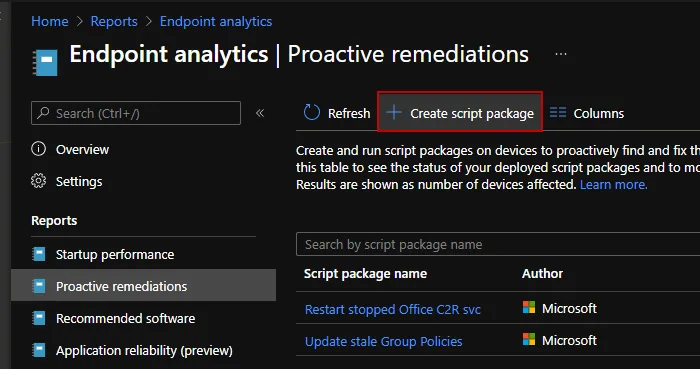
Now we just need to deploy the scripts via Intune. To do this, we open the Intune admin center and navigate to Reports -> Endpoint analytics -> Proactive remediations
-
Click Create script package
- Enter a name
- Click Next
- Upload the detection and the remediation script and select Yes for “Run this script using the logged on credentials“
- Click Next
- Click Next
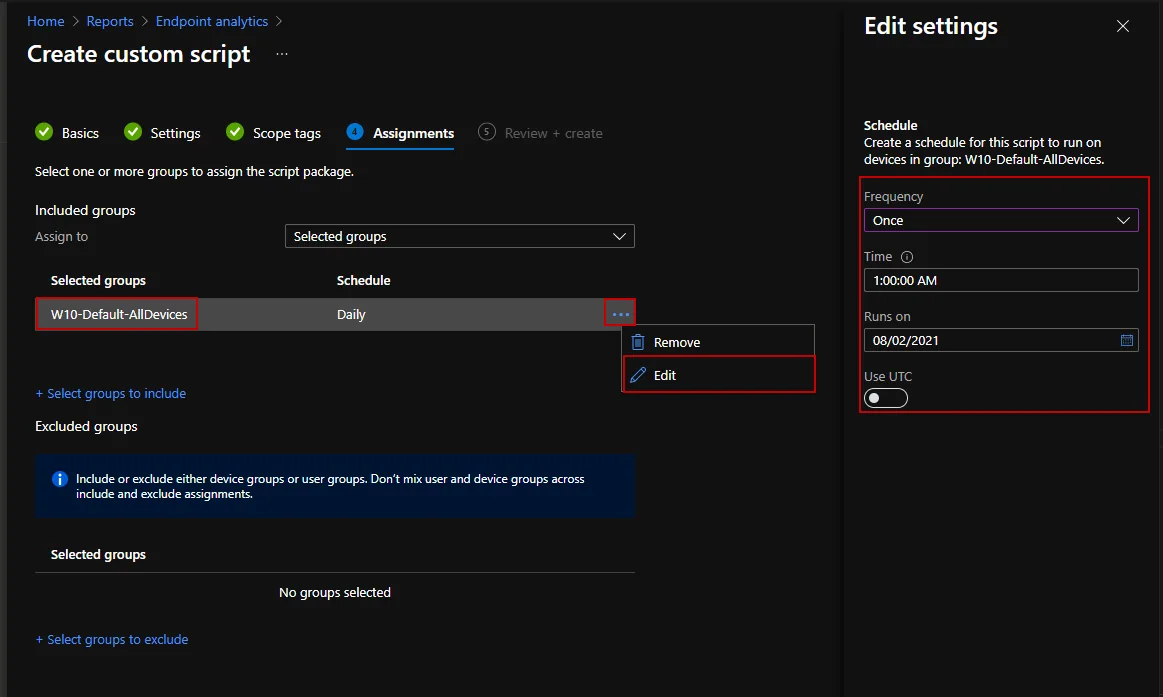
- Assign the script to a group and click … and Edit
- Change the Schedule to Once (You can also select another schedule like hourly or daily) and click apply
- Click Next
- Click Create
Verify the taskbar alignment
After the proactive remediation has run, it is worth confirming that the change actually landed on your devices. In the Intune admin center you can open the remediation and check the Device status tab, where each client reports back as either With issues (the detection found the taskbar still centered) or Without issues (the value is already set to the left). On a single test machine you can verify it manually by opening the registry editor and navigating to HKCU\Software\Microsoft\Windows\CurrentVersion\Explorer\Advanced; the TaskbarAl value should be 0 for a left-aligned taskbar and 1 for the default centered layout.
One common pitfall is the schedule you pick during assignment. If you only run the script Once, a user who manually re-centers their taskbar will not be corrected again, so for a strictly enforced layout a daily schedule is the safer choice. Keep in mind that the script runs in the user context, which is why we selected Run this script using the logged on credentials earlier – the HKCU hive belongs to the signed-in user, and a system-context run would write to the wrong profile and silently fail to change anything the user sees.
So now all new deployments of Windows 11 machines will have the taskbar aligned to the left, like you are familiar with from Windows 10. With this proactive remediation in place you can align the Windows 11 taskbar automatically on every device, so there is no need to touch each client by hand. I hope this is a little help for the switch to Windows 11.
Stay healthy, Cheers
Jannik