
Managing a fleet of devices in today’s workplace isn’t just about only Windows management anymore —the world around Macs devices are increasing more and more. As more employees choose Macs for their performance, design, and reliability, you also have to deal about the right ways to manage and secure them. With Microsoft Intune, you have a powerful platform to managing macOS devices alongside other platforms. This post shows you how to manage macOS with Microsoft Intune and explains why integrating Macs into your corporate infrastructure is a smart move.

Why Mac Management is Important
For a long time, IT departments were hesitant to support Macs due to concerns about security and compatibility. However, times have changed. Today, Microsoft Intune offers excellent support for macOS, making it easier than ever to manage these devices in a business environment. Here’s why it’s worth considering:
- Unified Management: Intune allows you to manage Macs through a single platform, reducing complexity and making life easier for IT admins.
- Productivity: Macs are known for their performance and design, making them popular among employees who value efficiency and creativity.
- Security: With Microsoft Intune, you can enforce the same security standards on Macs as you do on other devices, ensuring a safe and secure work environment.
Getting Started with Mac Management in Intune
Managing Macs with Intune starts with a simple question: How do you integrate them into your existing IT infrastructure? Let’s break it down into a few steps:
- Device Enrollment: You have to ways to enroll Mac: personal device (BYOD) or company-owned. For personal devices, user can install the Company Portal app and complete the onboarding process with just a few steps. For company-owned devices, using Apple Automated Device Enrollment (ADE) ensures a seamless setup experience when the device is the first time powered on.
- Security and Compliance: Intune enables you to apply security policies to Macs, ensuring compliance with your organization’s requirements. You can enforce encryption with FileVault, require strong passwords, and manage app security and much more. Plus, with Intune’s integration with Microsoft Defender for Endpoint, you can monitor your Macs for potential security threats and take action remotely if needed.
- Application Management: One of the key reasons users love Macs is the variety of apps available for creative and productive work. With Intune, you can deploy and manage apps on Macs like on Windows or mobile devices. Whether it’s Microsoft 365, custom enterprise apps, or software from the Apple App Store it is very easy to deploy them.
- Remote Actions: If a Mac is lost, stolen, or needs troubleshooting, Intune allows IT admins to perform remote actions. You can lock the device, wipe it, or even reset it remotely to protect company data.
Why Choose Microsoft Intune for Mac Management?
Microsoft Intune offers several benefits when it comes to managing Macs:
- Cross-Platform Support: Intune provides a unified management solution for all your devices, from Windows PCs to Macs, iOS, and Android devices. This simplifies administration and ensures consistent across different operating systems.
- Cost Savings: By using a single platform for managing all devices, organizations can reduce their total cost while simplify their environment. There’s no need for separate management tools for different operating systems, which means less overhead for your IT team.
- Flexibility for Employees: With Intune, employees can choose the devices they prefer—whether that’s a Mac or another platform—without losing security or manageability. This improves employee satisfaction and productivity.
- Ongoing Innovation: If you follow the Intune What’s New you see Microsoft is continuously investing in macOS support within Intune, ensuring that Intune evolve with the latest Mac features and capabilities.
Key Considerations Before You Start
Before diving into Mac management with Intune, there are a few important prerequisites:
- Plan your Experience: Plan how you’ll onboard employees, which default apps you want to provide, what are your security, support and operation concepts.
- Organizational Approval: Make sure your security teams are early on board with using Macs in your organization. Define what security requirements must be met.
- Technical Setup: You’ll need an Intune tenant, appropriate licenses, and integration with Apple services like the Apple Push Notification service (APNs) and Apple Business Manager.
Enhancing Security on macOS with Intune
Security is always a top priority when managing devices in a corporate environment. With macOS, Intune offers several key features to ensure that your devices are secure like:
- Encryption: Enforce FileVault encryption to protect data on Macs.
- Antivirus: Deploy Microsoft Defender for Endpoint to provide real-time protection against threats.
- Compliance Policies: Set up compliance policies to ensure that only secure and compliant devices can access your organization’s resources.
- Configuration: Create configurations on the devices to meet your security requirements.
- OS updates: Make sure that your devices are always app to dates.
This is a nice open source project from National Institute of Standards and Technology (NIST) Special Publication (SP) 800-53, Security and Privacy Controls for Information Systems and Organizations which provide a programmatic approach to generating security guidance. This you can use to inspire.
How to enroll devices
For this you can check out one of my previous blog posts: https://jannikreinhard.com/2022/06/18/getting-started-with-mac-management-in-microsoft-intune/
Limitations of Managing Macs with Microsoft Intune
While Microsoft Intune provides a powerful platform for managing macOS devices in a corporate environment, there are some limitations and challenges to be aware of.
Intune offers a variety of configuration options for macOS devices, but it doesn’t yet provide the same level of features as it does for Windows devices. While you can enforce the most security settings, deploy applications, and manage compliance, certain advanced configuration options might require additional tools or custom scripts (Could also happened on other platforms). But important to mention is that there is a very strong timeline:
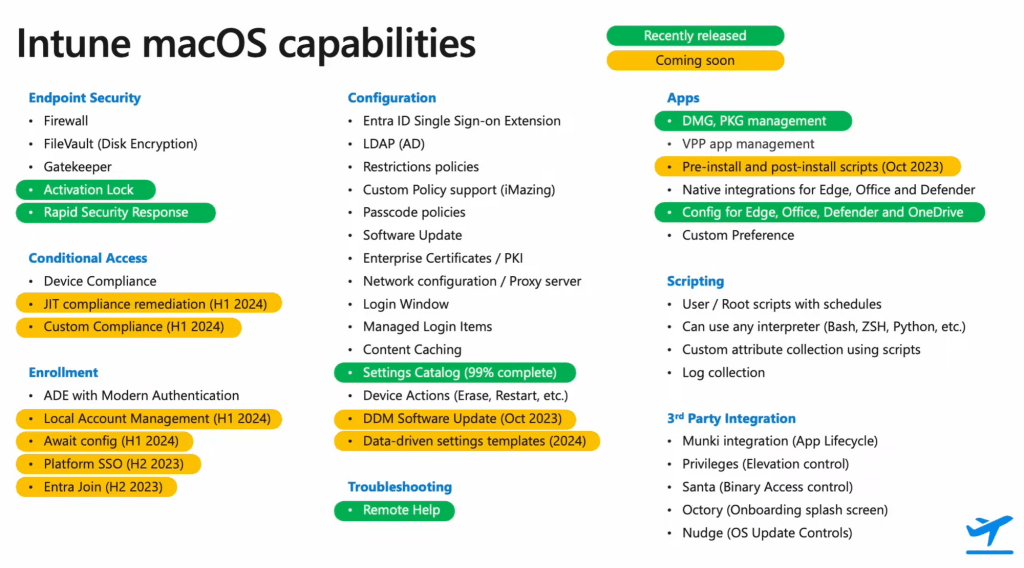
The big difference is that for MacOS there is no support for remediation scripts which can triggered on-demand or in a fix schedule.
 jannikreinhard.com