

Intune provides a lot of data that can be exported via interfaces. But wouldn’t it be cool if you could have everything from the data export to the powerbi dashboard in one place in a portal and additionally query the data Graph provides you with via SQL to build complex querys. That’s exactly what Microsoft Fabric delivers. In this blog we would like to take a closer look at this new platform.
What is Microsoft Fabric?
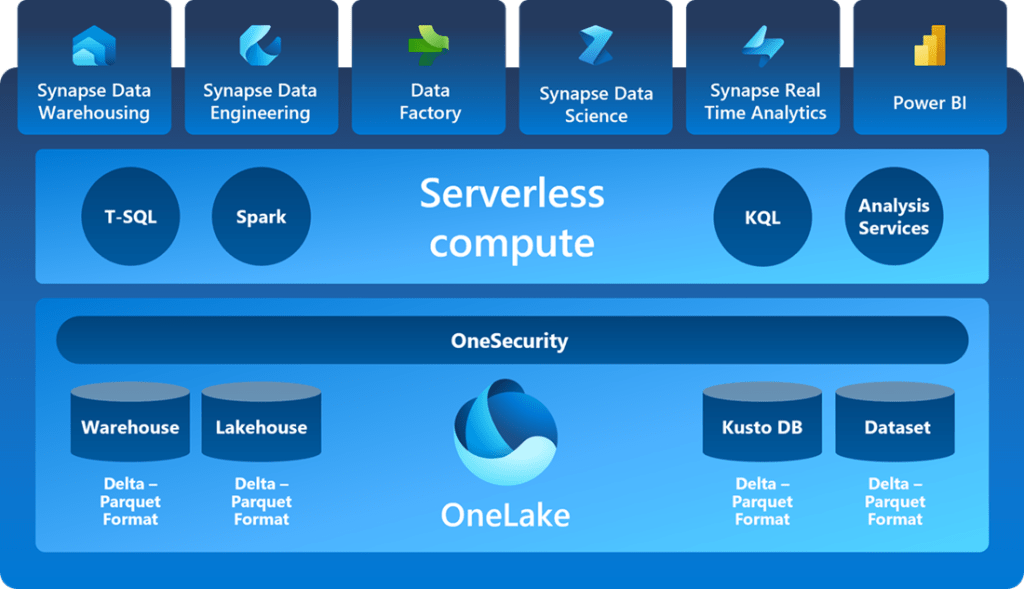
Microsoft Fabric is an all-in-one analytics solution that covers data ingestion, data science, real-time analytics, and business intelligence. It is currently in the public preview state and was released on May 24.
It simplifies the analytics process by integrating components from Power BI, Azure Synapse, and Azure Data Factory into one platform. Fabric’s foundation is based on a Software-as-a-Service (SaaS) model, providing ease of use and integration. It is build based on a persona model for the personas data engineering, data science, data warehouse and real-time analytics.
Additionally, Fabric combines OneLake and Lakehouse architectures, providing a unified storage solution and facilitating data sharing and collaboration. Is contains also a OneDrive like integration into the Windows Exporer.
How to access Microsoft Fabric?
https://app.fabric.microsoft.com/
What is the OneLake?
OneLake is a unified, logical Data Lake for the entire organization, similar to OneDrive for data. It eliminates the need for multiple data lakes by providing a single location for all analytics data. With OneLake you benefit from having a unified Data Lake accessible to multiple analysis engines, avoiding data duplication. It simplifies collaboration and data sharing across teams and supports seamless integration with various engines such as Spark, T-SQL, and Power BI, allowing users to leverage the best engine for their tasks without copying data.
Where can I find additional information’s?
- https://www.microsoft.com/en-us/microsoft-fabric
- https://learn.microsoft.com/en-us/fabric/get-started/microsoft-fabric-overview
- https://learn.microsoft.com/en-us/fabric/onelake/onelake-overview
How to enable Fabric?
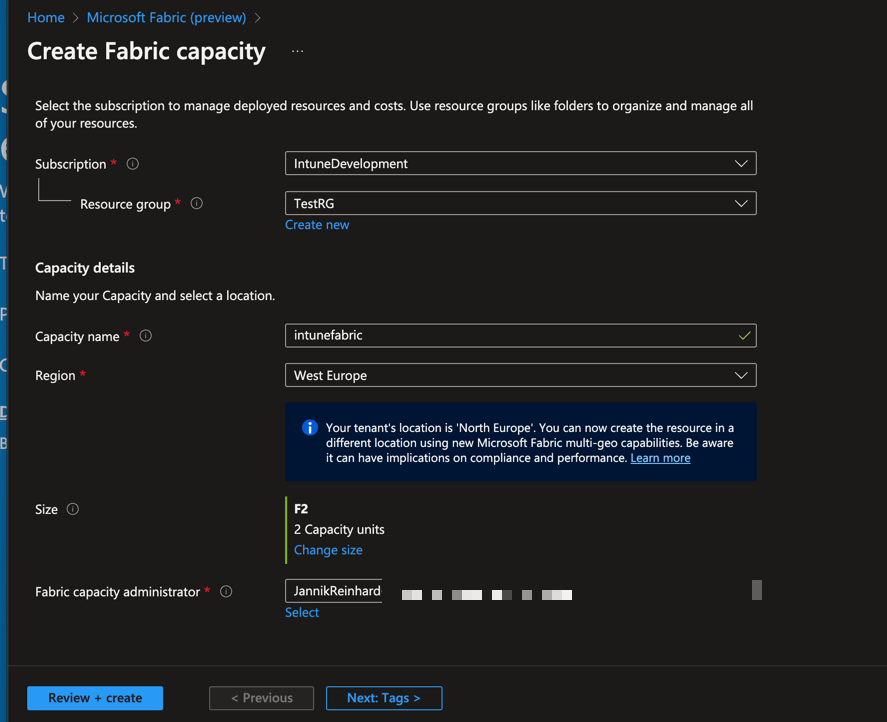
- Go to the Azure port (portal.azure.com)
- Search for fabric and select Microsoft Fabric

- Click create fabric capacity

- Select Subscription and Ressource group and enter an capacity name and a region.
- Click Review + create
- Click Create
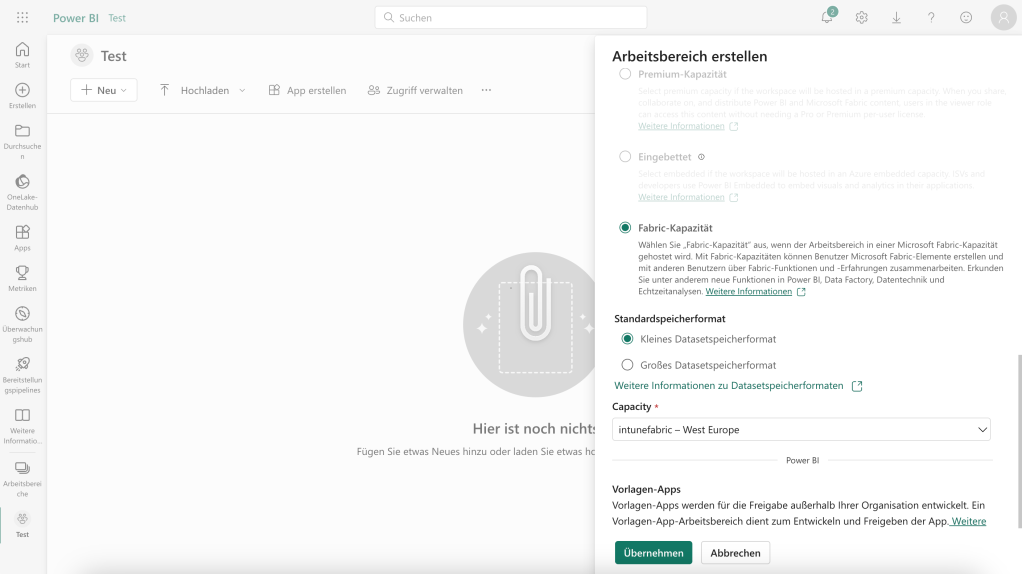
- Create an new workspace under app.fabric.microsoft.com and enable and select the Fabric Cabacity
- Open the Admin Portal
- Search for Microsoft Fabric and activate the Service for the whole organisation or for a specific security group

How to bring Intune data into Microsoft Fabric?
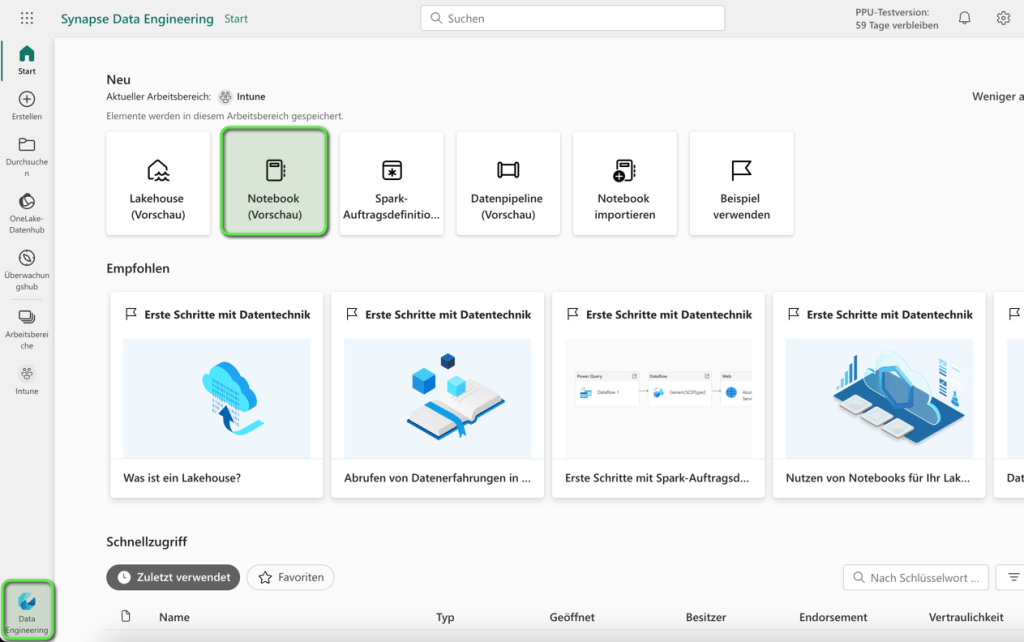
- The first thing what you have to do is to switch to the Data Engineer tab and select Notebook
- Copy the following code into the Notebook. Insert the tenant_id, client_id,client_secret. Do do this you have to create a app registration. How you can do this is described below.
Use this only for testing purpose. Fabric is currently in the public preview and there is not yet an easy way to make managed identity auth or a connection to an key vault to store the client_secret
import requests
import json

# Get auth token
tenant_id = ''
client_id = ''
client_secret = ''
table_name = 'managedDevices'

def get_auth_token(client_id:str, client_secret:str, tenant_id:str, header:bool = True, resource: str = "https://graph.microsoft.com"):
    auth_url = f"https://login.microsoftonline.com/{tenant_id}/oauth2/token"

    auth_payload = {
        'grant_type': 'client_credentials',
        'client_id': client_id,
        'client_secret': client_secret,
        'resource': resource,
    }

    auth_response = requests.post(auth_url, data=auth_payload)
    auth_response.raise_for_status()
    auth_result = auth_response.json()

    if header:
        return {
            "Content-Type": "application/json",
            "Authorization": f"Bearer {auth_result['access_token']}"
        }
    return auth_result['access_token']


def send_request(url:str, header, method:str="GET", params=None, json=None, data=None):
    if method == "GET":
        response = requests.get(url, headers=header, params=params, verify=False)
    elif method == "POST":
        response = requests.post(url, headers=header,params=params, json=json, data=data, verify=False)
    else:
        raise ValueError(
            "Invalid method. Supported methods are 'GET' and 'POST'.")
    response.raise_for_status()
    if len(response.content) <1:
        return None
    return response.json()


try:
    auth_token = get_auth_token(client_id = client_id, client_secret = client_secret, tenant_id = tenant_id)
except Exception as e:
    error_message = f"Failed to get access token: {e}"
    print(error_message)

# Get content
try:
    response = send_request(url='https://graph.microsoft.com/beta/deviceManagement/managedDevices', header=auth_token, method="GET")
    df = spark.read.json(sc.parallelize(response['value']).map(lambda x: json.dumps(x)))
except Exception as e:
    error_message = f"Failed to send request: {e}"
    print(error_message)

df.write.format('delta').mode('overwrite').saveAsTable(table_name)- Click Add to create a lakehouse -> Select new lakehouse -> enter a name

- Now the lakehouse is created. Click run to execute the notebook
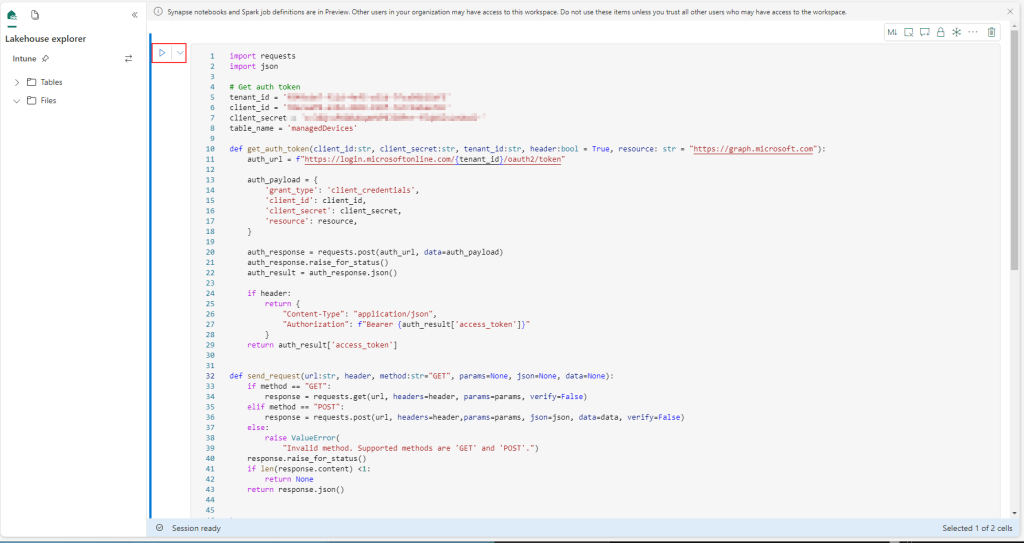
- You will find the the table now in the Lakehouse

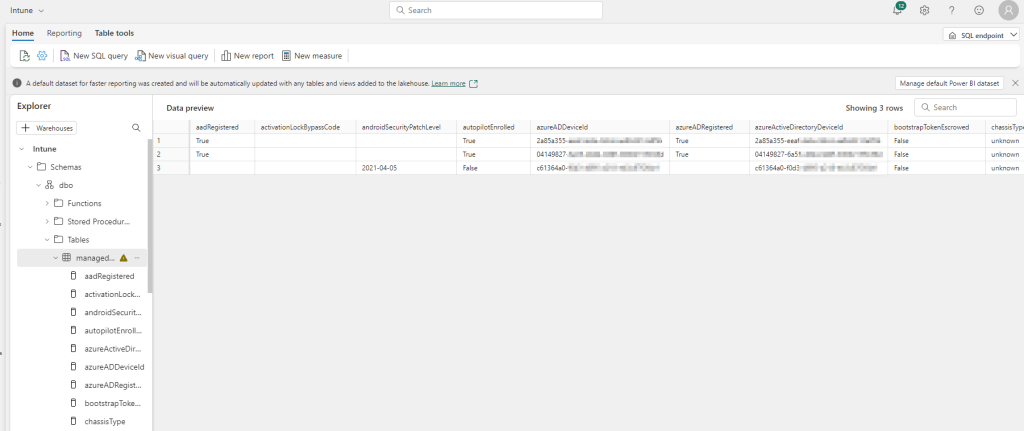
- If you go back an select the SQL endpoint, than you can view the data or query the data via SQL.

How to create an App registration
- Open the Entra id portal (former azure ad)
- Select App registration -> + New app registration
- Enter a name
- Navigate to API permissions -> + Add a permission -> Select Microsoft Graph

- Select Application permission and add the following permissions:
- DeviceManagementManagedDevices.Read.All
- DeviceManagementApps.Read.All

- Click Grant admin consent for xxx

- Go to the Certificate & secret section and click + New client secret
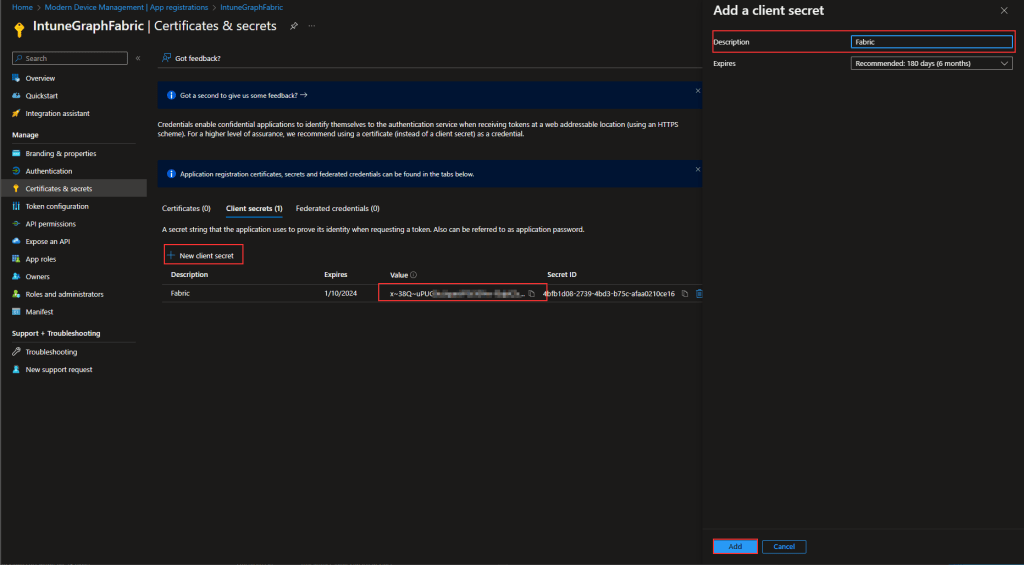
- All the other informations you can find in the Overview section

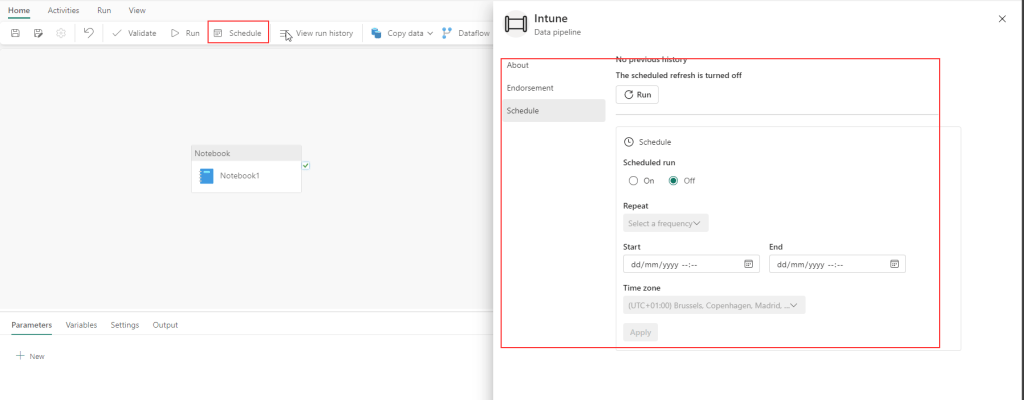
How to create an schedule
- Select +New -> Data pipeline and enter a name

- Click Notebook -> Settings and select the created Notebook
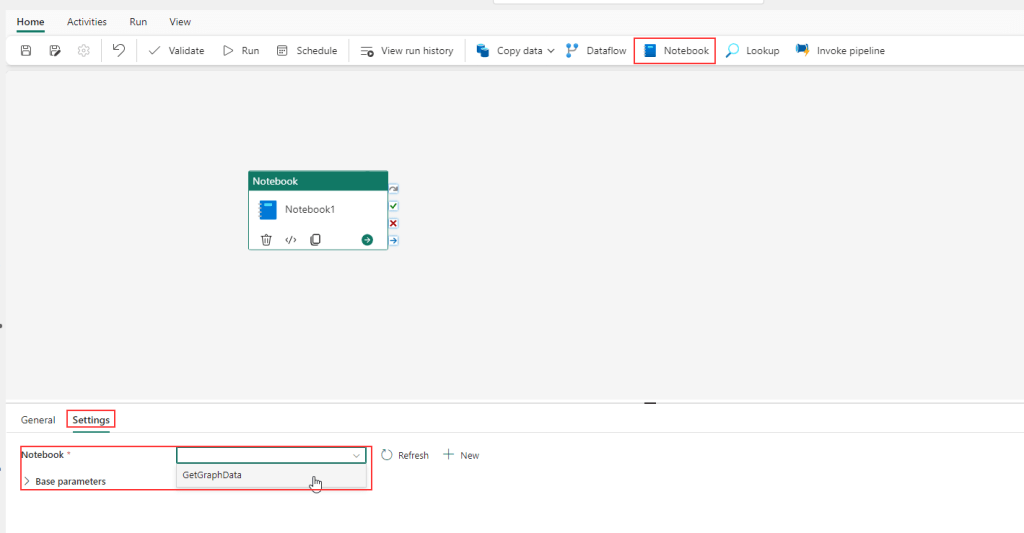
- Click Schedule and select a frequenz
 jannikreinhard.com