
Send Teams Alerts for Top 5 Intune App Install Errors
Send Microsoft Teams alerts for the top five Intune app installation errors with Azure Automation, Log Analytics and a practical reporting workflow.

It is always important as an Intune admin to have an overview of the environment. Intune offers a lot of reports but as we all know you don’t look into them every day. Isn’t it easier to get a daily or weekly Teams notification that shows the top failed app installations directly in your channel? I have already released some blogs with the topic of detecting anomalies in Intune with the help of cognitive services. In this blog I want to show you how to send a report that is already available in Intune to Teams as an automated Teams notification using Azure Automation.
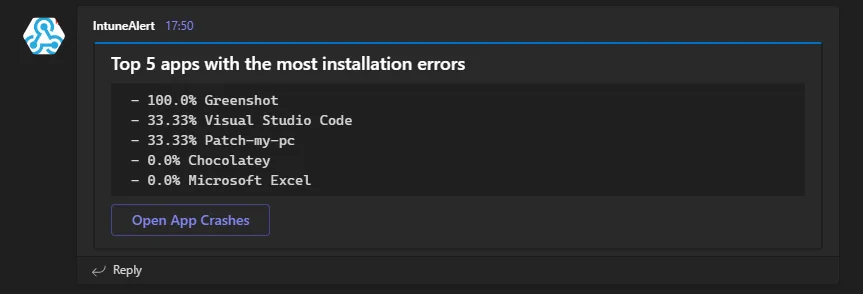
How did we get the data
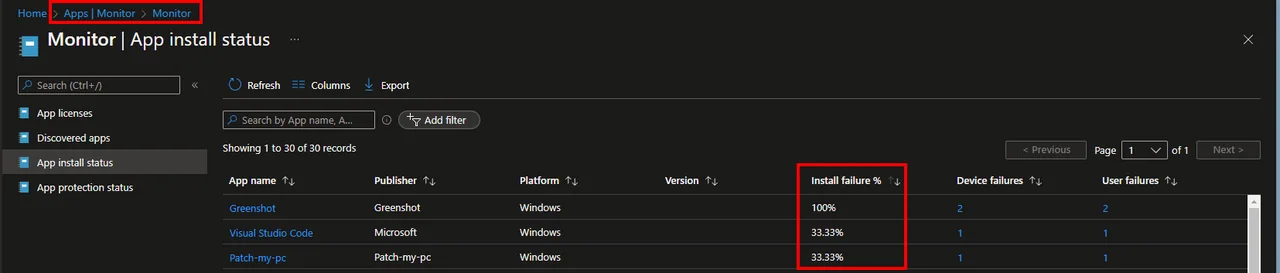
In the reports in the app menu, there is exactly this overview that we need for our Teams notification. We can see here the top 3 failed installations.
The question is how do we get this information?
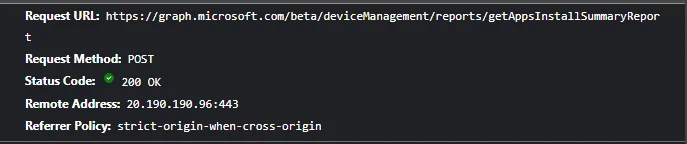
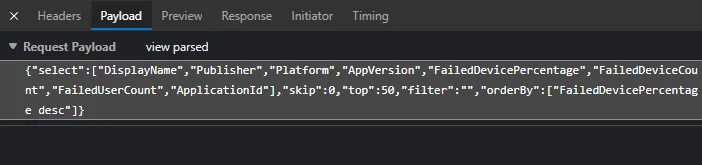
With the help of a network trace in the browser we can see which graph endpoint is called. Since this is a POST call we still need the body that we have to send with this call. In the call we see that it called for the top 50 failed app installations but we want the top 5 so we adjust the body a bit before we forward the result into a Teams notification. You can read more about the underlying Graph reporting API on Microsoft Learn.
This is all the information we need so let’s get started. If you want to analyze Intune data in a more data-driven way, you can also check out the easy way to make data science with Intune.
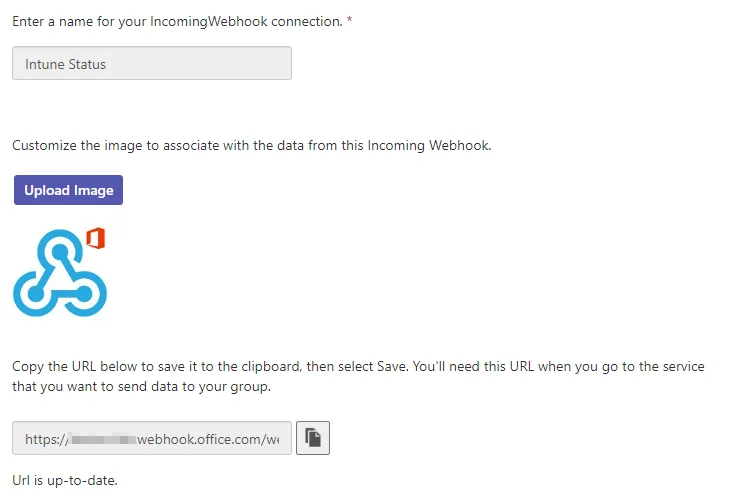
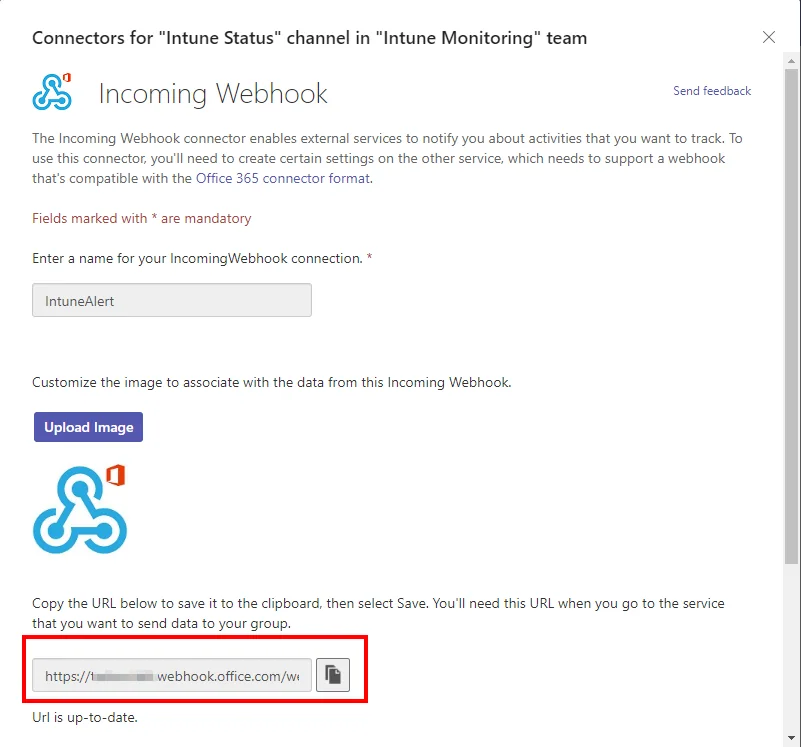
Get the Teams notification WebHook URL
-
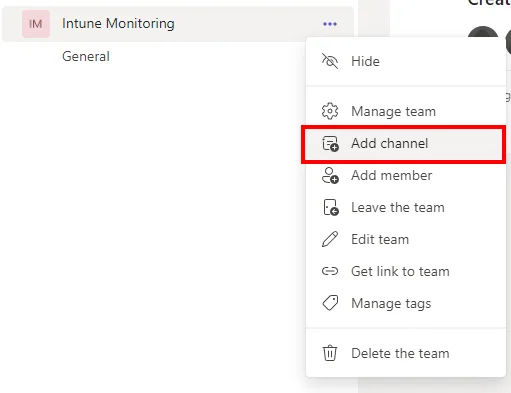
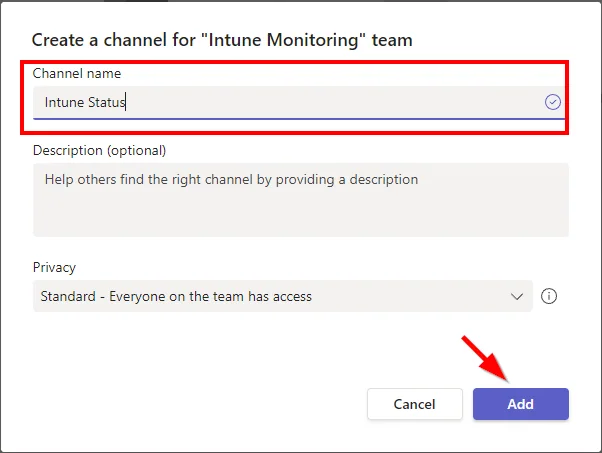
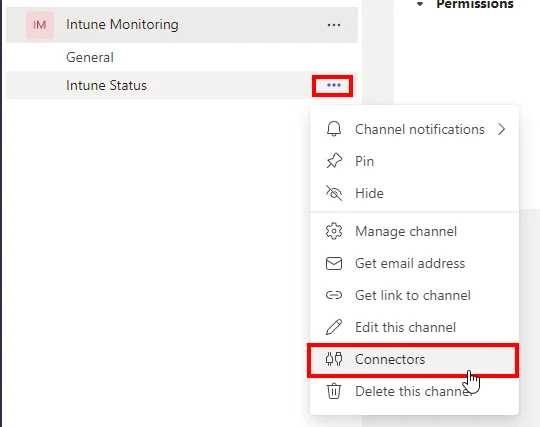
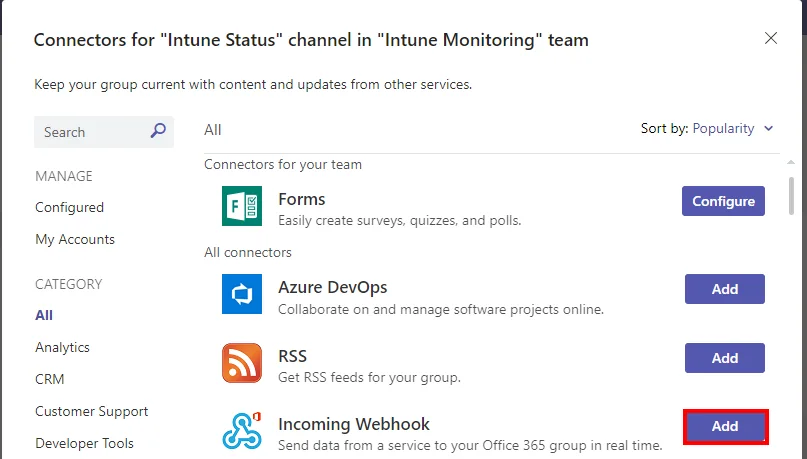
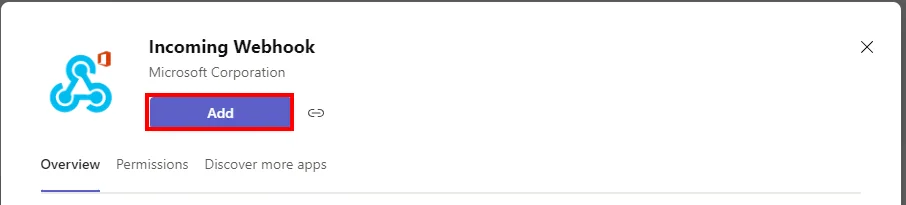
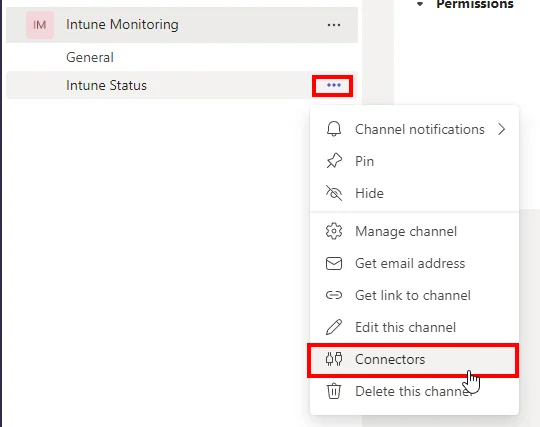
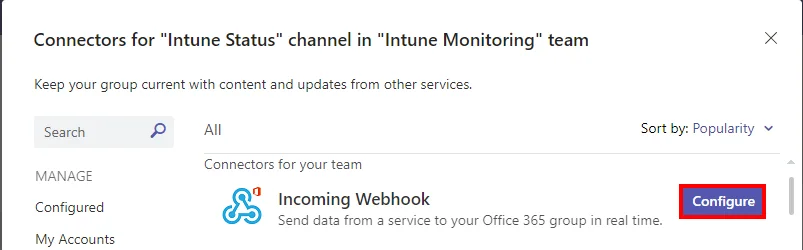
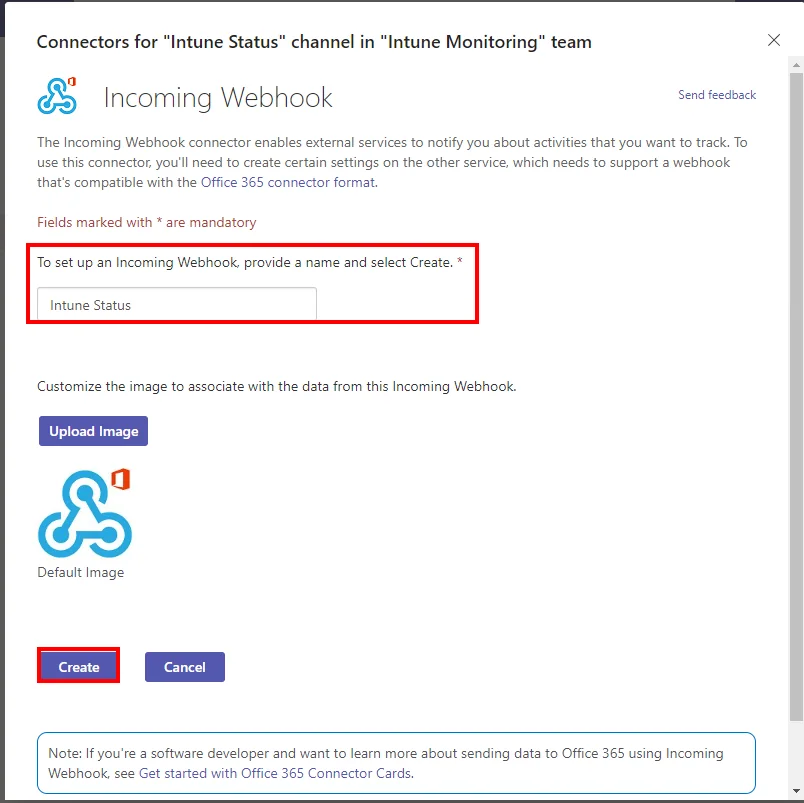
Create an MS Teams channel and add the webhook connector so it can receive the Teams notification
-
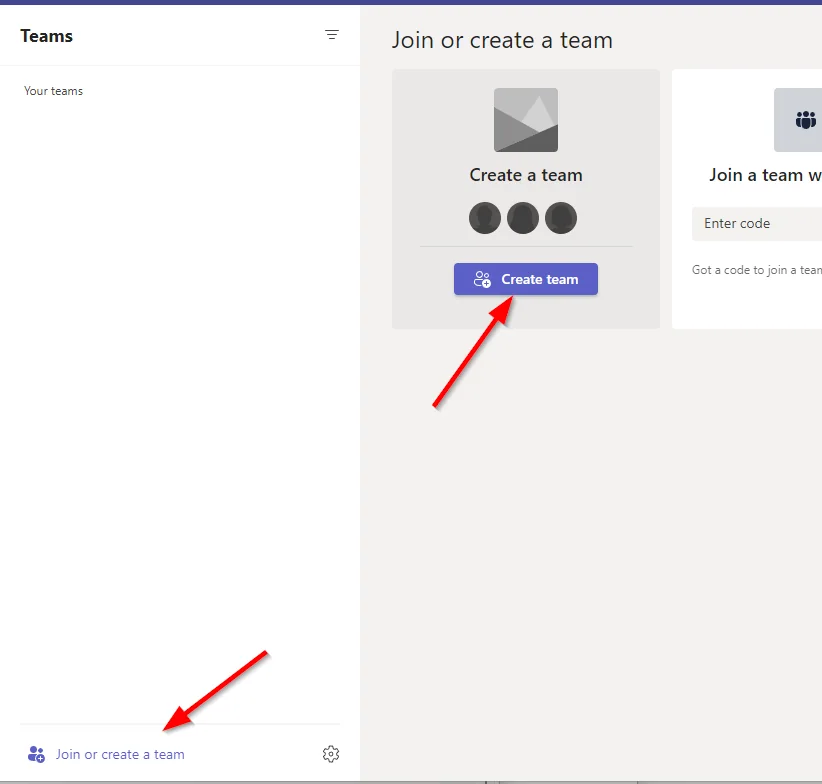
-
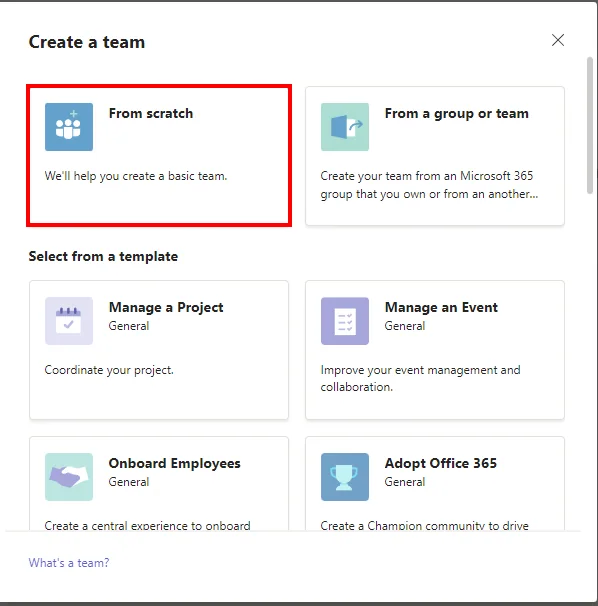
-
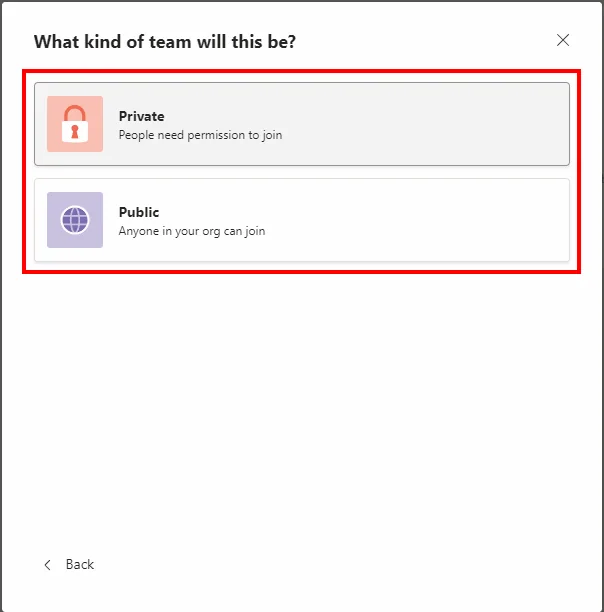
-
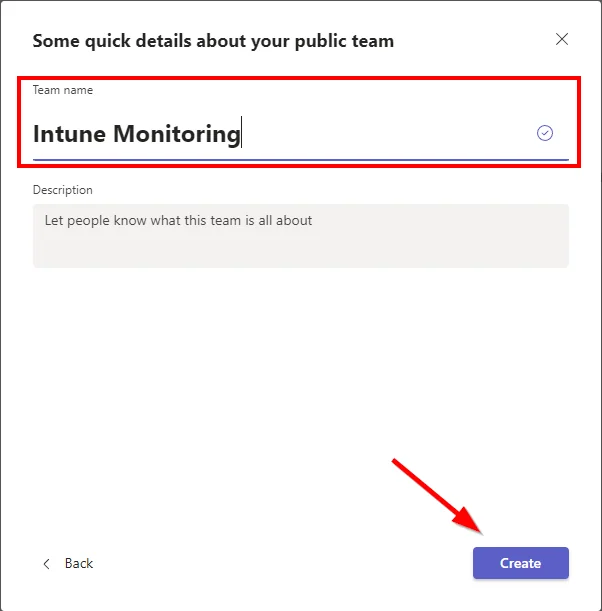
-
-
-
-
-
-
-
-
-
Copy the WebHook URL
Create an App Registration
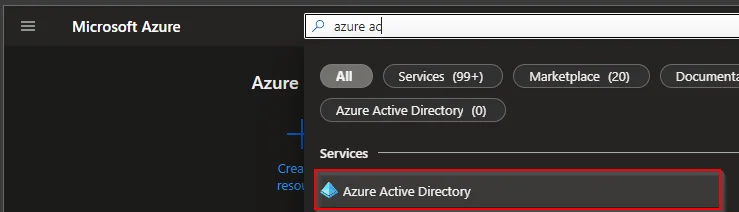
- Search for Microsoft Entra ID
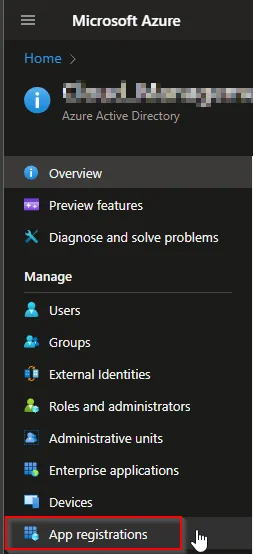
- Select App registration
- Select +New registration
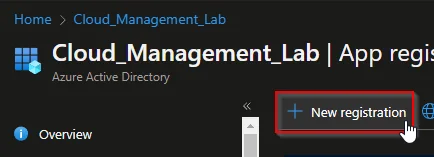
- Enter a Nameand click Register
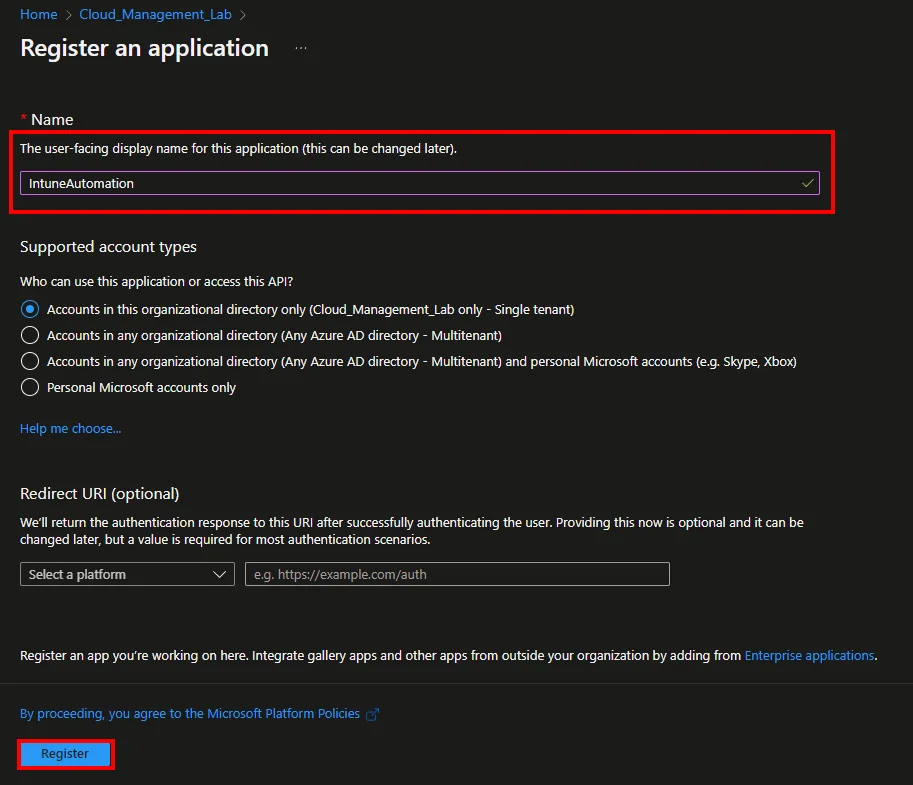
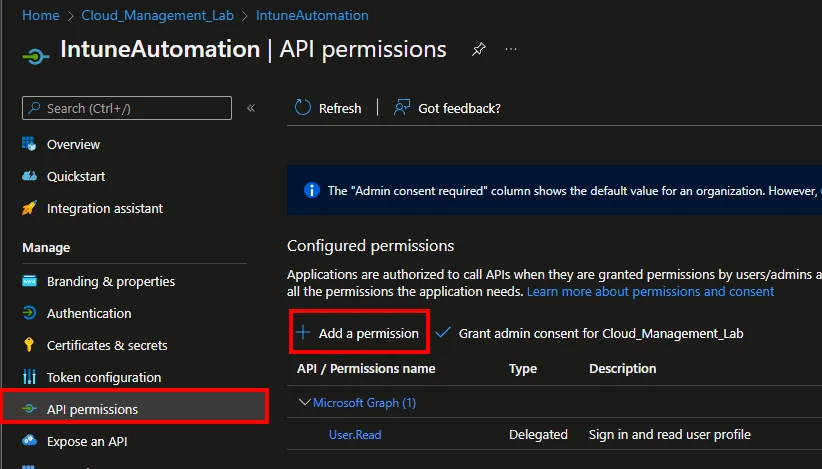
- Click API permissions and +Add a permission
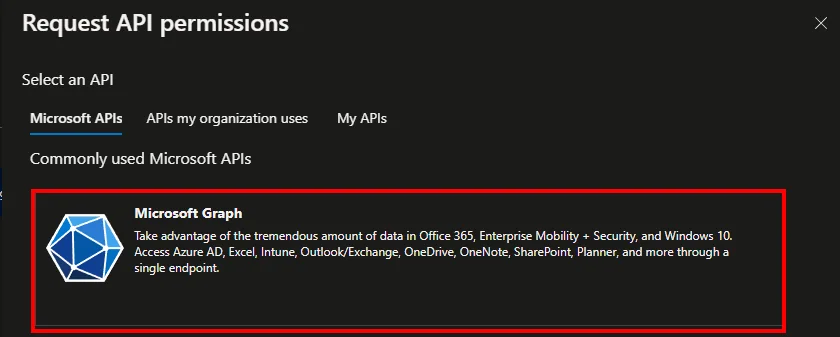
- Select Microsoft Graph
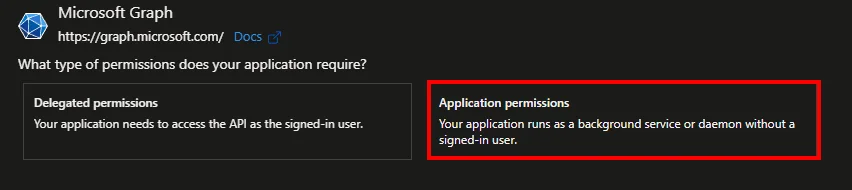
- Select Application permissions
- Search for DeviceManagementApps.Read.All
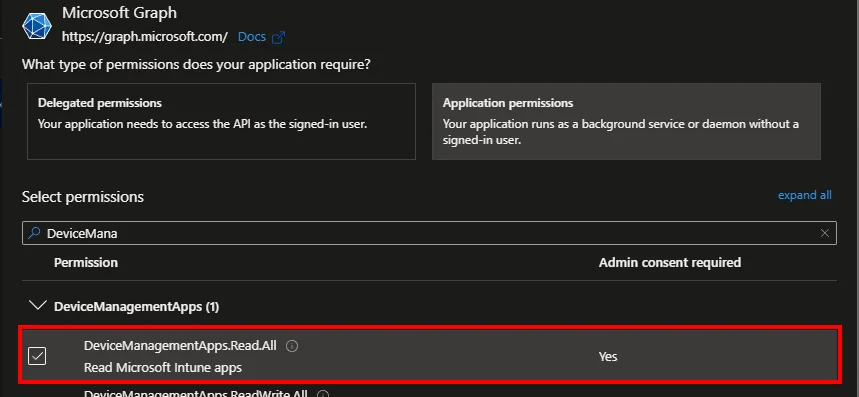
- Click Grant admin consent for *** and approve with Yes

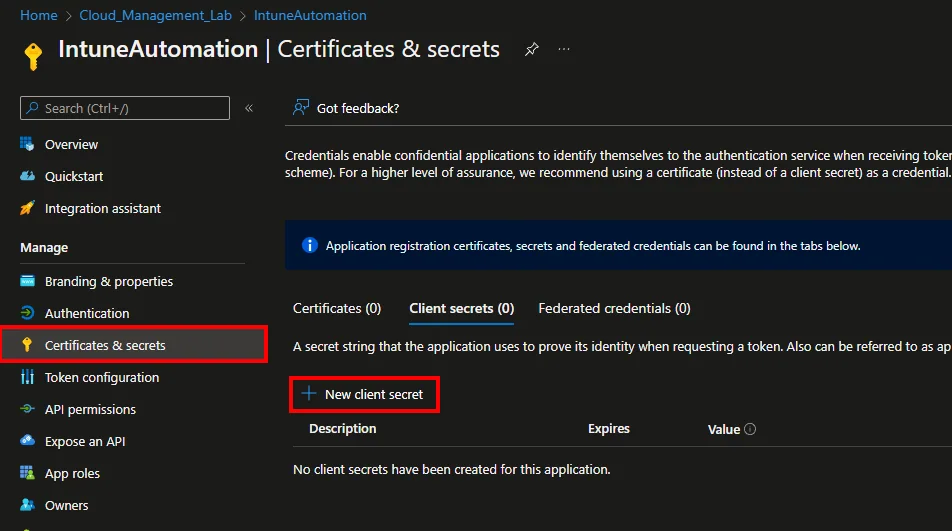
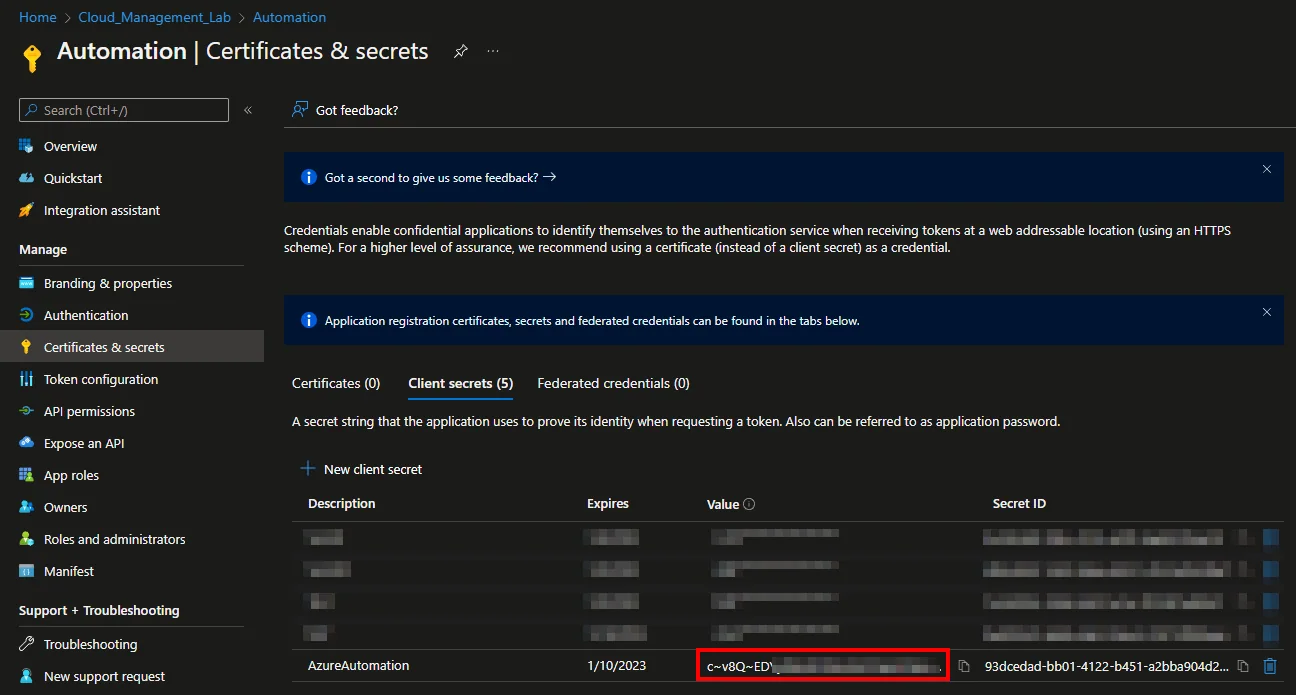
- Select Certificates & secrets and click +New client secret
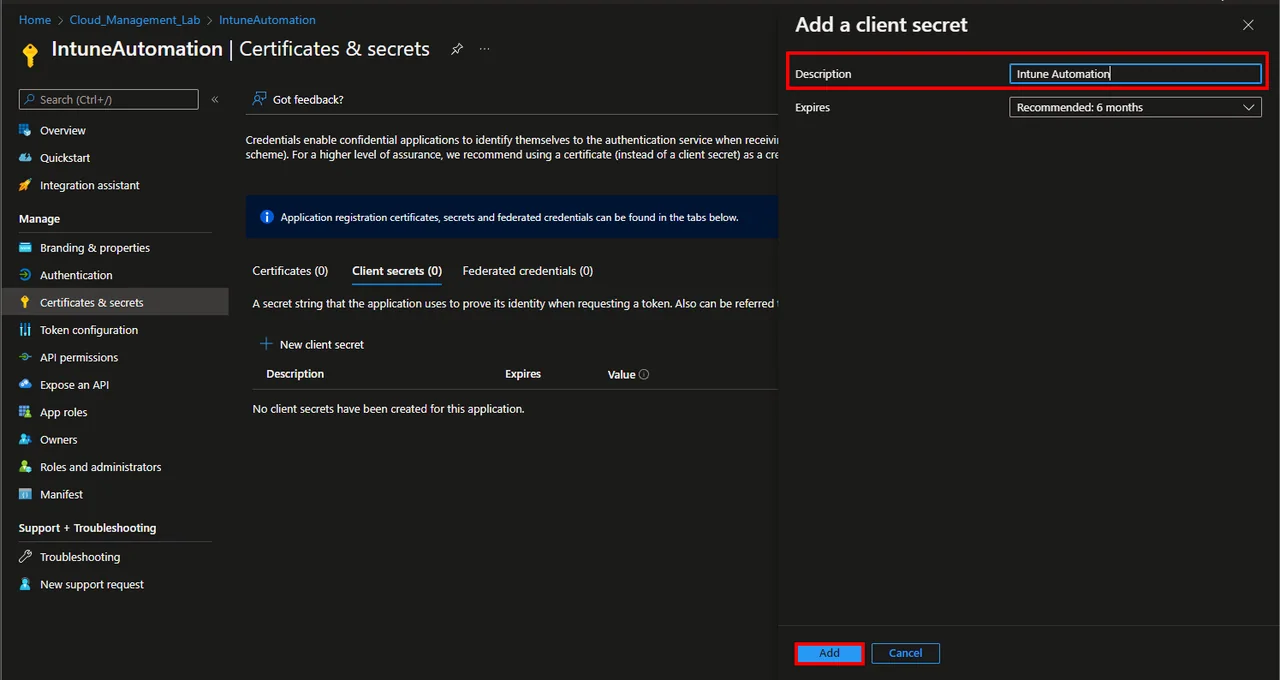
- Enter a Description and select a Expires time
- Click Add
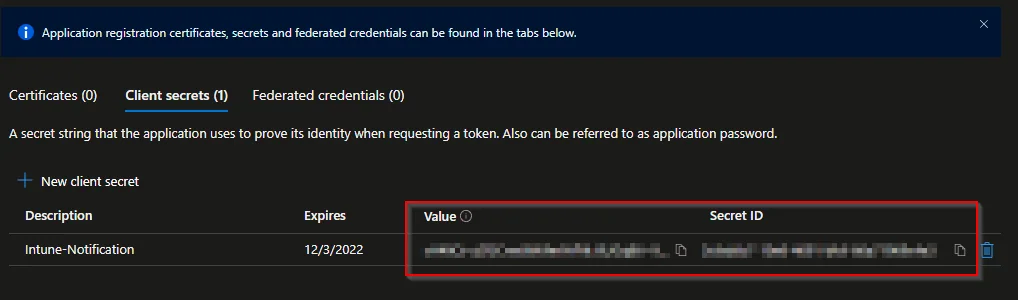
- Copy and save the Value and the Secret ID
Create Automation Account
- Search for Automation Accounts
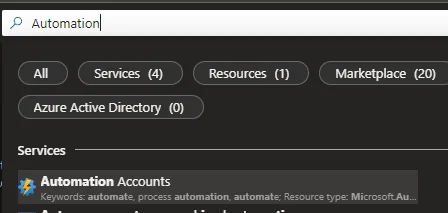
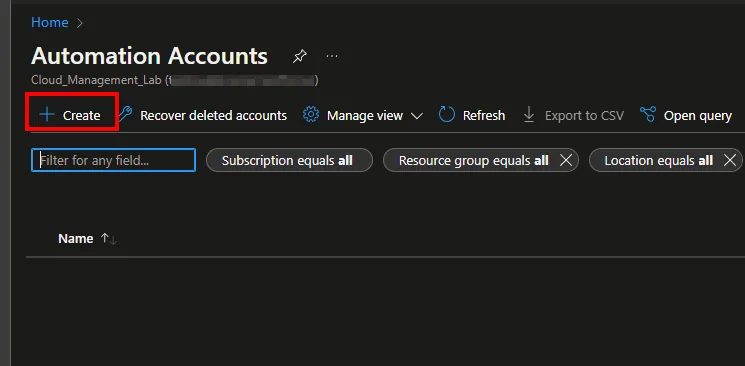
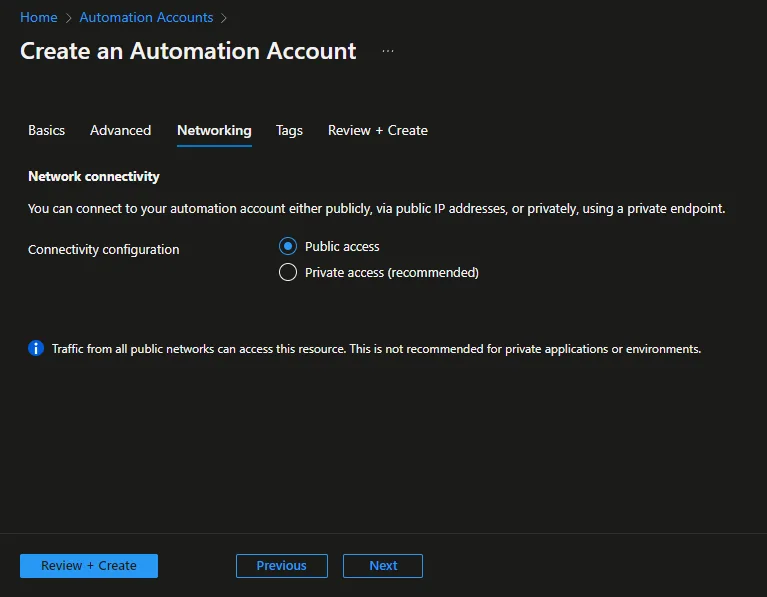
- Click + Create
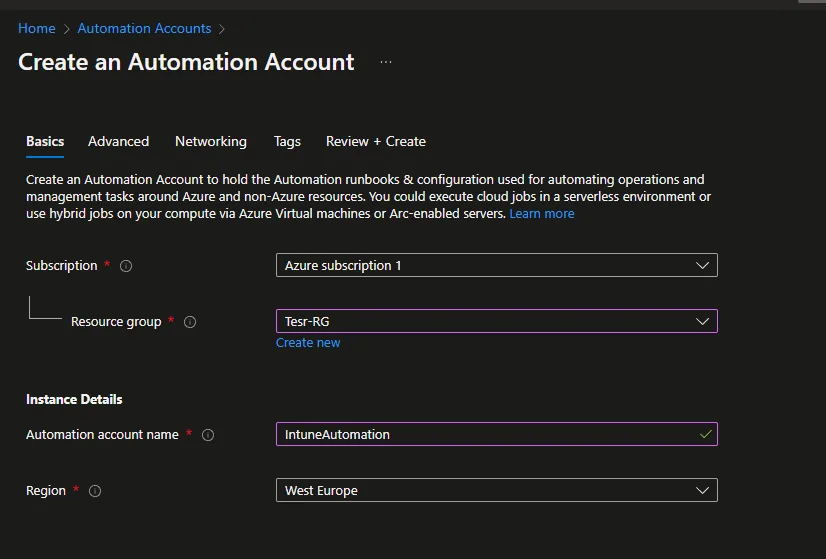
- Select a Subscription and a Resource group
- Enter an account name and select a Region
- Click Next
- Click Next
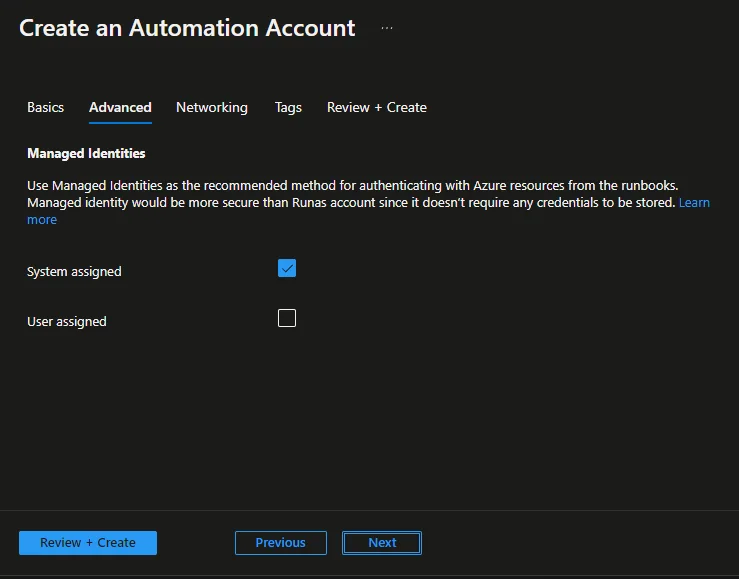
- Click Next -> Next -> Create
Create the Runbook for the Teams notification
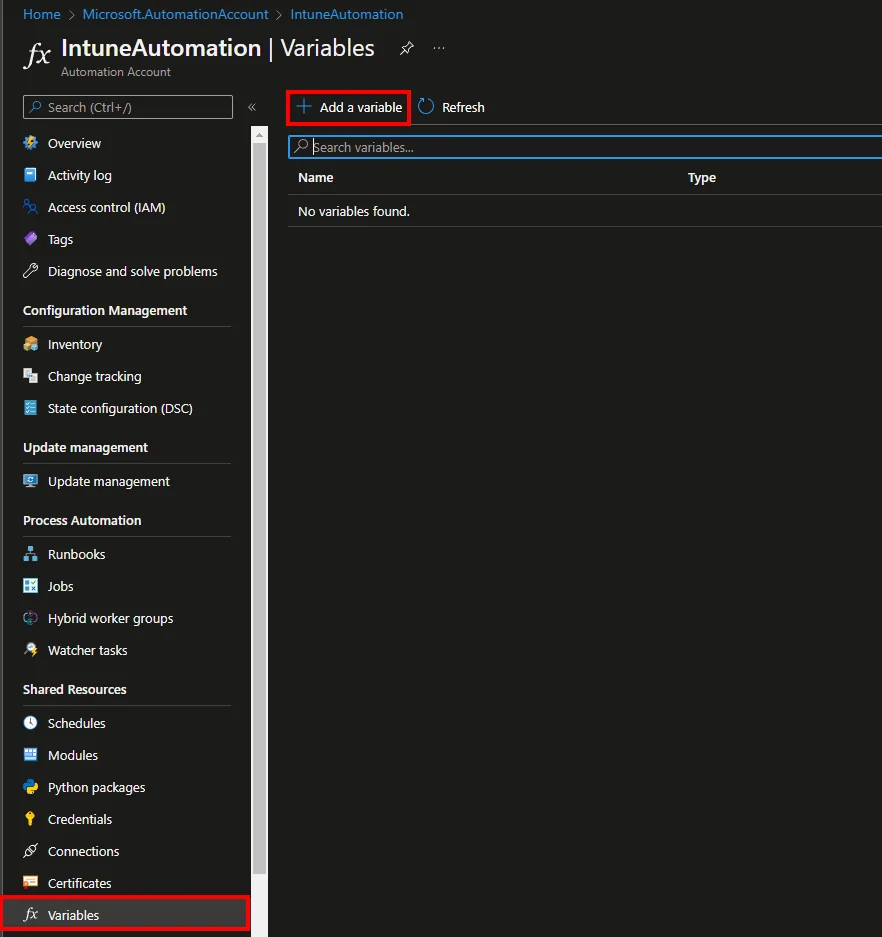
- Open the Automation Account
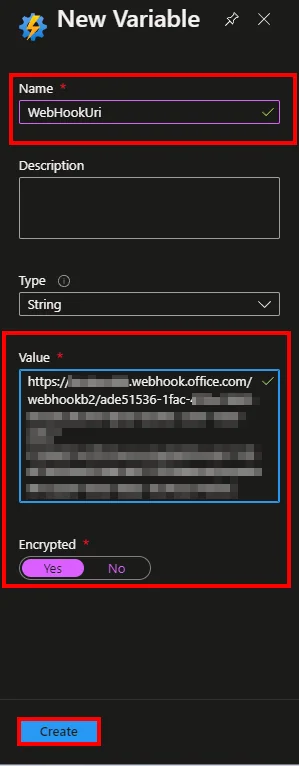
- Navigate to Variables and click + Add a variable
-
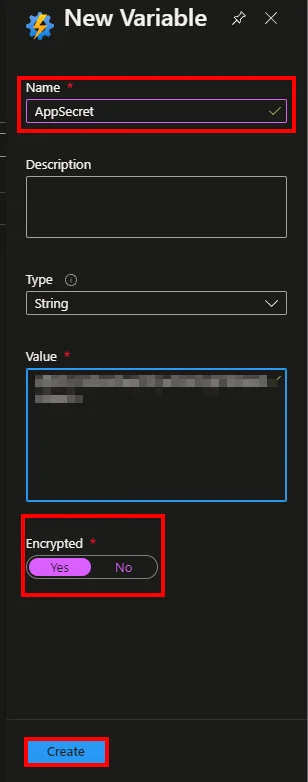
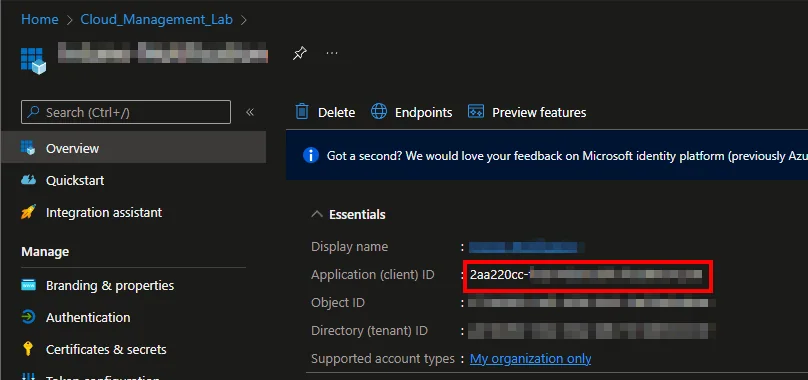
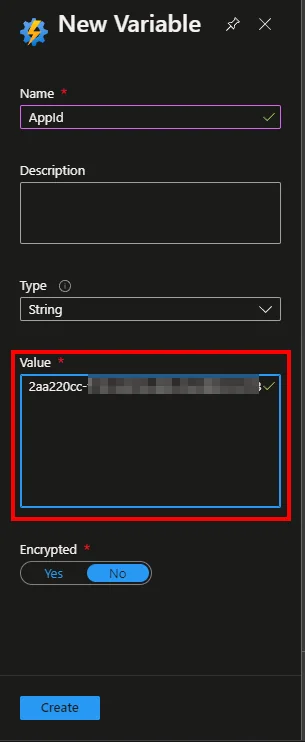
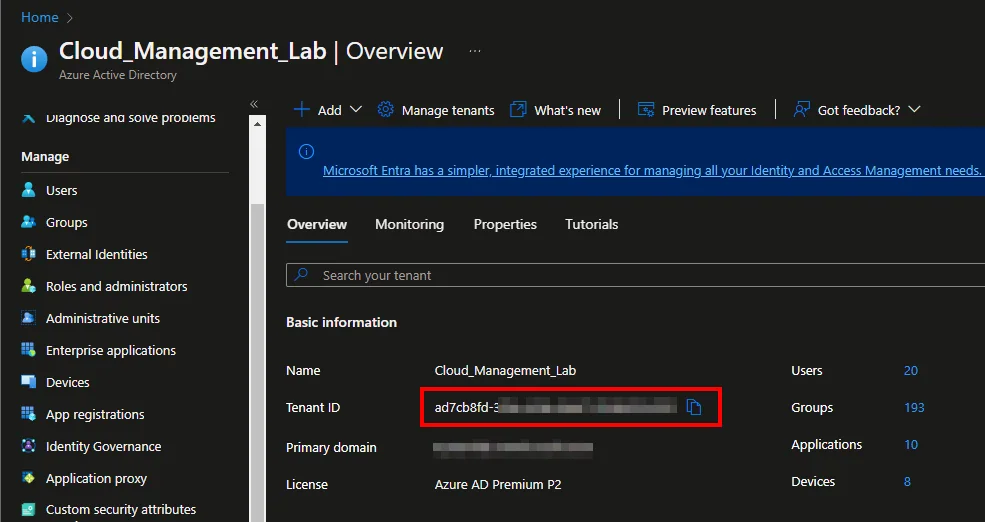
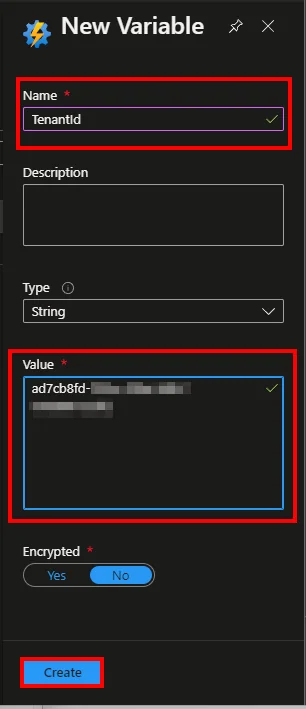
Add the Secret Value, TenantId, WebHookUri and the App ID as Variable
-
-
-
-
-
-
-
-
-
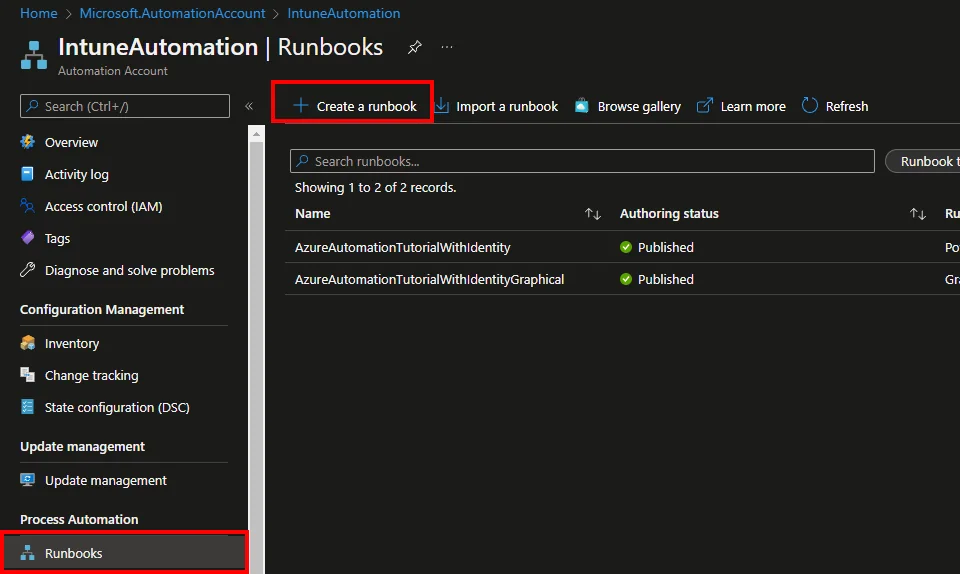
Select Runbooks
-
Click + Create a runbook
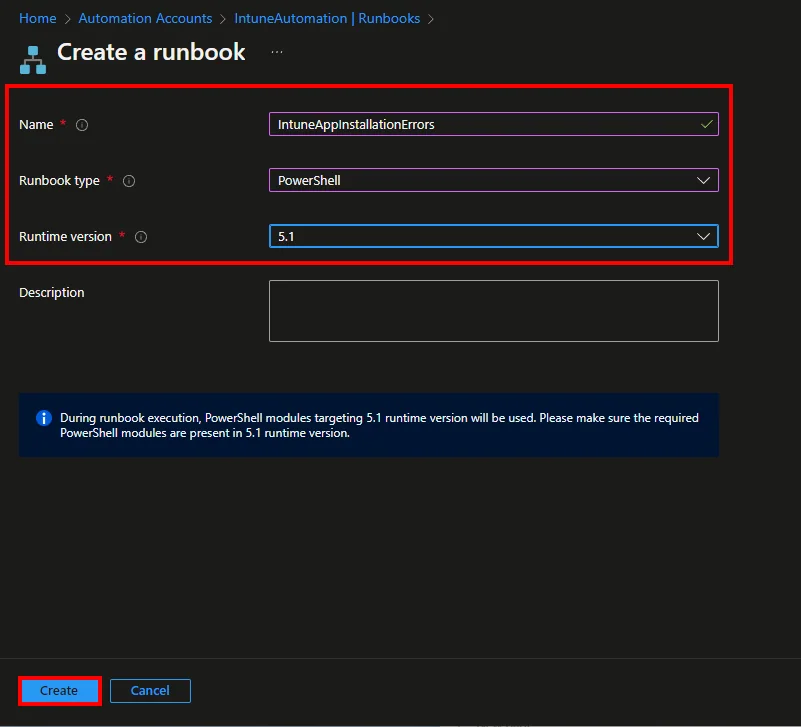
- Enter a Name
- Select PowerShell as Runbook type
- Select 5.1 as Runtime version
- Click Create
- Insert the Script from my Github repository
- Save and test the script

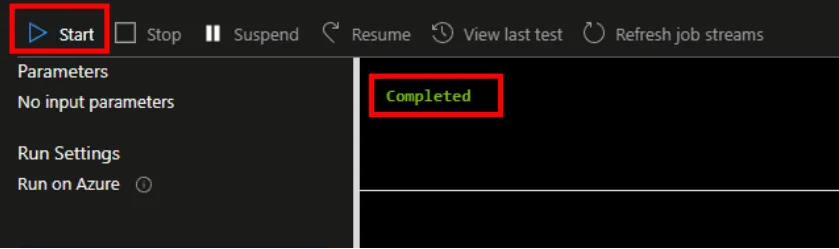
- Click Publish

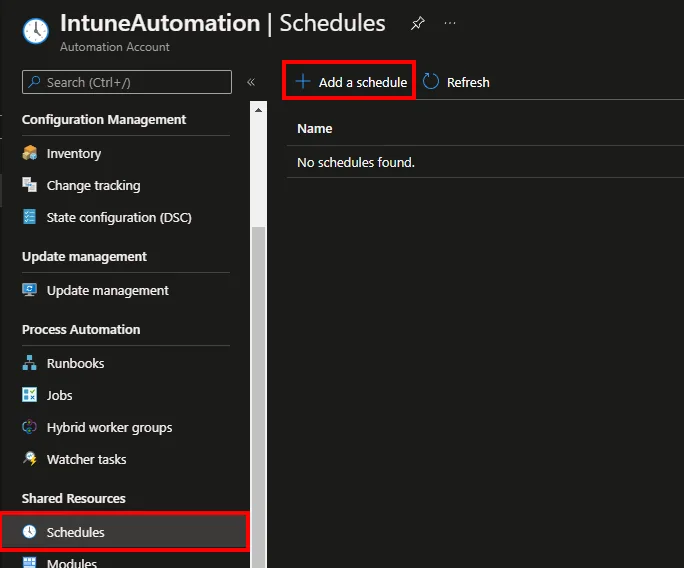
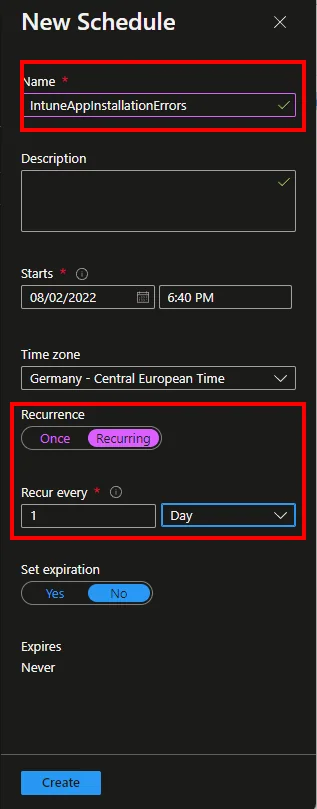
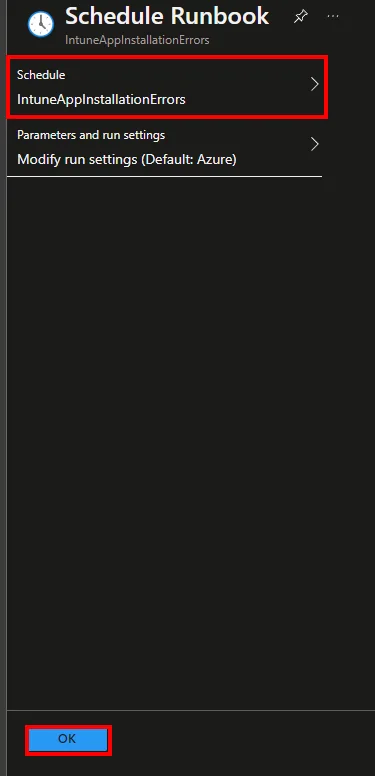
- Navigate to Schedules and click + Add a schedule so the Teams notification is sent automatically
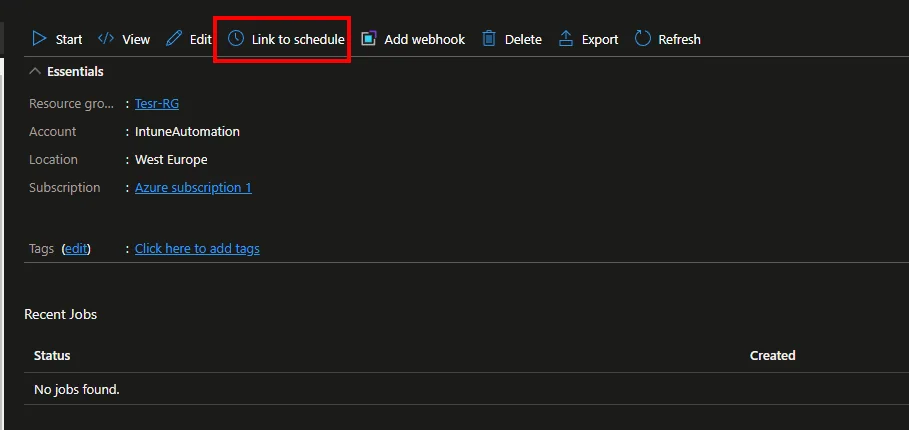
- Click Link to schedule and add the created schedule
Conclusion
I hope I could help you with this blog to explain how you can build another monitoring for your Intune environment with a scheduled Teams notification. The same Teams notification pattern can be reused for almost any Intune report you care about. If you have more ideas about monitoring capabilities then let me know and I’ll be happy to create a blog post about this. For a related troubleshooting scenario, check out how to export Intune assignment errors with PowerShell.
If you want to work more efficiently with multiple Microsoft Graph calls, you might also like my post about the Graph Batch Endpoint.
Stay healthy, Cheers
Jannik

New posts, straight to your inbox.
Hands-on guides on Intune, AI and Azure.