
Set a Default Assignment Filter in Microsoft Intune
Assignment filter setup made simple: deploy a default set of Intune filters with one PowerShell script and refine every group assignment fast.
In one of my posts I have explained how you can create and apply an Intune assignment filter. The assignment filter is a very powerful feature to refine the assignment of a group. For example, you can assign a config profile to all devices and apply an assignment filter to deploy the config profile only on Windows 11 devices within the group. To make it easier for you to start with filters I wrote a script which creates a default set of assignment filters.
Why does this matter for day-to-day device management? Without filters you often end up creating a separate Azure AD group for every variation of a target audience: one group for Windows 11 devices, one for corporate-owned hardware, one for a specific enrollment profile, and so on. That approach quickly becomes hard to maintain, and dynamic group membership can take a while to evaluate.
Filters let you keep a small number of broad assignment groups and then narrow the scope at the moment the policy is assigned. The evaluation happens on the device against live properties, so a machine that gets upgraded from Windows 10 to Windows 11, or re-enrolled with a different profile, is picked up by the right filters automatically without any group churn.
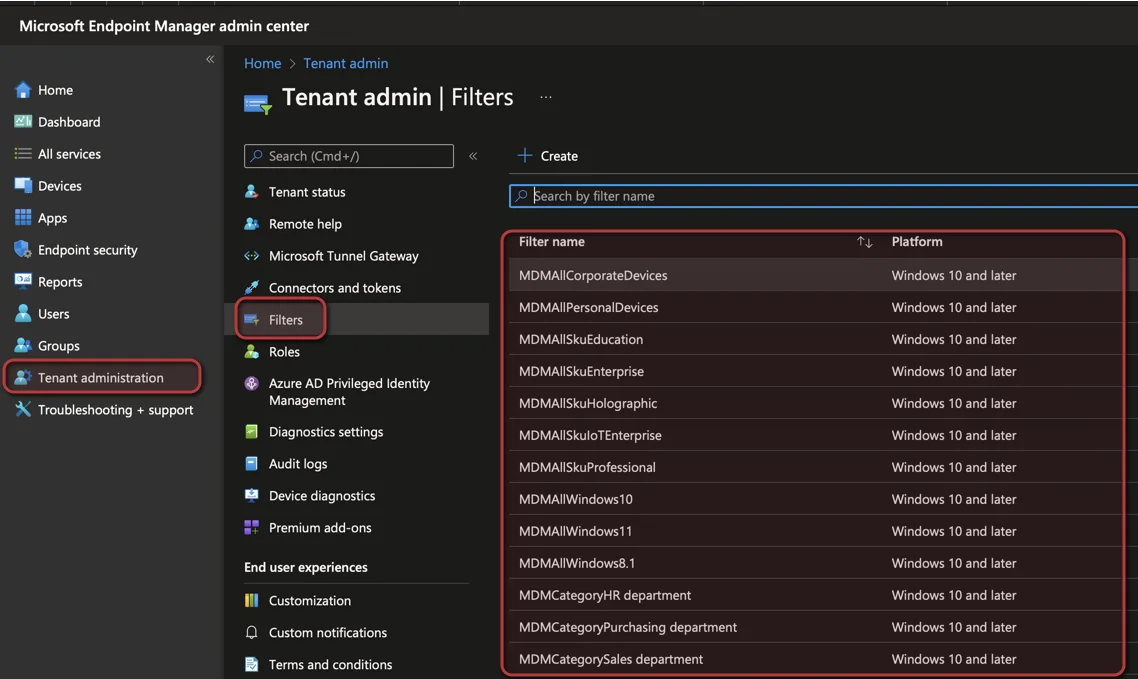
How to deploy a default set of Intune assignment filter rules
The script creates the following assignment filter rules:
- Ownership filter for Personal and Corporate devices
- Enrollment profile: Reads all enrollment profiles and creates a filter for each of them
- Operating System, SKU: Filters are created for the following SKUs: Education, Enterprise, IoTEnterprise, Professional, Holographic
- Operating System Version: Filters are created for Windows 8.1, 10 and 11
- Device category: Filters are created for each device category in your tenant
If you want to learn more about the filter syntax, check the official Microsoft Learn documentation before you run the script. If you don’t need a category, you can comment out this line in the script.
A practical tip before you run it: adjust the $global:filterPreFix variable to match your own naming convention. A consistent prefix such as MDM- keeps all generated filters grouped together in the Filters blade, which makes them far easier to find when you have dozens of them. The script also removes any existing filter that matches the same name before recreating it, so you can safely run it again after you tweak a rule.
- Download the script from my GitHub repository or copy the code
<#
Version: 1.0
Author: Jannik Reinhard (jannikreinhard.com)
Script: Deploy-DefaultFilter
Description:
Default set on intune filteer
Release notes:
Version 1.0: Init
#>

function Get-GraphAuthentication{
    try {
        Import-Module Microsoft.Graph.DeviceManagement
      } catch {
        Install-Module Microsoft.Graph -Scope CurrentUser
        Import-Module Microsoft.Graph.DeviceManagement
      }


    try {
      Connect-MgGraph -Scopes "DeviceManagementServiceConfig.Read.All"
    } catch {
      Write-Error "Failed to connect to MgGraph"
    }

    Select-MgProfile -Name "beta"
}
function Add-IntuneFilter{
    param (
        [parameter(Mandatory=$true)]$Name,
        [parameter(Mandatory=$true)]$Platform,
        [parameter(Mandatory=$true)]$Description,
        [parameter(Mandatory=$true)]$Rule
    )

    Get-MgDeviceManagementAssignmentFilter -Search $Name | ForEach-Object {
            Remove-MgDeviceManagementAssignmentFilter -DeviceAndAppManagementAssignmentFilterId $_.Id
    }
    $params = @{
        DisplayName = $filterPreFix + $Name
        Description = $Description
        Platform = $Platform
        Rule = $Rule
        RoleScopeTags = @()
    }

    New-MgDeviceManagementAssignmentFilter -BodyParameter $params
}

#########################################################################################################
############################################ Start ######################################################
#########################################################################################################
$global:filterPreFix = "MDM"
Get-GraphAuthentication


###### Windows 10 ######
# Ownership
Add-IntuneFilter -Name "AllPersonalDevices" -Platform "Windows10AndLater" -Description "All personal W10 and later devices" -Rule '(device.deviceOwnership -eq "Personal")'
Add-IntuneFilter -Name "AllCorporateDevices" -Platform "Windows10AndLater" -Description "All corporate W10 and later devices" -Rule '(device.deviceOwnership -eq "Corporate")'

# Enrollment Profile
Get-MgDeviceManagementWindowAutopilotDeploymentProfile | ForEach-Object {
    Add-IntuneFilter -Name ("Enrollment"+($($_.DisplayName).Trim())) -Platform "Windows10AndLater" -Description ("All devcies with enrollment profile"+($($_.DisplayName).Trim())) -Rule ('(device.enrollmentProfileName -eq "'+$($_.DisplayName)+'")' )
}

# Operating System SKU
$sku = @("Education", "Enterprise", "IoTEnterprise", "Professional", "Holographic")
$sku | ForEach-Object {
    Add-IntuneFilter -Name "AllSku$_" -Platform "Windows10AndLater" -Description "All devices with SKU $_" -Rule ('(device.operatingSystemSKU  -eq "'+$_+'")')
}

# Operating System Version
Add-IntuneFilter -Name "AllWindows11" -Platform "Windows10AndLater" -Description "All Windows 11 devices" -Rule '(device.osVersion -startsWith "10.0.22")'
Add-IntuneFilter -Name "AllWindows10" -Platform "Windows10AndLater" -Description "All Windows 10 devices" -Rule '(device.osVersion -startsWith "10.0.1")'
Add-IntuneFilter -Name "AllWindows8.1" -Platform "Windows10AndLater" -Description "All Windows 8.1 devices" -Rule '(device.osVersion -startsWith "6.3")'

# Device Category
Get-MgDeviceManagementDeviceCategory | ForEach-Object {
    Add-IntuneFilter -Name ("Category"+($($_.DisplayName).Trim())) -Description ("All device with category "+($($_.DisplayName).Trim())) -Platform "Windows10AndLater" -Rule ('(device.deviceCategory  -eq "'+$($_.DisplayName)+'")' )
}

# Model
Add-IntuneFilter -Name "AllCloudPCs" -Platform "Windows10AndLater" -Description "All Microsoft365 devices" -Rule '(device.model -contains "CloudPC") or (device.model -contains "Cloud PC")'- Execute the script
- Open the Intune admin center
- Navigate to Tenant admin > Filters
- Check your filters
Common pitfalls to watch out for
There are a few things that trip people up when they start using filters at scale. The first is mixing platforms: a filter is bound to a single platform, so a rule created for Windows10AndLater cannot be reused on an iOS or macOS assignment. If you manage multiple platforms, plan to create a parallel set of filters for each one.
The second pitfall is the difference between include and exclude mode. When you attach a filter to an assignment you choose whether matching devices are included or excluded, and it is easy to invert the logic by accident. Always test a new filter against a small pilot group first, then use the built-in preview to confirm exactly which devices match before you roll it out broadly.
Finally, remember that the device properties a filter relies on are only as accurate as the data Intune has collected. A device that has not checked in recently may not reflect a recent OS upgrade or category change yet, so give your fleet time to sync after large changes before you assume a filter is misbehaving.
Conclusion
I hope this script helped you to get started with the Intune assignment filter feature. The script creates a default set of assignment filters with which you can fulfill many requirements. Of course, this will not meet all requirements, but it is really easy to create a new assignment filter or extend existing ones.
Stay healthy, Cheers
Jannik
Update 02.08.2022
You can also download my assignment filter script from the PowerShell Gallery:
Install-Script -Name Deploy-DefaultFilter
New posts, straight to your inbox.
Hands-on guides on Intune, AI and Azure.