I currently attend at the MMS Fort Lauderdale conference, where an attendee asked an good question: Is it possible to convert a device group into a user group, and vice versa? The answer is both yes and no. While there’s no out-of-the-box functionality in Intune to achieve this directly, it is possible by leveraging the Microsoft Graph API.
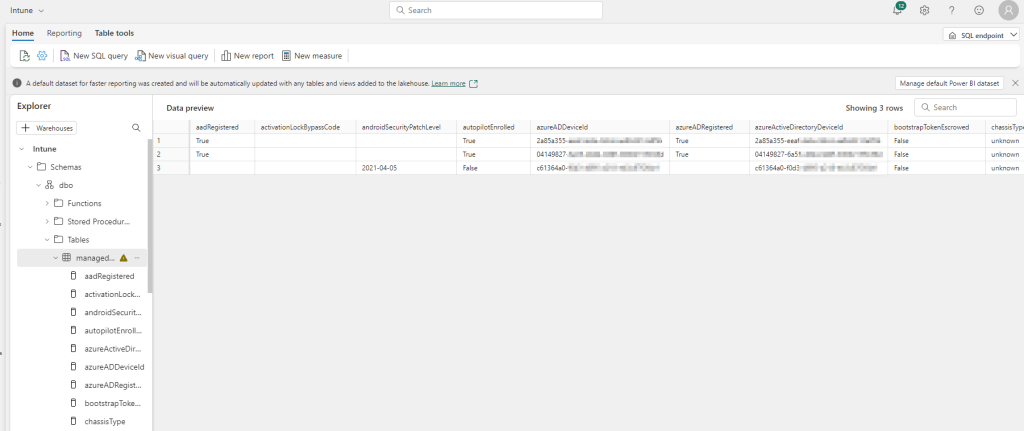
Intune provides a lot of data that can be exported via interfaces. But wouldn’t it be cool if you could have everything from the data export to the powerbi dashboard in one place in a portal and additionally query the data Graph provides you with via SQL to build complex querys. That’s exactly what Microsoft Fabric delivers. In this blog we would like to take a closer look at this new platform.
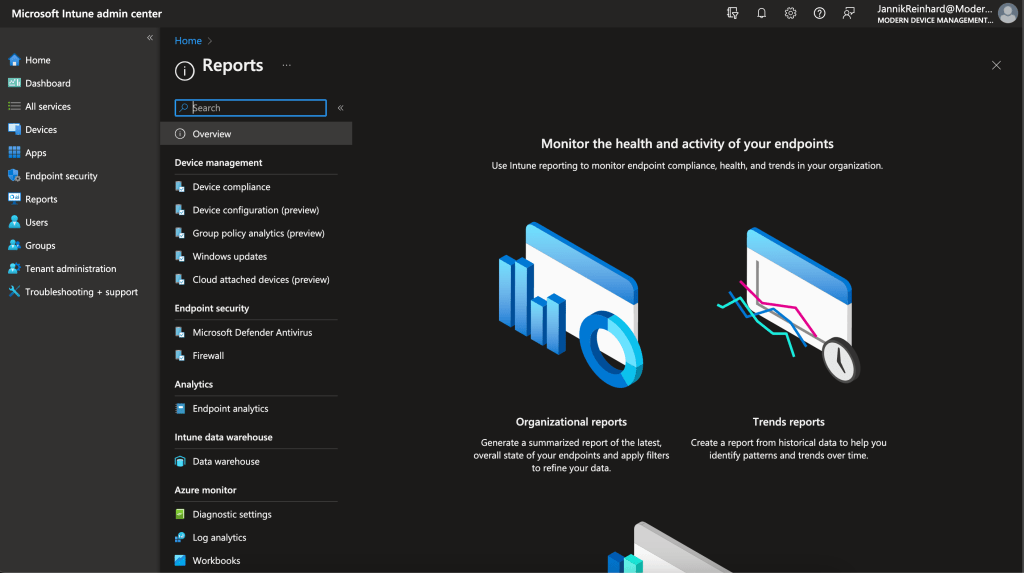
In this new blog post I want to give you an overview hot you can start with reporting analytics with Intune. I already wrote several blogs how to create custom reports via mail or team, to to export and automate things. I also wrote an blog with an overview of the analytics capabilities of Intune. In this post I want to go an step back and want to give you an overview how to start with this topic and which capabilities Intune offers.
Most have heard the term Microsoft Graph API before. Ms Graph is an interface from MS for accessing and controlling a variety of Microsoft cloud services. In this blog post I will go into more detail on how you can use Graph in conjunction with Intune, what your options are and how it all works. I’ll also give you script examples in this blog that you can use directly.
There are many ways to export information from Intune. For example, you can use Log Analytics, the Data Warehouse or the Graph API. But if you want to export several thousand devices or apps via Graph, it can happen that Graph has a paging. Paging means that you only get a certain number of entries with one call and then you have to make another call for the next range. This means for you that you have to write a script that loops through the pages.
Another problem if you want to export e.g. all Discovered apps you have to loop through all devices because this attribute is not shared in List calls. But if you have several 10k or 100k devices this takes a long time.
But there is a Graph Report API that is designed to export large amounts of data and provide it to you as a CSV on a really easy way. How you can use it I will explain in this blog.
It is always important as an Intune admin to have an overview of the environment. Intune offers a lot of reports but as we all know you don’t look into them every day. Isn’t it easier to get a daily or weekly message in Teams and see the top failed app installation. I have already released some blogs with the topic of detecting anomalies in Intune with the help of cognitive services. In this blog I want to show you how to send a report that is already available in Intune to Teams using Azure Automation.
I think everyone who works with Intune on a daily basis knows the situation that they would like to have a simple feature that would simplify their daily work. In order to close exactly this gaps I decide to code my own tool with many small features that would make the life for Intune admins easier. This was the birth of the Intune Tool Box. This tool is a WPF application that is written in PowerShell. The app has the same design as Intune but offers small helpers for the daily work. The good thing is that this app is built in such a way that it can be easily extended at any time. If you have any features in your mind that you are missing in Intune console but is possible to solve this via graph so let me know that I can add this to the app. My plan is to develop the app step by step and bring in new cool features.
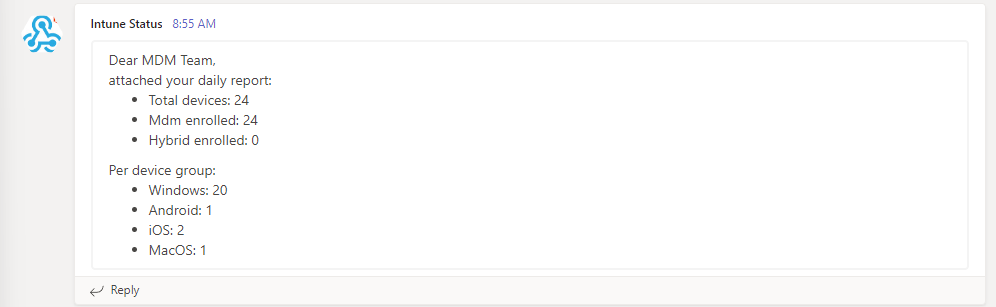
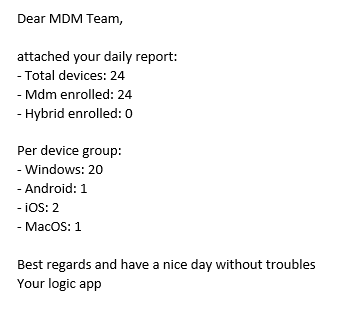
For an Intune admin it is always helpful to get an overview of the current status of his tenant and an overview of the count of devices in the field. In this blog I would like to explain how you can use Logic apps to send you a detailed daily report.
All assignments in Intune are based on Azure AD groups. I think you also already had the problem that you wanted to find out to which Intune Object a certain AAD group in already assigned, but there is no way in the portal to find this out. To solve this problem I have written a script that gives you exactly this output.
As an administrator, it is always good to keep an eye on your Intune status. In this blog I would like to show you how you can display the current status with the help of a small PowerShell script.















 jannikreinhard.com