
What is a Foundry hosted agent? Build one for support tickets
Build a Microsoft Foundry hosted agent in VS Code. Follow a Wi-Fi ticket through a local test, deploy the Python agent to Azure and check its reply.
A Foundry hosted agent is an AI agent you run in Azure. In Python, you define how it handles a request and when it calls a language model. Foundry keeps the agent available to your help desk even when your laptop is closed. Microsoft’s introduction to hosted agents
Let’s build one for a shift handover. Someone on the morning shift reports that a laptop drops its Wi-Fi connection after waking up. The evening shift needs the ticket number, the problem and what helped. We’ll call our agent ticket-handover. We’ll paste the ticket into a chat window and have it write the handover.
1. Create the agent in VS Code
You’ll need Visual Studio Code, Microsoft Foundry Toolkit, Python 3.13, the Azure CLI and a Foundry test project with a deployed chat model. If you’re starting from an empty project, set up the model first. Microsoft lists Foundry Project Manager as the role for deploying an agent to an existing project. My project and model setup guide · Toolkit and prerequisites
- Open Foundry Toolkit in VS Code. Under Developer Tools → Build → Create Agent, choose Browse all samples.
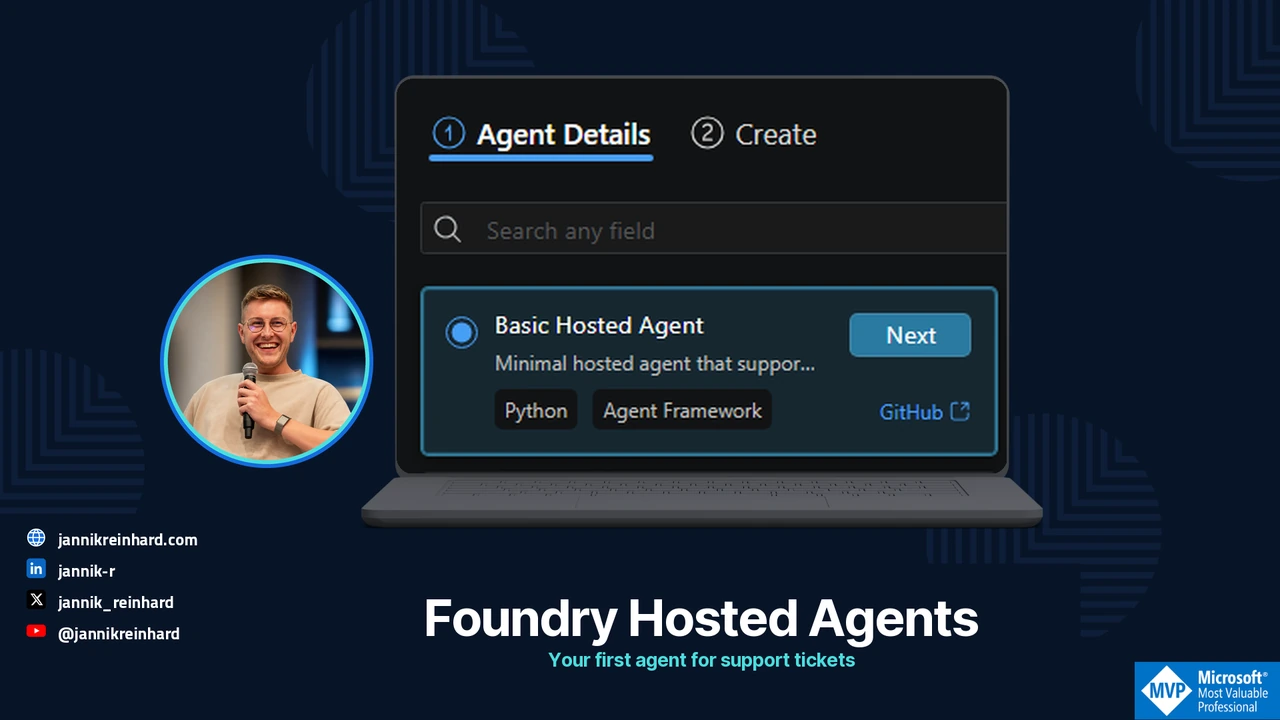
- Select Basic Hosted Agent with Python, Agent Framework and Responses. Responses is the interface the agent uses to receive a message and return a reply. The cover image shows the selected sample. Select Next. Microsoft screenshot
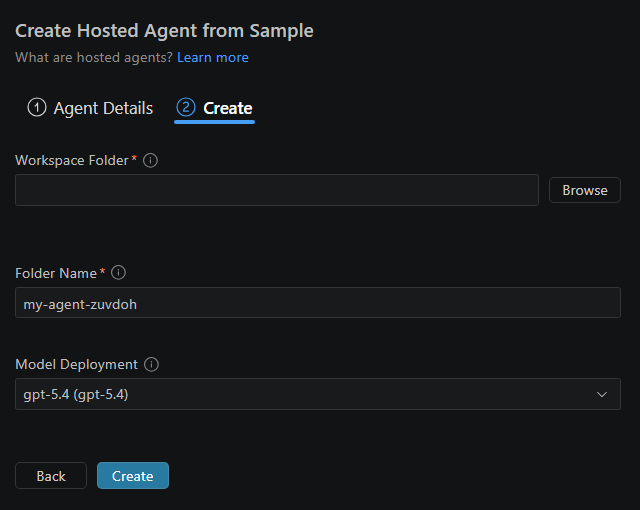
- Pick a folder and call it
ticket-handover. Under Set up with Microsoft Foundry, select your project and its existing model deployment. Select Create and open the generated folder.
2. Give the agent a ticket
Open main.py in the generated project. Look for instructions= inside Agent(...). The sample asks the assistant to be friendly and brief. Replace that instruction with the one below and save the file. You can use the rest of the sample as it is. Python sample on GitHub
instructions="""Write a handover for the next help desk shift.
Use the language of the ticket. Start with its ID and a colon.
Combine the symptom and what helped into ONE short sentence.
Do not add a cause, greeting or advice. Return only the handover.""",
For the first run, open a terminal in the folder containing main.py. The linked sample lists the packages it needs in a file called uv.lock. Run these two commands there and sign in with your test project account. Install uv
uv sync --frozen
az login
In VS Code, use Python: Select Interpreter to select the .venv you just created.
My folder contains a requirements.txt file
Some Toolkit versions supply their package list in this format. Use Python: Create Environment to create a Python 3.13 environment. In that environment, run python -m pip install -r requirements.txt in place of the uv command.
Press F5 to open Agent Inspector. Wait for Connected next to localhost:8088, then send this ticket in the playground.
INC-1842. Hi team, every time I wake my test laptop from sleep it drops off Wi-Fi. I can get it working again if I reconnect manually. Thanks!
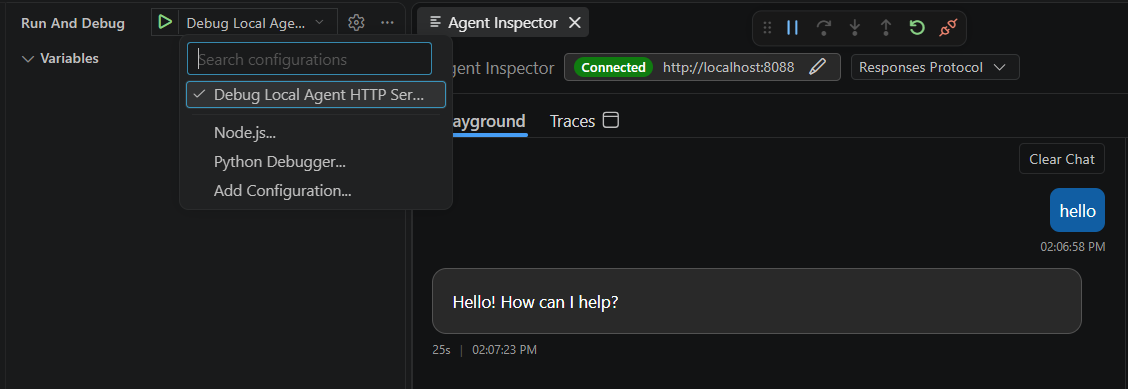
A reply from my local test
INC-1842: When waking from sleep, Wi-Fi drops and requires manual reconnection to restore.
I tested the Python agent on my laptop with Qwen3-4B in Foundry Local. The Toolkit sample calls the Azure model you selected, so your wording can differ. I’d check three things in the reply. Does it keep INC-1842? Does the laptop lose Wi-Fi after waking up? Does reconnecting manually help? The ticket says nothing about a faulty driver, so the handover shouldn’t diagnose one.
3. Deploy to Azure and send the same ticket again
Stop local debugging with Shift+F5. In the Toolkit, open Developer Tools → Build → Deploy to Microsoft Foundry. Check the destination project. Select Code, Remote and New agent. Enter ticket-handover as the name. With Remote, the Toolkit uploads your code and Azure installs the packages it needs.
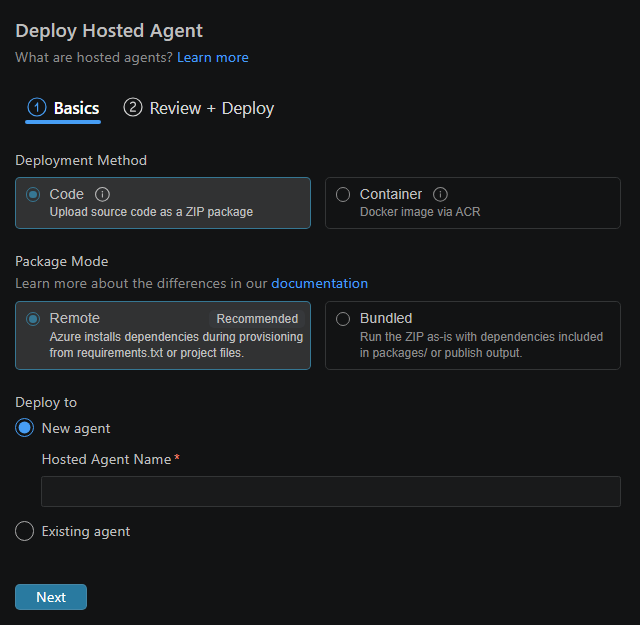
Select Next. On Review + Deploy, check the Python runtime (3.13), the start command for main.py (python3 main.py in the wizard), CPU and memory. Select Deploy and wait for it to finish. Running the hosted agent and calling its model can incur charges. Deploy with Foundry Toolkit
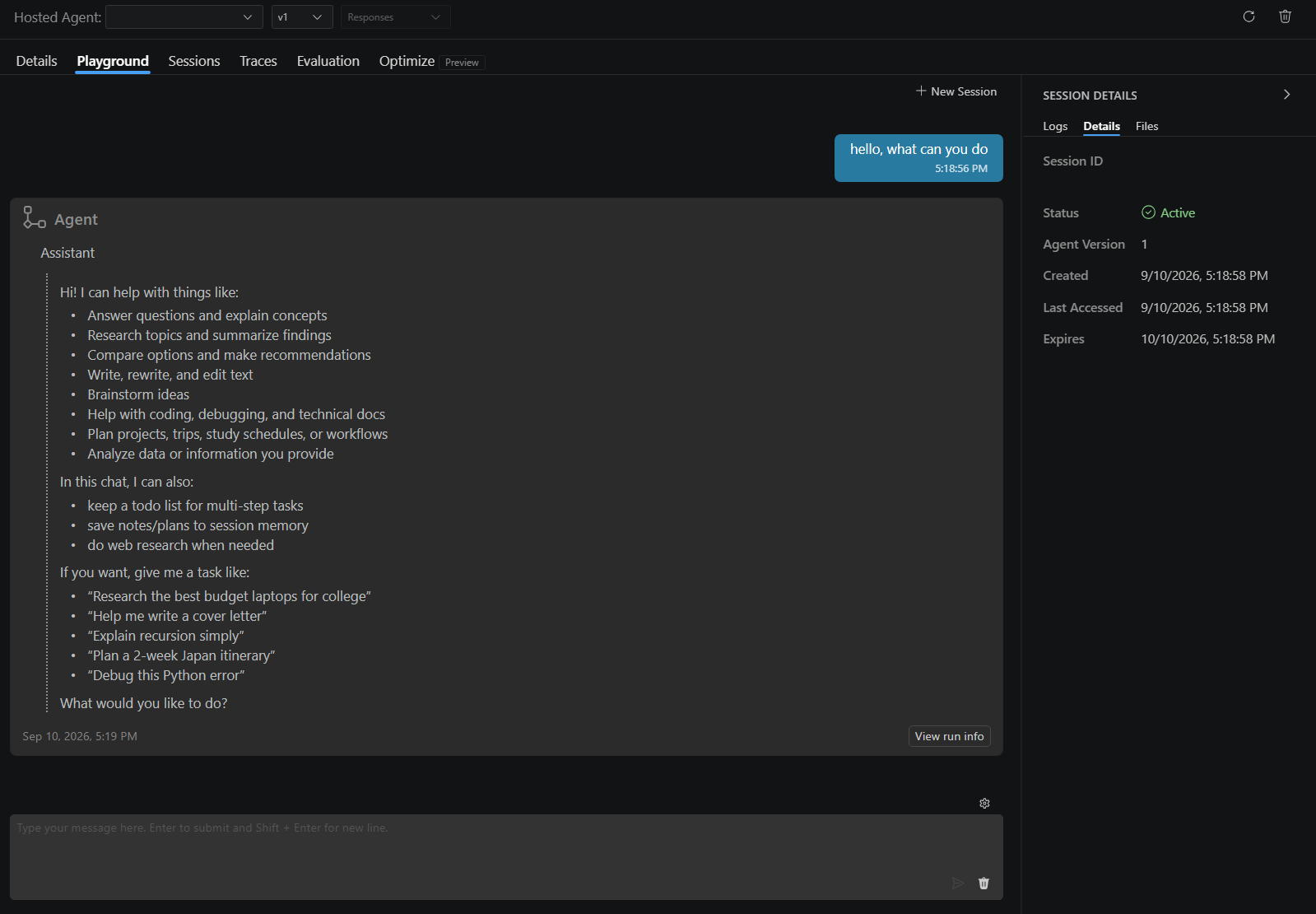
Now open Build → Hosted Agent Playground. Choose ticket-handover and the version you just deployed. Send the same ticket from step 2. If you get a handover here while your local agent is stopped, the version in Azure is answering. Under Details, you can copy the endpoint, the address your help desk application can call. Open Sessions to find that run. If the response fails, you can open its logs there. Hosted Agent Playground on Microsoft Learn
Try a second ticket before you finish. This time, leave out the line about reconnecting manually. It’s a quick way to see whether your agent adds a fix that nobody on the help desk has actually tried. I hope this helps you get your first hosted agent running.
Stay healthy, Cheers
Jannik