
Configuration of Windows Update reboot notifications
Configure Windows 11 restart notifications with Intune update rings, deadlines and grace periods. The original Windows 10 walkthrough is retained with its applicability explained.
For Windows 11 restart notifications, begin with your update ring’s deadline, grace period and notification settings. The three legacy CSP settings in the original 2022 walkthrough are not a current Windows 11 configuration recipe.
The guidance below was reviewed against Microsoft documentation on November 5, 2026. The historical screenshots are retained; this update does not include a new tenant test.
Windows 11: configure the update ring first
In Intune, review the assigned Windows update ring, its automatic update behavior, active hours, deadline and grace period. Keep the normal restart notifications visible unless the device’s use requires a documented exception. Microsoft recommends the default notification behavior for ordinary devices in its update user-experience guidance.
For Windows 11 22H2 and later, check quality and feature update deadlines separately. After deadline and grace period expire, an enforced restart can occur regardless of active hours. Explain that limit to users; active hours do not provide an indefinite postponement. See Microsoft’s compliance deadline reference.
Before rollout, test a pending restart before and after the deadline, a device returning after several days offline and a user who dismisses the notification. Record the Windows build, assigned policies, deadline timestamps and actual restart behavior. The Intune troubleshooting guide helps distinguish assignment failures from client behavior.
How the original Windows 10 walkthrough applies
AutoRestartNotificationSchedule and AutoRestartRequiredNotificationDismissal are legacy policies and do not apply to Windows 11. Verify OS applicability for every setting in the Update Policy CSP reference. The following screenshots document the original Windows 10 approach.
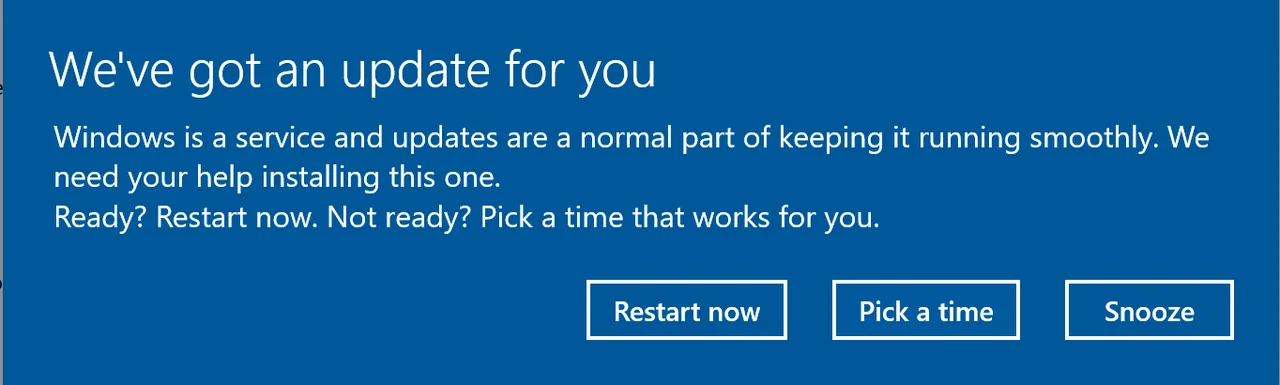
Why Windows Update reboot notifications matter
Users need to know when a restart is pending and when postponement ends. Keep support’s explanation consistent with the effective deadline and notification policies on the device.
Creation of the configuration profile
- Open the Intune admin center
- Navigate to Devices-> Windows-> Configuration profiles
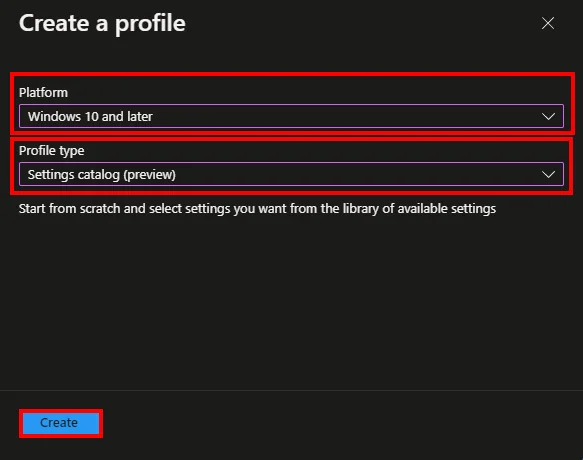
- Click + Create profile

- Select Windows 10 and later platform as Platform
- Select Settings catalog (preview) as Profile type
- Click Create
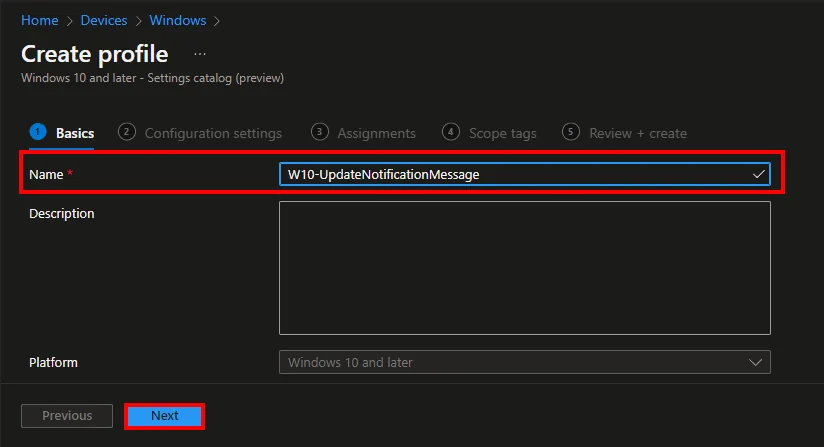
- Enter a Name and click Next
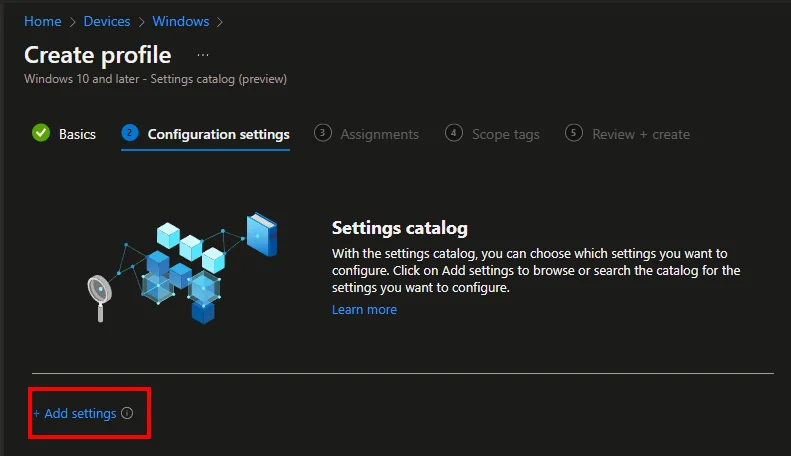
- Click + Add settings
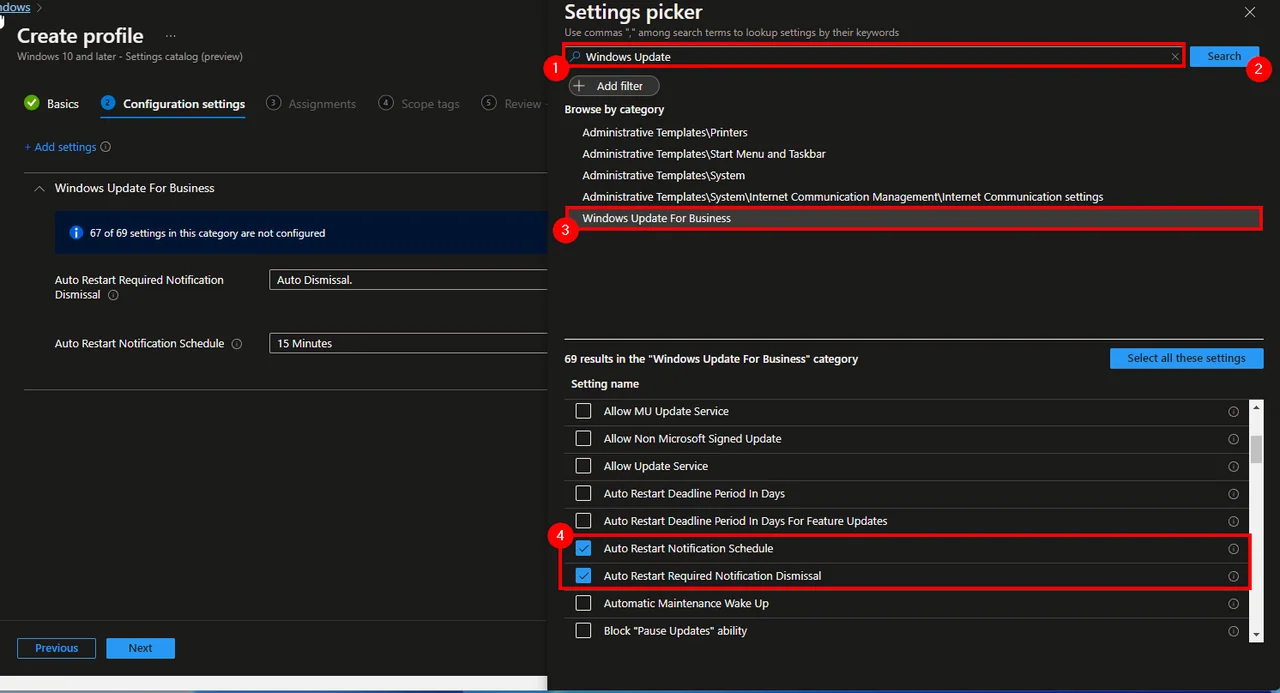
- Enter Windows Update in the search box and click Search
- Select Windows Update for Business
- Select the following settings:
- Auto Restart Notification Schedule
- Auto Restart Required Notification Dismissal
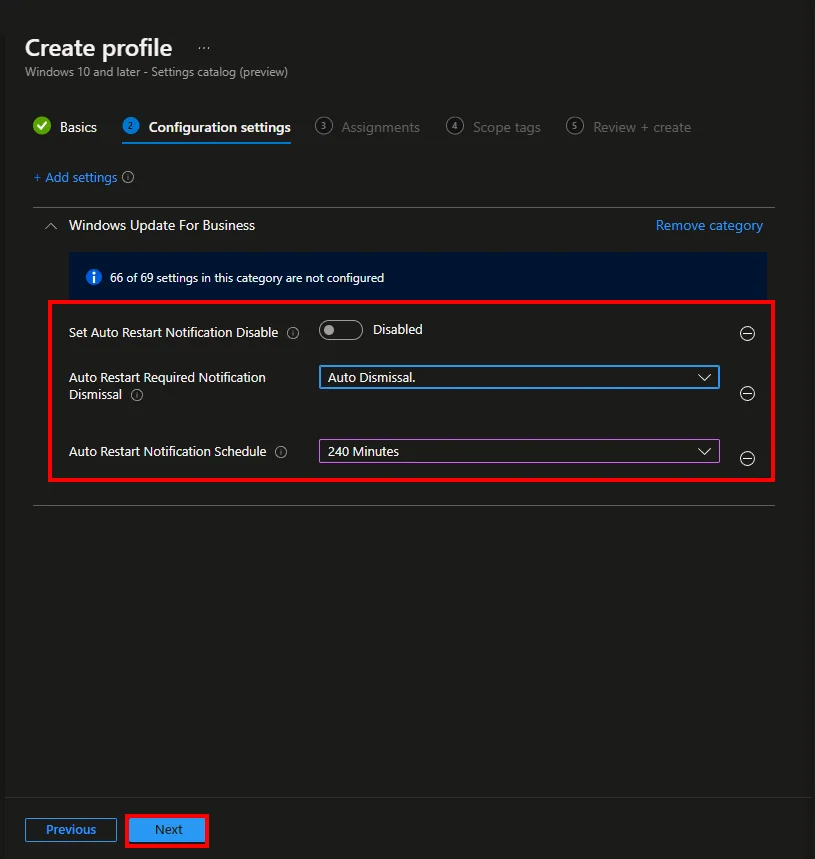
- Set Auto Restart Notification Disable
Note: The documentation for the CSP you can find the Microsoft documentation.
- Configure the settings as needed
- Click Next
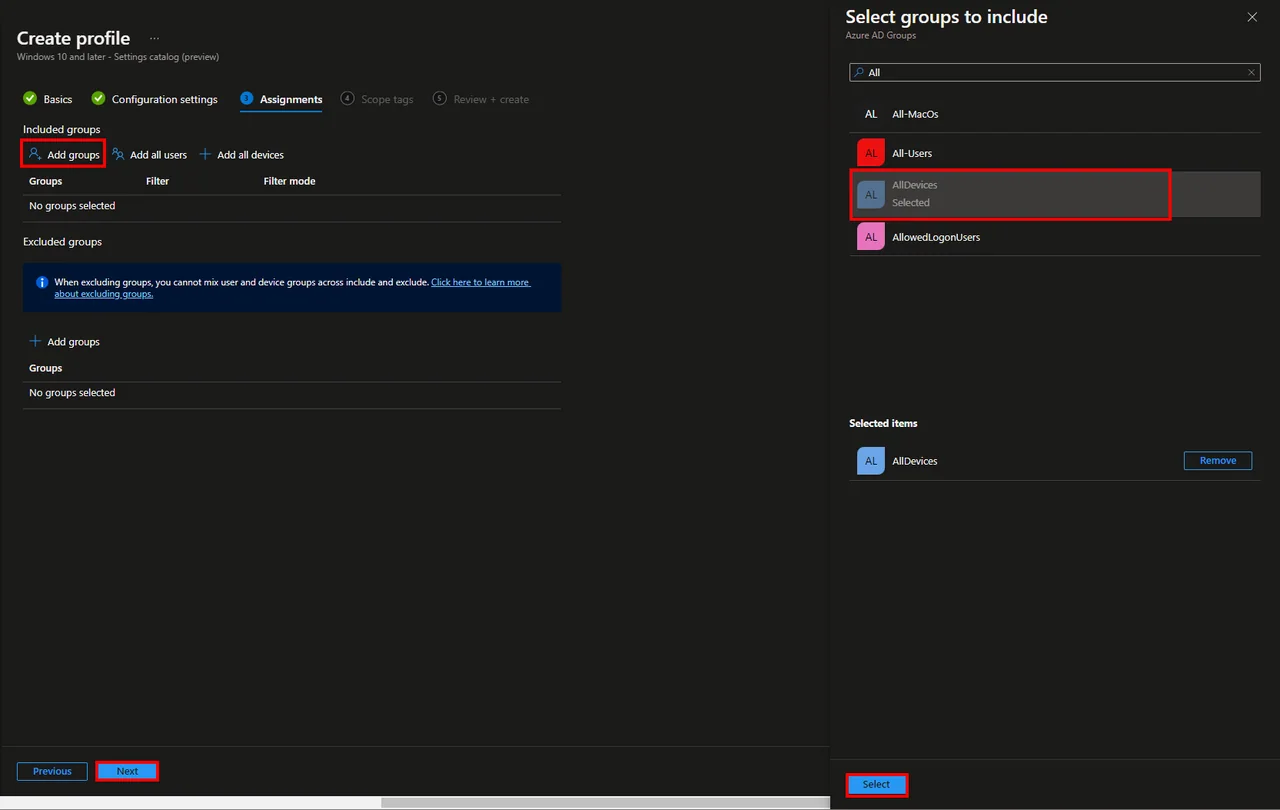
- Assign the policy to a group
- Click Next
- Click Next
- Click Create
Key settings that control Windows Update reboot notifications
On the applicable Windows 10 versions, the schedule controls the advance reminder and dismissal controls how the required-restart notification closes. Do not copy these values to Windows 11. Check the CSP’s supported OS and the effective update ring before changing a device class.
Common mistakes to avoid
- Stacking conflicting update rings on the same device, so the notification timing no longer matches the actual restart deadline.
- Disabling notifications globally instead of scoping the disable to the specific kiosk or shared-device group that truly needs it.
- Setting an extremely short warning window, which recreates the exact surprise-restart problem you were trying to solve.
- Skipping a pilot ring, so the first time you learn the wording is confusing is from a flood of support tickets.
Record the effective policies and restart timestamps on the pilot devices before expanding the assignment.
Conclusion
For current Windows 11 deployments, validate the update ring and deadline behavior first. Keep the legacy screenshots as a reference for the Windows versions to which those CSP settings apply.

New posts, straight to your inbox.
Hands-on guides on Intune, AI and Azure.