
The Ultimate Intune Troubleshooting Guide: How It Works and How I Fix It
Troubleshoot Microsoft Intune enrollment, policies, apps, IME and reporting with a structured workflow, essential logs and practical fixes.
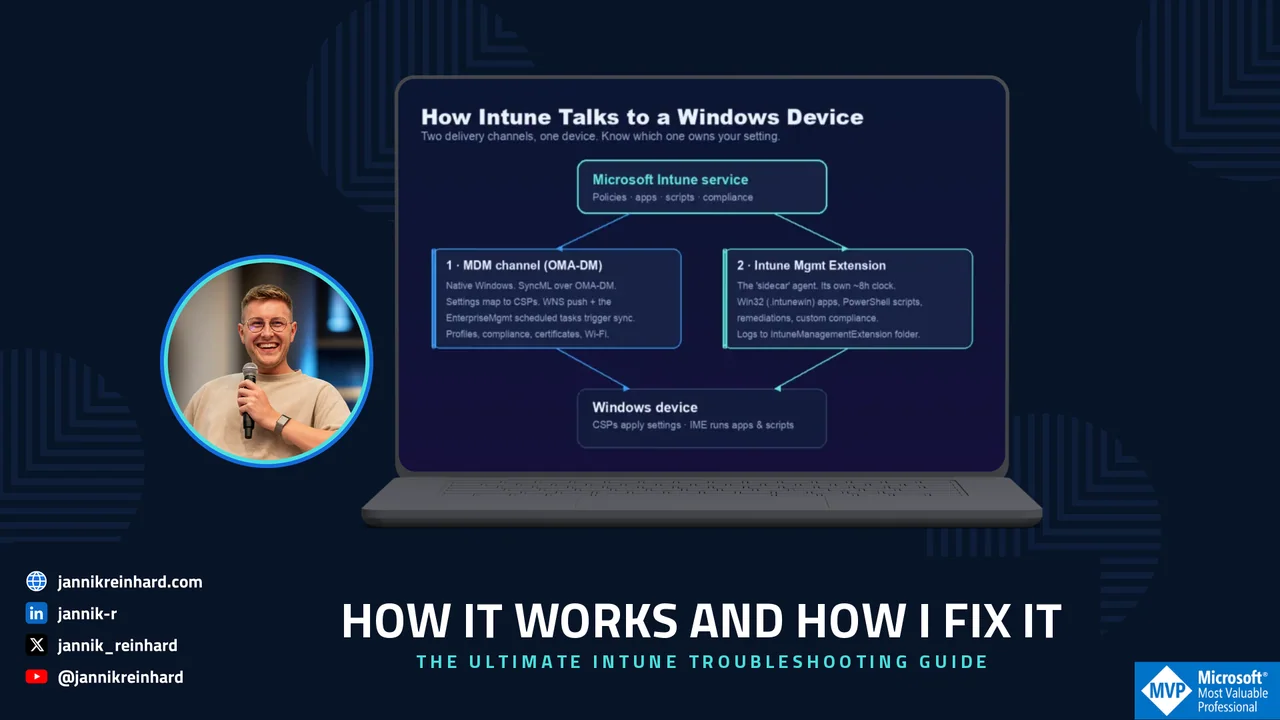
Intune troubleshooting starts by identifying the management channel, checking device identity and collecting the right logs. Use the workflow below to narrow the fault before changing a device. The management-channel reference explains MDM, IME, MMP-C, certificates and Win32 delivery in detail.
Management internals and logs reference
- Intune troubleshooting starts here: how Intune actually works under the hood
- How do CSPs really work?
- How often does a device check in?
- MMP-C and Declared Configuration: the second brain Intune troubleshooting now has to cover
- What triggers it, and what runs on it?
- How does it work, and how do I see it on a device?
- Identity and Intune troubleshooting: how a device proves who it is
- The two certificates you must not confuse
- What is the PRT, and why does it break things?
- Where the logs live: the Intune troubleshooting log map
- How do I read an IME log like an expert?
- The Intune troubleshooting tools I use
- MdmDiagnosticsTool.exe — the in-box collector
- Collect diagnostics — the same thing, remotely
- The community tools I keep on hand
- How does a Win32 app really reach the device?
- The retry trap: GRS
- Win32 app return codes you must map correctly
The method I actually use
Tools are not a method. Here is the Intune troubleshooting order I follow, every time. It keeps me from rabbit-holing.
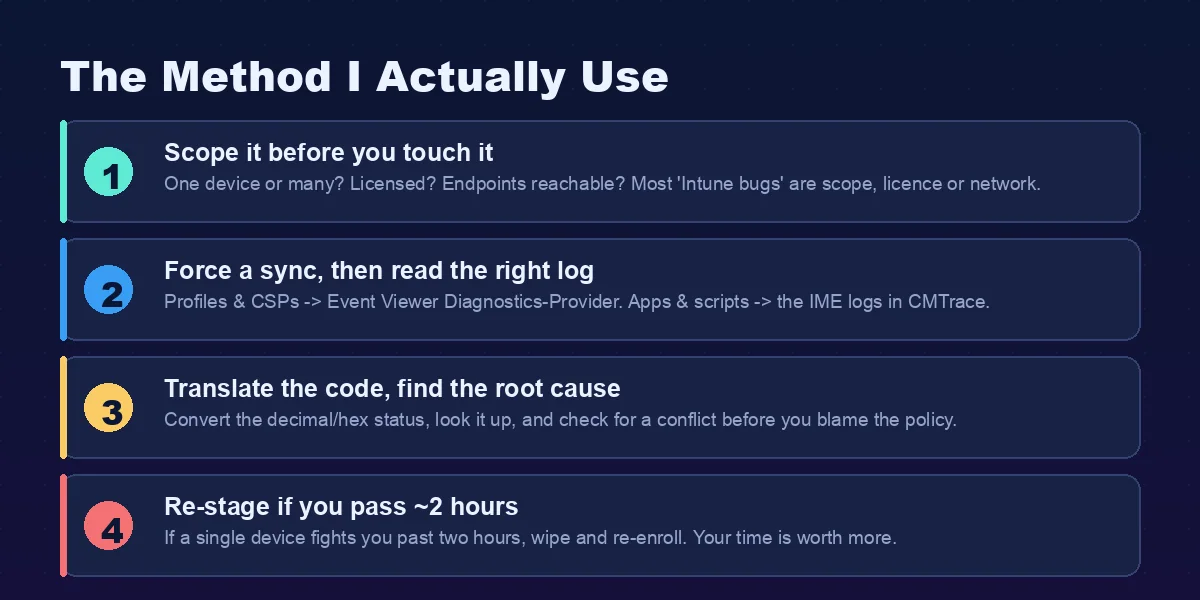
- Scope it before you touch it. Good Intune troubleshooting starts here: is it one device or many? Is the user licensed? Are the required network endpoints reachable? In my experience most “Intune bugs” are not bugs at all — they are scope, licence or network. This is also the approach the team at OceanLeaf describe in their troubleshooting guide, and I agree with it.
- Force a sync, then read the right log. Most Intune troubleshooting lives in this step: profiles and CSPs go to Event Viewer (Diagnostics-Provider). Apps and scripts go to the IME logs in CMTrace. Do not read the app log for a profile problem.
- Translate the code, find the root cause. Convert the status code, look it up, and check for a conflict before you blame the policy. Two profiles fighting over the same setting is one of the most common causes.
- Re-stage if you pass about two hours. If a single device keeps fighting you past two hours, wipe and re-enroll it. Your time is worth more than one stubborn machine. (For a fleet-wide problem you keep digging — re-staging only makes sense for a single device.)
The Intune troubleshooting errors I hit most — and how I fix them
Now the practical part. These are the categories that fill my week, and the bulk of day-to-day Intune troubleshooting.
Before the category-by-category notes, here is the fast lookup. These are the codes that come up most in real Intune troubleshooting, grouped by where they fire, with the fix I reach for first.
| Code | Meaning | First fix |
|---|---|---|
0x80180014 | MDM enrollment blocked by an enrollment restriction. | Allow Windows (MDM) under Devices > Enrollment; check the device cap. |
0x8018000a | Device is already enrolled in another MDM. | Clear the stale enrollment and its EnterpriseMgmt scheduled tasks, then re-enroll. |
0x80180018 | No or invalid licence. | Assign an Intune licence; confirm the user is in MDM user scope. |
0x8018002b | Unverified / non-routable UPN suffix, or user out of MDM scope. | Fix the UPN suffix; set MDM user scope to All or the right group. |
0x801c03ea | TPM attestation failed (Autopilot self-deploying / pre-provisioning). | Update TPM firmware; tpmtool getdeviceinformation; confirm physical TPM 2.0. |
0x801c0003 | Entra join not authorized. | Allow device join; check the device quota. |
0x80070774 | Hybrid join: domain mismatch / DC unreachable. | Unassign user on the Autopilot profile; check the ODJ Connector (30120/30130/30140). |
0x87d1041c | Win32 app installed but detection rule did not find it. | Fix the detection rule (path, version, MSI ProductCode); remember GRS cooldown. |
0x87d1fde8 | Generic IME install failure / will retry. | Fix detection, test the install as SYSTEM, check AppWorkload.log. |
0x80190190 | Sync fails — expired Intune MDM Device CA certificate. | Check the cert in certlm.msc directly; re-enroll if expired. |
Common Intune error codes — enrollment, Autopilot/TPM and Win32.
Enrollment fails
For enrollment Intune troubleshooting, look first in Event Viewer at the Diagnostics-Provider log and at the EnterpriseMgmt scheduled task result (Event ID 76). The codes I see most:
- 0x8018002b — the classic. Usually the user’s UPN uses a domain that is not verified or not routable (like
.local), or the MDM user scope in Entra is not set to include the user. Fix the UPN suffix, and set Entra > Mobility (MDM and MAM) > Microsoft Intune > MDM user scope to All or the right group. - 0x80180014 — Windows (MDM) enrollment is blocked by an enrollment restriction. Devices > Enrollment > set Windows (MDM) to Allow.
- DeviceCapReached — the user hit the device enrollment limit. Remove stale device records or raise the limit.
- 0x8007064c / 0x8018000a — the device is already enrolled (often a cloned image or a leftover work account). Remove the old connection or clean the stale enrollment certificate, then re-enroll.
Rudy Ooms has a deep write-up of these enrollment codes at call4cloud if you want the registry-level internals.
A Win32 app says “installed” but shows as failed
This is the 0x87D1041C / GRS situation I covered in the journey section above — open AppWorkload.log, confirm the install succeeded and the detection failed, fix the detection rule, and remember the cooldown.
A configuration profile shows “Error”
In profile Intune troubleshooting, errors show up as a long decimal status code in the portal. They are SyncML statuses with an underlying Win32 code. The pattern:
- A SyncML(404)-style code means the CSP node was not found or is not applicable to that platform.
- A SyncML(405) means you wrote to a read-only node, and 418 means the node already exists.
- A SyncML(500) on the firewall compliance setting is very often benign and transient — the MDM agent starts before the firewall service finishes initialising at boot. It clears on the next sync.
Before you change anything, check the Conflict state — two profiles setting the same value differently is the cause more often than people think.
How do I decode an error code fast?
Most of these numbers are not random — and decoding them is core Intune troubleshooting. They follow a pattern, and once you see it you can decode the portal’s cryptic decimals in your head.
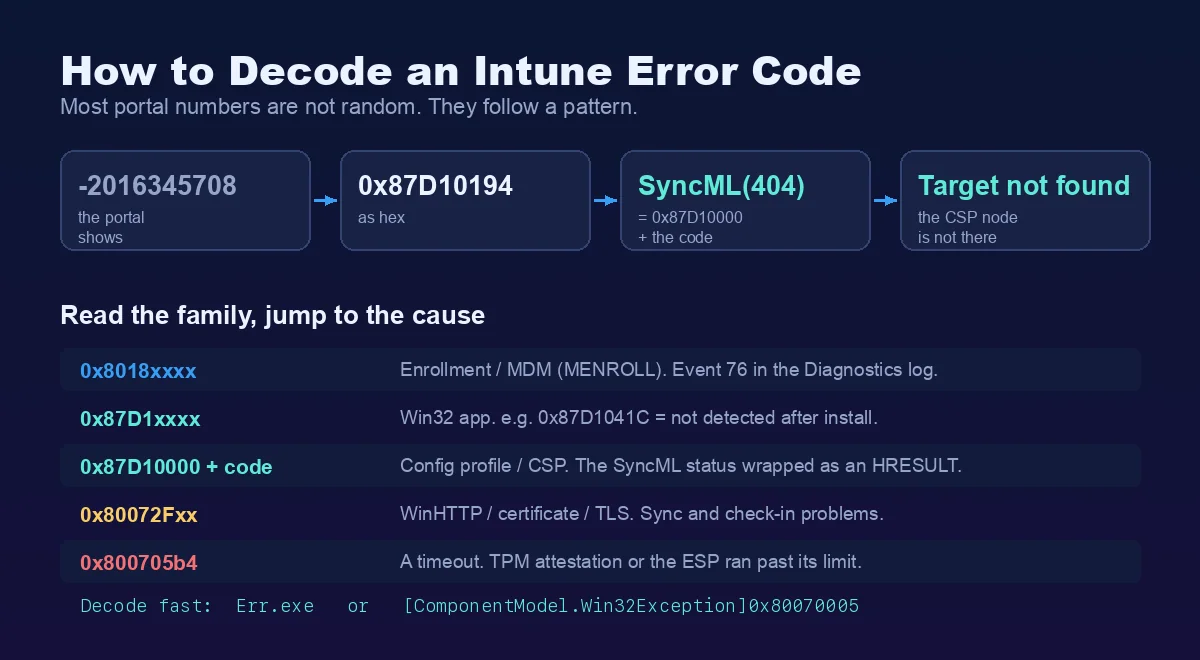
For configuration profiles, the rule is 0x87D10000 + the SyncML status code. So a portal value of -2016345708 is 0x87D10194 in hex, which is 0x87D10000 + 0x194 — and 0x194 is 404. The setting failed because the CSP node was not found. That is a real example from the Intune portal.
It also helps Intune troubleshooting to read the family of a code and jump straight to the area:
- 0x8018xxxx — enrollment / MDM (the MENROLL family). Look at Event 76.
- 0x87D1xxxx — a Win32 app (e.g.
0x87D1041C, not detected after install). - 0x80072Fxx — WinHTTP / certificate / TLS. Sync and check-in problems.
- 0x800705b4 — a timeout, usually TPM attestation or the ESP running past its limit.
To get the plain-English text of any Win32 code fast, use Microsoft’s Err.exe, or in PowerShell:
# Decode any Win32 / HRESULT to its message text[ComponentModel.Win32Exception]0x80070005 # -> Access is deniedHint: Even faster, paste the code straight into ErrorHunter — a free error-code lookup Florian and I built that translates Win32, HRESULT and MDM/SyncML codes into plain English in the browser. It is the one I keep open in a tab while reading logs.
A device is non-compliant for no obvious reason
In compliance Intune troubleshooting, a few things bite here:
- Every compliance policy has a built-in “Mark device noncompliant” action set to 0 days. Fail one setting and the device is non-compliant immediately. Add a grace period.
- The tenant setting “Mark devices with no compliance policy assigned as” — if this is Not compliant and a Conditional Access policy requires compliance, a device with simply no policy targeted gets locked out.
- A device that has not checked in for ~30 days drifts to non-compliant — the classic “back from holiday” case.
Watch out for the Conditional Access compliance loop: a device is blocked for being non-compliant, but because it is blocked it cannot reach the service to sync and report itself compliant — so it stays blocked. The fix is to target compliance policies to devices (so compliance can be evaluated before the user signs in), and to use offline-licensed Store apps.
Autopilot or the Enrollment Status Page hangs
Autopilot and ESP Intune troubleshooting starts with the three phases: Device preparation (TPM attestation, MDM enrollment, the IME gets installed), Device setup (device-context apps, policies, certs) and Account setup (user sign-in and user-context apps). Press Shift+F10 during OOBE for a command prompt and collect logs there.
How ESP knows what to wait for is worth understanding: the DMClient CSP sends the device a set of Expected lists (expected apps, policies, certificates), and ESP blocks until each one reports back. Michael Niehaus found — and Microsoft’s own docs now confirm — that the “security policies” step does not track real policies at all; it tracks a single dummy entry called EntDMID. So if that step looks odd, that is by design.
The errors I see most:
- 0x800705b4 — a timeout. Either TPM attestation cannot complete (a virtual TPM or TPM 1.2 does not meet the requirements for self-deploying or pre-provisioning — you need a physical TPM 2.0), or the ESP simply ran past its time-out because too many or too-large apps were installing. The TPM attestation chain reaches out to the manufacturer’s EK certificate service and then Microsoft’s attestation service at
*.microsoftaik.azure.net; if a proxy inspects and breaks that traffic, attestation fails. Raise the time-out, reduce required apps, confirm TPM 2.0, and exempt those URLs from inspection. - 0x80070774 — almost always hybrid Entra join with the “Assign user” option set on the Autopilot profile. Unassign the user. Also check the ODJ Connector log on the connector server for the event flow 30120 → 30130 → 30140; if the blob never arrives, the device times out.
- Stuck on “Identifying” — Intune is still computing ESP policies. It never finishes if the user has no Intune licence.
- “Another installation is in progress” — you mixed a line-of-business MSI app and a Win32 app, and both use TrustedInstaller, which cannot run two installs at once. Do not mix them, or move to Autopilot device preparation.
Hybrid Entra join is genuinely fragile, and it is worth knowing why before you promise it: the join is asynchronous and happens in the background, the device has to reach a domain controller twice, the on-prem-to-cloud device sync can take half an hour or more, and if the user signs in before that sync finishes they have no Entra user token yet — so the user phase of ESP breaks. Microsoft and Michael Niehaus both now recommend against deploying new devices as hybrid where you can avoid it. Rudy Ooms’ Autopilot pre-provisioning deep dive is the best read on what happens behind that progress bar.
A device stops syncing
This is bread-and-butter Intune troubleshooting: if a device has not checked in for over a day, it cannot get policy. Force a sync from Settings > Accounts > Access work or school > Info > Sync, or from the device blade in the portal.
The root cause I have been burned by: the dmwappushservice (“Device Management WAP Push Message Routing Service”) is disabled. This service orchestrates the MDM sync sessions. If a hardening baseline disabled it before enrollment, the PushLaunch and PushRenewal scheduled tasks are never created and the device silently stops syncing — with no error logged. Set the service to Automatic (Delayed Start), start it, and re-trigger enrollment. Call4Cloud documents this failure mode in detail here.
If sync fails with a certificate error like 0x80190190, that is the Intune MDM Device CA certificate (from the identity section earlier), not the Entra device cert. The “Last check-in” time can look recent while the certificate is already expired, so verify the certificate in the store directly rather than trusting the timestamp.
A PowerShell script or remediation does not run
For script Intune troubleshooting, open AgentExecutor.log. The facts that explain most “it did not run” cases:
- Platform scripts run once — only on first assignment or when the script changes. They do not re-run every sign-in.
- Scripts run only on Entra-joined or hybrid-joined devices, not on Workplace-Registered ones.
- A badly wrong system clock silently blocks execution.
- The big one: by default scripts run in a 32-bit PowerShell host. The IME agent itself is a 32-bit process (it lives under
Program Files (x86)), so on 64-bit Windows yourHKLM\SOFTWARE\...writes land inWOW6432Nodeand 64-bit paths get redirected. Either set “Run script in 64-bit PowerShell host” = Yes, or call%SystemRoot%\Sysnative\WindowsPowerShell\v1.0\powershell.exefrom inside the script. OnlySysnativereaches the true System32 from a 32-bit process.
Hint: There is a nasty org-wide failure worth knowing: the Entra service principal the IME authenticates against — “Microsoft Intune Windows Agent” — can get continuously disabled, and when it is, all user-targeted scripts and apps stop working. Re-enabling it often does not stick; Microsoft’s current fix is to delete the service principal via Graph so Entra recreates a clean one.
MMP-C or Declared Configuration is not working
Now that you know MMP-C exists, here is how to approach Intune troubleshooting for it. First confirm the second enrollment is actually there: look for the second GUID under HKLM\SOFTWARE\Microsoft\Enrollments and a populated LinkedEnrollment\EnrollStatus with MMPCLocked under the primary enrollment. If EPM is working and its agent installed within minutes, MMP-C enrolled fine.
The problems Rudy Ooms has documented:
- The second enrollment never starts — almost always because the
DiscoveryEndpointwas never set, so theEnrollruns with nothing to point at and you see0x80070002(file not found) and no dual-enrollment scheduled task is ever created. 400 Invalid Request— the tenant is not onboarded to MMP-C.- EPM fails with
2147749902— a Device Health Monitoring policy failed (often a pre-October-2022 Windows build or missing DeviceHealthMonitoring registry keys), which blocks the whole thing. - A Declared Configuration document fails to apply — in the Diagnostics-Provider log you will see a
MDM Declared Configuration:line with a result like0x8000FFFF(a document-ID mismatch) or0x86000002(a typo in the OMA-URI inside the document) and the scenario name (for exampleMSFTVPN).
Note: All the MMP-C error specifics above are from call4cloud’s reverse-engineering, not Microsoft documentation. This area is changing fast, so verify against your build before acting widely.
Intune troubleshooting pitfalls I now avoid
- Reading the wrong log. The most common Intune troubleshooting mistake there is — a profile problem is never in the app log. Pick the channel first.
- Confusing the two certificates. MS-Organization-Access is the Entra identity; the Intune MDM Device CA is the management channel. They fail independently.
- Trusting “Last check-in.” It can look healthy while a certificate has already expired. Verify the certificate, not the timestamp.
- Fixing a Win32 app and expecting an instant retry. The GRS cooldown means nothing happens until the window passes. Clear the state on a test device or just wait.
- Forgetting the 32-bit context. This one cost me hours early on. Always ask which architecture the script ran in.
- Disabling services with a hardening baseline without checking.
dmwappushserviceis the famous victim. Hardening that breaks management is not hardening. - Forgetting MMP-C exists. When EPM, Device Inventory or Wi-Fi/VPN policies misbehave, remember there is a second enrollment now, with its own logs and its own 4-hour clock.
- Chasing one device forever. Past two hours on a single machine, re-stage it.
Frequently asked questions
The Intune troubleshooting questions I get asked most, with short, accurate answers you can act on.
Where are Intune logs stored on Windows?
App and script logs (the Intune Management Extension) live in C:\ProgramData\Microsoft\IntuneManagementExtension\Logs\ — IntuneManagementExtension.log, AppWorkload.log and AgentExecutor.log are the ones you read most. Read them with CMTrace or cmtrace.dev.
Profile, CSP and enrollment events are not files — they are in Event Viewer under Applications and Services Logs > Microsoft > Windows > DeviceManagement-Enterprise-Diagnostics-Provider > Admin.
How do I force an Intune sync?
On the device, go to Settings > Accounts > Access work or school > Info > Sync, or use Company Portal > Settings > Sync. The admin center’s Sync action triggers the MDM (OMA-DM) channel only — it does not force the IME.
To force the IME (apps and scripts), restart the IntuneManagementExtension service. Company Portal > Sync triggers both channels, which is why I send users there.
How do I clear the Win32 app retry (GRS)?
On a test device only, stop the IntuneManagementExtension service, delete the app’s state under HKLM\SOFTWARE\Microsoft\IntuneManagementExtension\Win32Apps\<SID> — including its GRS\<hash> key — then start the service again. The script earlier in this guide does exactly that.
Remember: clearing GRS only resets the ~24-hour retry timer. It does not fix the underlying failure, so fix the detection rule or install first.
Why does my device show non-compliant when it isn’t?
Usually one of three things: evaluation timing (compliance re-checks roughly every 8 hours, so a fresh device can lag), a single failing setting with the built-in “Mark device noncompliant” action set to 0 days, or a PRT problem feeding a bad compliance claim into Conditional Access.
Add a grace period, check the device hasn’t been offline ~30 days, and confirm the PRT with dsregcmd /status. “InGracePeriod” still counts as compliant for Conditional Access.
What is MMP-C in Intune?
MMP-C (Microsoft Management Platform – Cloud) is a second cloud management service that runs alongside classic Intune MDM. On the device it appears as a separate OMA-DM enrollment named MicrosoftManagementPlatformCloud, created only after the device is already MDM-enrolled.
It carries Windows Declared Configuration (desired-state policy) and currently powers Endpoint Privilege Management, Windows Advanced Device Inventory and resource access. The dcsvc service enforces it and refreshes about every 4 hours.
How do I fix error 0x8018000a?
0x8018000a means the device is already enrolled in another MDM — a leftover work account, a cloned image, or a stale enrollment. Remove the existing connection under Access work or school, clear the stale enrollment certificate, and delete the orphaned EnterpriseMgmt scheduled tasks.
Then re-enroll. If it recurs on imaged devices, fix the image so it ships without an existing enrollment.
Why does my Win32 app say installed but failed?
Because the detection rule — not the installer exit code — is the source of truth. The installer returned success, but the detection rule did not find the app afterwards, so Intune reports 0x87D1041C. Almost always the detection rule is wrong: wrong path, wrong version operator, wrong registry value, or a mismatched MSI product code.
Fix the detection rule to match the real installed artifact, then clear GRS or wait out the cooldown.
How do I read the IME log?
Open IntuneManagementExtension.log (and AppWorkload.log for Win32 apps) in CMTrace or cmtrace.dev so errors show in red and the file follows live. Search for [Win32App], GRSManager and ReevaluationScheduleManager to follow an app’s lifecycle.
To turn the GUIDs into real names, run Petri Paavola’s Get-IntuneManagementExtensionDiagnostics with -ConvertAllKnownGuidsToClearText — it builds a readable timeline of every app, script and ESP phase.
What is the difference between the two Intune device certificates?
MS-Organization-Access is the Entra device identity — it proves the Entra (Azure AD) registration and underpins the PRT. Lose it and the device effectively drops out of Entra.
Microsoft Intune MDM Device CA authenticates the OMA-DM management channel. When it expires, sync dies with 0x80190190 even though the Entra join is still fine. They fail independently — a core Intune troubleshooting distinction.
Where this is heading
The clearest signal in all of this is the move from the imperative OMA-DM model to the declarative MMP-C / Declared Configuration model. Microsoft is steadily shifting workloads onto MMP-C — EPM first, then Device Inventory, now resource access, with baselines and Defender on the way. Desired-state management that the device enforces itself is simply more reliable than firing commands once and hoping they stick. If you learn one new thing this year, learn MMP-C.
Intune troubleshooting is shifting too — from reading logs by hand to letting tools read them for you. The error-code lookup in cmtrace.dev, the timeline in Petri’s tool, and the AI log summarisers I have been experimenting with all point the same way: less scrolling, more root cause. I wrote more about where device management is going in AI-driven endpoint management: the future with Intune.
For the official references I keep open, the Understand the Intune Management Extension page, the Collect MDM logs page, and the Windows Declared Configuration page on Microsoft Learn are the three I use most for accurate Intune troubleshooting.
I hope this Intune troubleshooting guide is a real help the next time a device fights you. Bookmark it, send it to a colleague, and remember the core idea: understand the channel, prove the identity, read the right log, find the root cause.
Stay healthy, Cheers Jannik


New posts, straight to your inbox.
Hands-on guides on Intune, AI and Azure.