

As an Intune MVP, I frequently need to test various setups on a dedicated test machine. The easiest way to do this is by using virtual machines (VMs). However, running a Windows VM on a MacBook Pro with Apple Silicon (M3) can be a bit tricky. In this blog post, I’ll guide you through the steps to successfully run a Windows VM on macOS with Apple Silicon.

Get the prerequisites
The virtualization tool I recommend for this setup is UTM. It’s a powerful, open-source application designed specifically for macOS, and it works seamlessly with Apple Silicon. You can download UTM directly from https://mac.getutm.app/, or if you have Homebrew installed, simply run the following command in your terminal:
brew install utm
Next, you’ll need a Windows 11 ARM image, as this is compatible with Apple Silicon. You can download the official Windows 11 ARM image from Microsoft’s website.
Setup the VM
- Click Create a New Virtual Machine

- Select Virtualize

- Select Windows
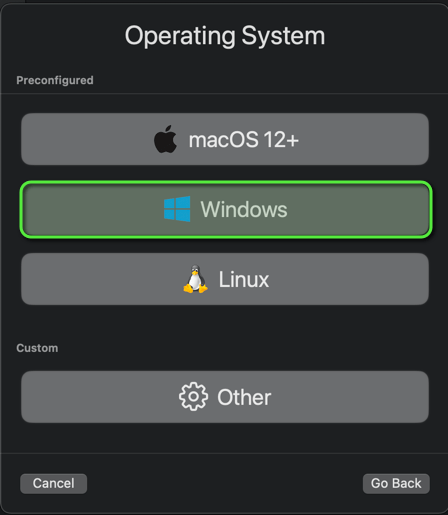
- Click Browser and select the Windows Image
- Click Continue
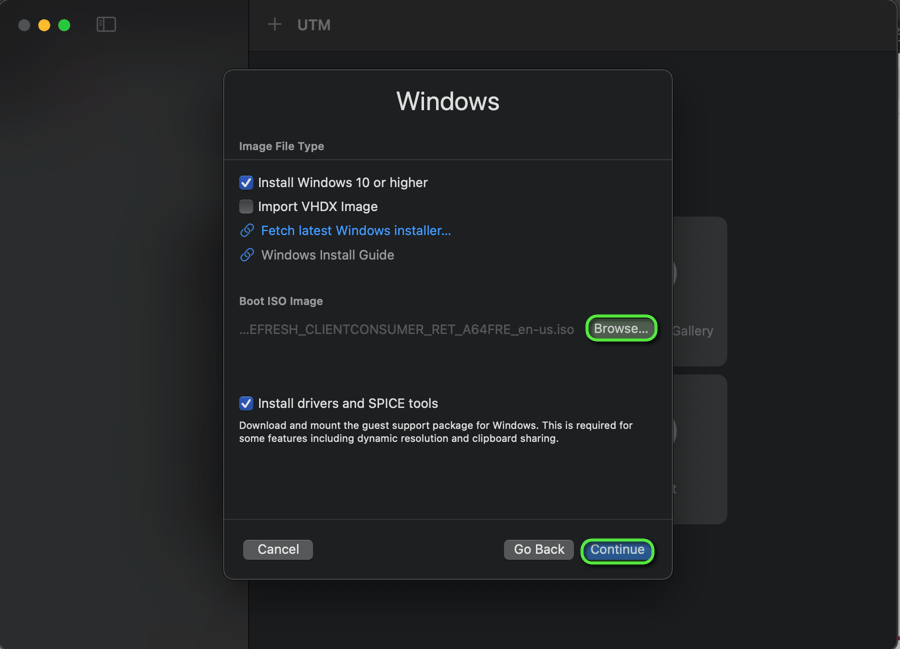
- Click Continue
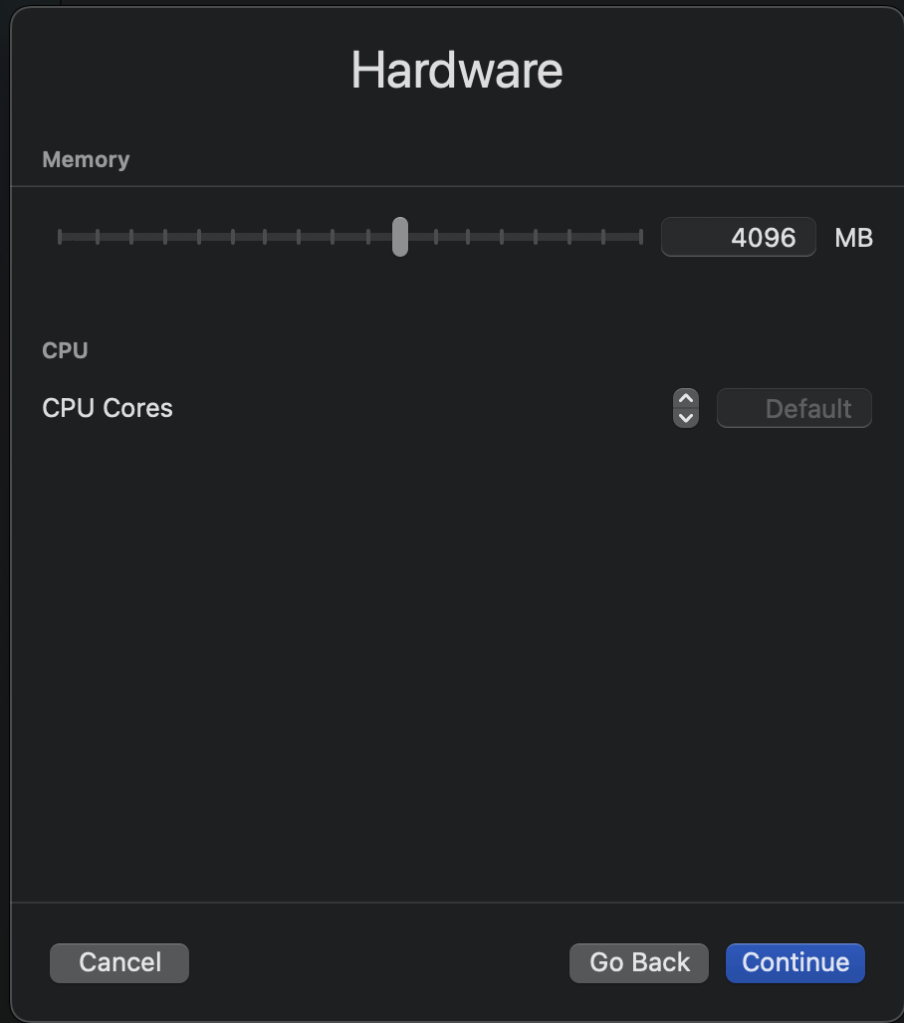
- Click Continue

- Select a shared storage if needed
- Click Continue

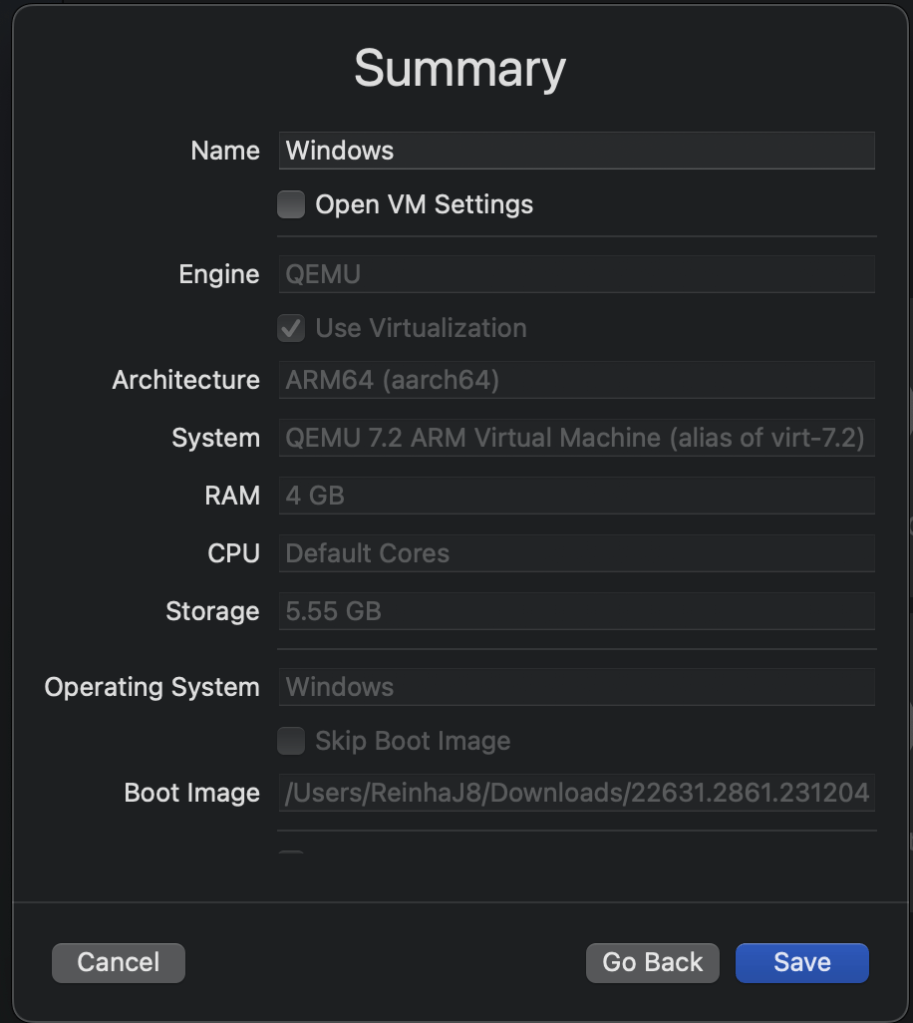
- Enter an name and click save
Windows Installation
- Next you have to install Windows 11 Pro. This is the usual process.
- To boot from the image, you have to press a key after starting the VM.

Once the setup is done and the machine is booted. Shut down:
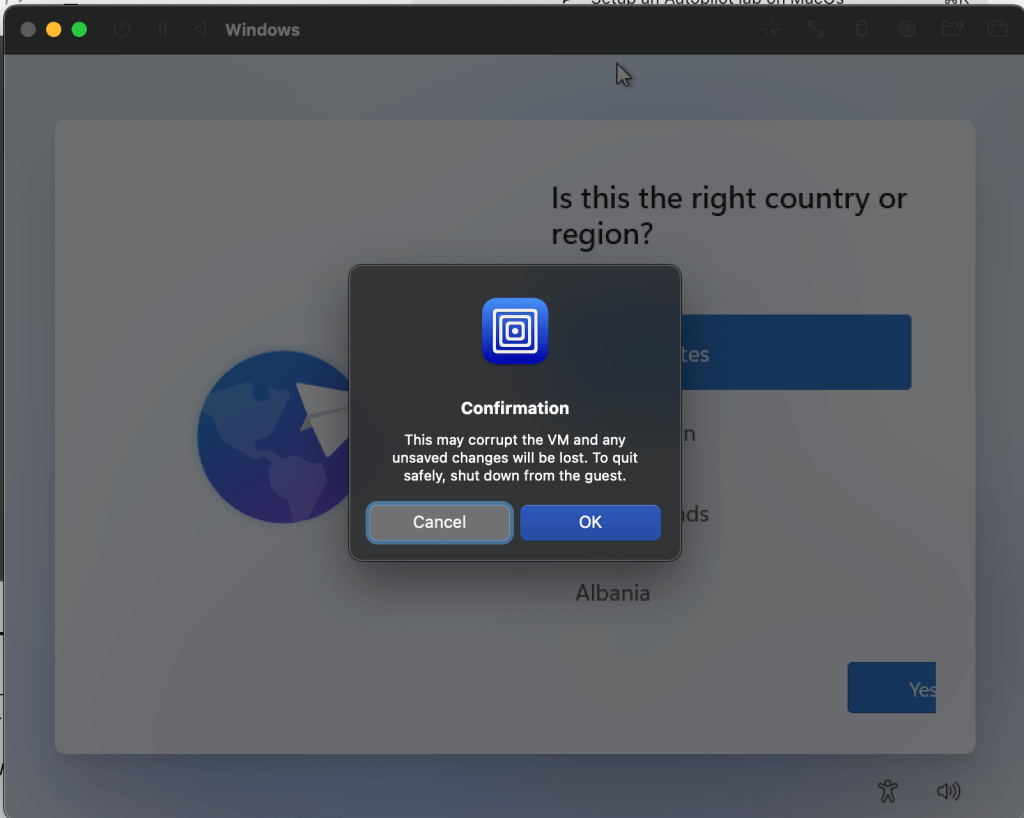
Adding the serial number
This is the point which is different to a normal setup of hardware pc. We have to set a serial number that we are able to upload the hash. To do this open the UTM and click on the VM on Edit:

- Navigate to QEMU and Arguments. Click on New and add here:
-smbiostype=1,serial=yourserial
Change the serial value

Register to Autopilot
Now, let’s register the virtual machine to Autopilot. Follow these steps:
- Boot up the Windows VM.
- Once the initial setup screen appears, press Shift + F10 to open the command prompt.
- In the command prompt, type
powershelland press Enter to launch PowerShell.

After launching PowerShell, run the following commands to register the machine to Autopilot:
Set-ExecutionPolicy Bypass
Install-Script -Name Get-WindowsAutopilotInfo
Get-WindowsAutopilotInfo.ps1 -Online
These commands will bypass the execution policy, install the official autopilot script, and upload the hash into your tenant.
Troubleshooting Network Issues
If you encounter any network connectivity problems, you may need to install the UTM Guest Tools. These tools enhance the VM’s performance and ensure proper network functionality.
Here’s how to install them:
- Open File Explorer and locate the mounted CD drive containing the UTM Guest Tools.
- Run the installation file.
- After the installation completes, restart the virtual machine for the changes to take effect.
Other ressources
If you want to check out a additional ressource with an more detailed wakthrogh you can visit the odds+endpoints blog from Nick Benton.
 jannikreinhard.com