
This is the second guest post from my partner Recast Software.
Imagine reducing 90% of critical security vulnerabilities with a single change to your IT policy. Removing local admin rights can achieve this. IT departments face a constant influx of tickets and issues to manage. Many of these result from a need to elevate permissions, perhaps to update a piece of software or access a resource. The old way of getting around this issue was to give end users local admin permissions on their device. I know many of you are cringing just reading that—so am I. There are many, many reasons not to give end-users local admin permissions. The risks associated with local admin rights greatly outweigh the benefit of fewer tickets from end-users.
Why Should I Remove Local Admin Rights?
The answer to the question of why we should remove local admin rights can get very longwinded but let’s cover a couple of the most important. For starters, you are giving end-users keys to the castle to change settings they should not, install potentially malicious software, delete and transfer files, or even create additional new admin accounts. While many of these changes could be trivial, there are many that can also be detrimental.
More importantly, unrestricted admin rights are a major security risk. It is estimated that you can mitigate around 90% of critical Windows vulnerabilities just by removing local admin. That is a staggering stat that cannot be ignored. What security team wouldn’t want to be mitigating that much risk?
Why Does this Need to be Automated?
Automating the removal of local admin rights transcends simple convenience. Rather, it serves as the bedrock of a comprehensive security and compliance strategy. This approach not only streamlines IT operations, saving significant time, but also tightly aligns with regulatory compliance by enforcing strict control over access rights without constant manual oversight. Automating admin rights control ensures that only authorized users possess elevated privileges, crucial for meeting stringent industry regulations.
Automation also bolsters an organization’s security posture against both external threats and internal vulnerabilities. It enables real-time adjustments to access rights, quickly countering emerging threats and reducing the attack surface. This is particularly effective in mitigating insider threats. Automation here acts as a safeguard against the circumvention of security protocols, whether through negligence or malicious intent. In the face of security breaches, automatically revoking compromised access rights minimizes the potential damage and accelerates recovery. Simply put, organizations are more resilient with automated admin rights controls in place.
Automating Local Admin Group Administration with Privilege Manager
Privilege Manager is a privileged access management solution from Recast Software. Like other PAM solutions, it provides end-user self-service elevation, but it can also help manage the local admin group as well. A major feature of Privilege Manager is “Group Rules.” With group rules, IT teams can set which accounts are allowed to be in a group, like the “Administrators” group for example. Let’s add a new account that we need in our local administrator’s group to see how it works.
To access our Privilege Manager instance, first load up Recast Management Server, a centralized server for all things Recast Software. From there you can access Privilege Manager settings via the configuration tab.

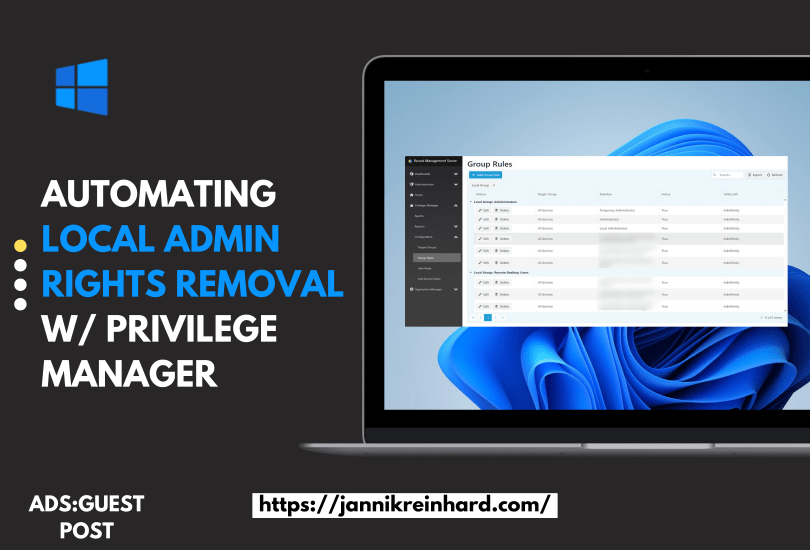
After expanding the Configuration tab, clicking on “Group Rules” will take you to the page to manage our group membership rules.

This page shows which accounts are allowed in the groups that we are managing with Privilege Manager. It also allows you to add new accounts and even add accounts temporarily with a validity end time.
To add a new account, click the blue “+ Add Group Rule” in the top left corner. Via this side screen, you can add a new account to a group rule.

In this step, I will define which devices the new account will affect by selecting a target group. For demonstration purposes, I’ve chosen to apply this to all devices. Next, specify the local group this account will be added to. In this scenario, it’s the Administrators group. Finally, to illustrate Privilege Manager’s capability to manage account lifecycles, I’m setting this account to be automatically removed at a future date, highlighting the platform’s ability to enforce time-limited access.
Now, select the account.

Clicking the “Member” dropdown provides a few options. In this case, I want to add a domain account so I will click “Search domain.”

From the search directory page, type in the account name you are seeking and hit the search icon. From here, hit Save.

Confirm the settings and hit save again. This will add the new account to the group rule.
From here, Privilege Manager takes over and makes sure only those accounts that we have added in our group rules page, including the one we just added, will remain in their respective local groups. Privilege Manager periodically checks in with all its client devices and searches for unallowed accounts in those groups.
Dig Deeper
Check out more details on the functionality of Privilege Manager and strengthen your security strategy by automating local admin rights removal.
 jannikreinhard.com