
Re-enroll Intune Devices Without a Wipe
Re-enroll Windows devices in Microsoft Intune without a factory reset. Follow the recovery steps, prerequisites and validation checks.
Re-enrolling an Intune device without a wipe can preserve an installation that would be difficult to rebuild. First establish whether the fault is in the Microsoft Entra device identity, the MDM enrollment or policy delivery. A missing application alone does not identify an enrollment failure.
This article preserves an experimental recovery procedure from 2024. The diagnostic guidance below was reviewed against Microsoft documentation on November 5, 2026. The recovery shortcut has not been re-tested on current Windows builds as part of that review.
Before recovery: identify the failed component
Run this read-only check in the affected user’s session:
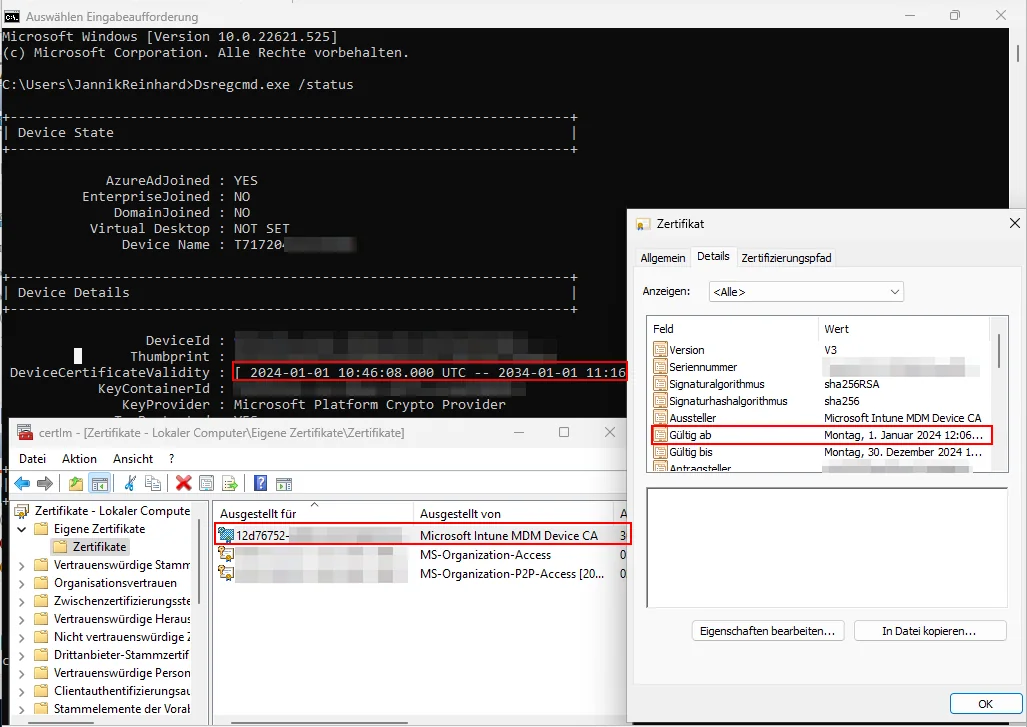
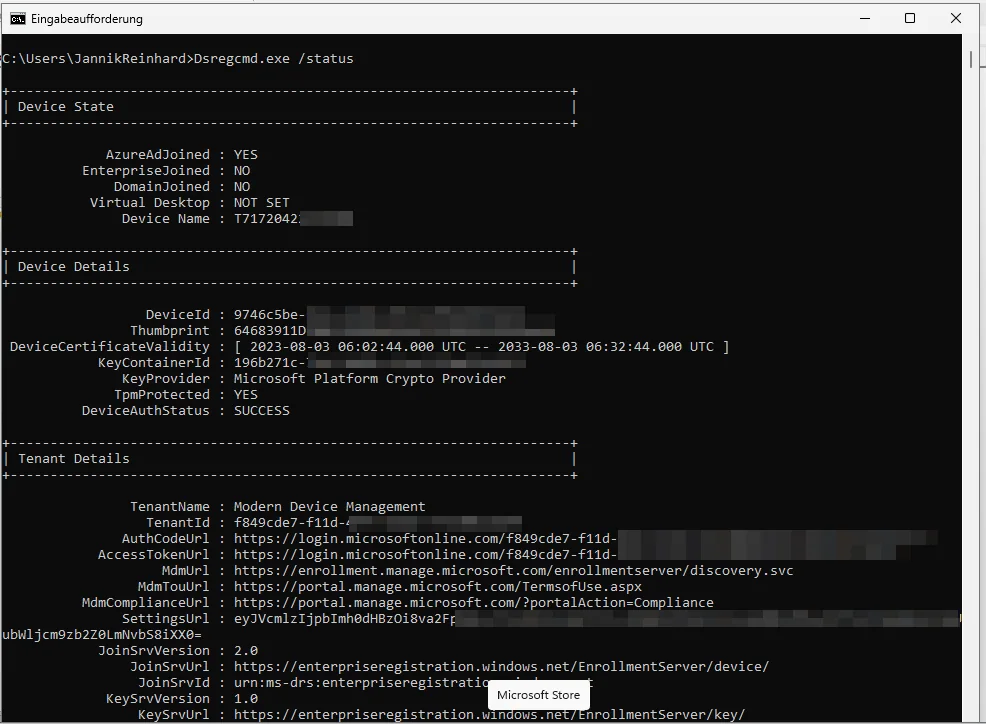
dsregcmd /statusRecord the device ID, join state and certificate validity. Where available, DeviceAuthStatus checks the Entra device object; it does not confirm successful Intune enrollment. An MdmUrl alone is also not proof of management. Compare the output with the device record and last check-in in Intune. Microsoft documents the fields in Troubleshoot devices by using dsregcmd.
For enrollment errors, collect the error code and the relevant DeviceManagement-Enterprise-Diagnostics-Provider/Admin events before changing the device. Follow the matching Microsoft enrollment troubleshooting steps. Preserve a working local admin sign-in and a backup before attempting the historical recovery below.
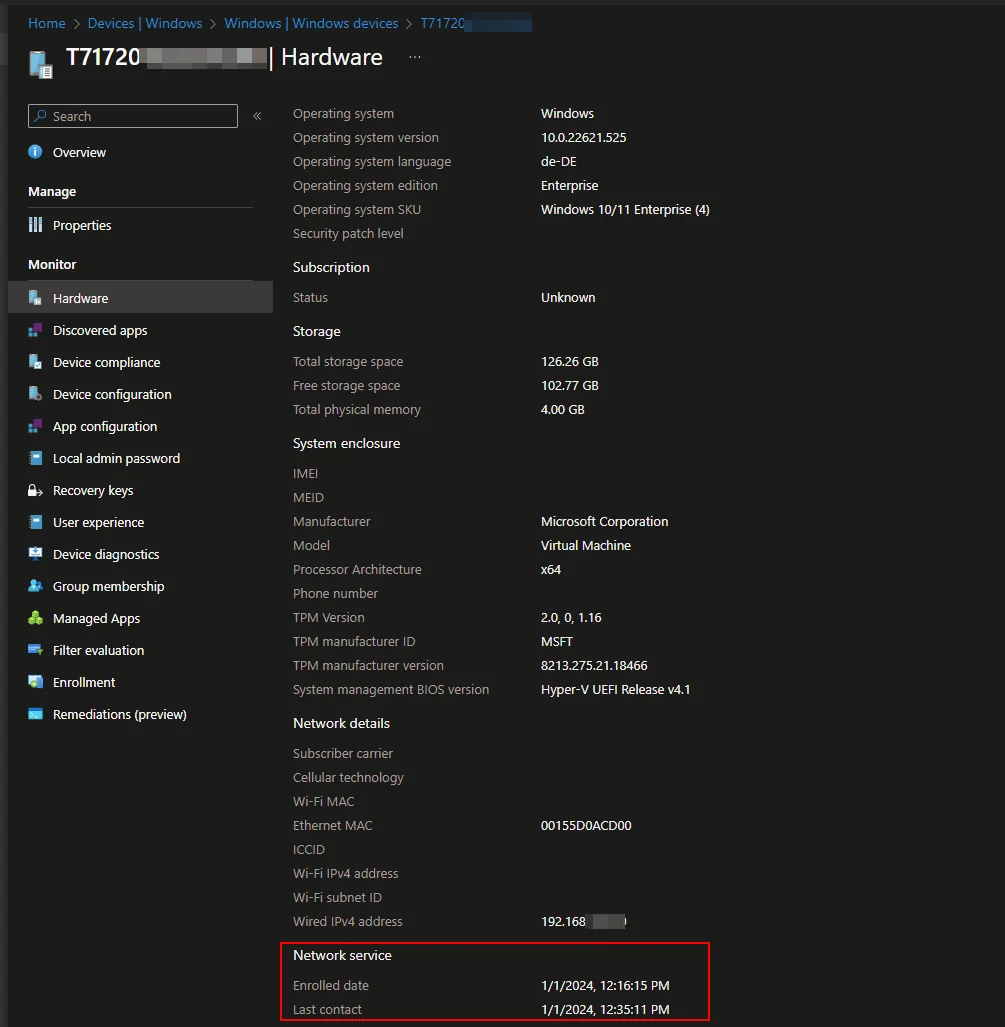
After recovery, verify a fresh Intune check-in, policy delivery, a representative managed app and the user’s sign-in after reboot. A new certificate by itself is not sufficient. For app-only failures, start with the Intune Management Extension guide.
Important note before you start
This process is an experimental process and should not be considered as Standard. It is not guaranteed that this will always work and it is outside of support.
Scope
This procedure is designed to address various issues related to MDM and Microsoft Azure certificates that are otherwise challenging to troubleshoot. These issues may include, but are not limited to:
- Missing or corrupted MS-Organization-Access certificates.
- Missing or corrupted PK key files.
- Persistent, unusual authentication failures in IME, winget, or MSStore, unresponsive to standard troubleshooting methods.
The method involves an undocumented shortcut in the CEH, utilizing a function call in dsreg.dll. This approach differs in user experience and outcomes under varying system conditions. It’s a streamlined adaptation of the original manual device reintegration process, carrying similar risks to the previously high-risk method. It’s also considered as a ‘last resort’ option when you need to reenrol devices without wipe and keep the existing operating system in place.
A significant update in this process is its simplified execution, especially beneficial when remotely accessing devices in the field.
Prerequisites
The prerequisites for this process are:
- Physical or remote access to the device
- Access to an account with local administrative rights
- Imported device hash
- User with user credentials including 2nd factor
Concept: how to reenrol devices without wipe
This process enables client-side triggered re-enrollment without disrupting an active Entra ID user session. It involves self-destruction of the existing MDM profile and re-creation of the Intune identity of the device, along with the re-enrollment of all relevant certificates (MDM, MSOrga). The original aim was to retain the installed operating system, apps and vendor configuration; this is not a guarantee for another device or Windows build. You can read more about Windows enrollment fundamentals in the official Microsoft Learn documentation.
Regions of Interest: Look for signs of inconsistent states in the following areas:
- Accounts > Access Work or School
- Accounts > Access Work or School > Info > Device sync status
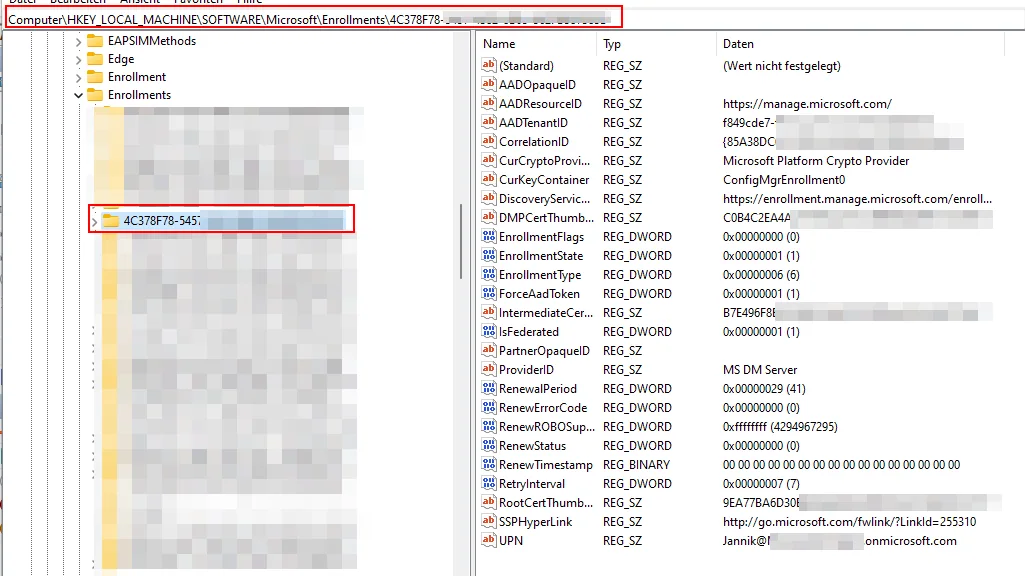
- Windows Registry under
HKEY_LOCAL_MACHINE\SOFTWARE\Microsoft\Enrollments\\{EnrollmentID\}andHKEY_LOCAL_MACHINE\SYSTEM\CurrentControlSet\Control\CloudDomainJoin
- Output of
Dsregcmd.exe /status
- Certificate Manager (
Certlm.msc)
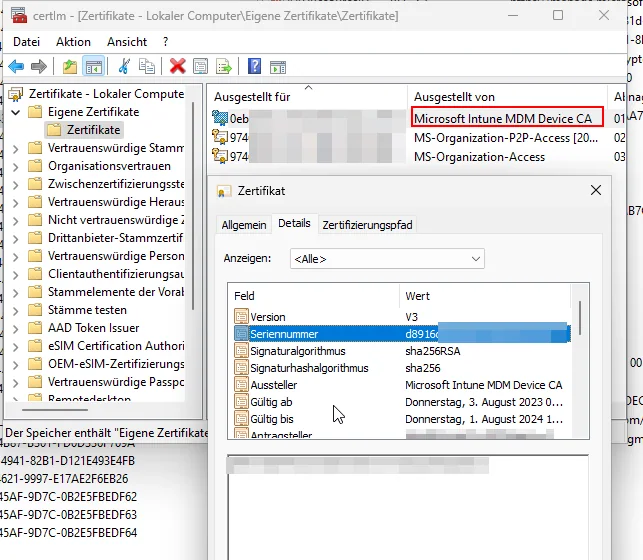
- Entra ID and User Device Registration Event logs
Process
The following steps document the original experiment. Validate applicability and a recovery path on a representative test device before using the shortcut:
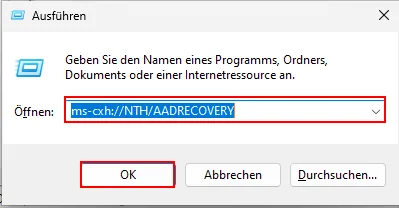
- Run START+R and run “
ms-cxh://NTH/AADRECOVERY” or execute PowerShell and run “start-process ms-cxh://NTH/AADRECOVERY” in Microsoft Entra ID user context
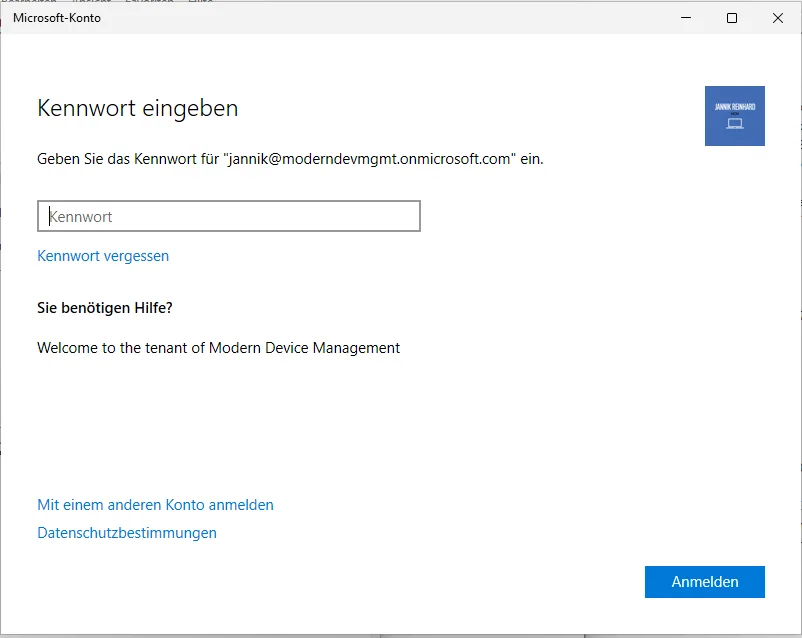
- What follows is a windowed version of the CEH. Here you have to enter your credentials analog to the WHfB enrollment.
- Now you get the loading window that your device will be set up
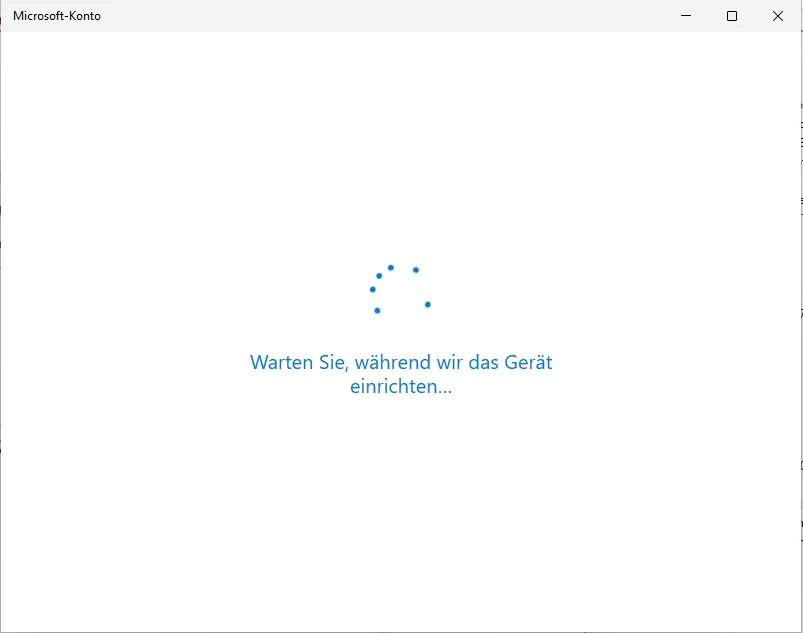
If you have not local admin permissions it could be that a UAC prompt will be spawned in the taskbar
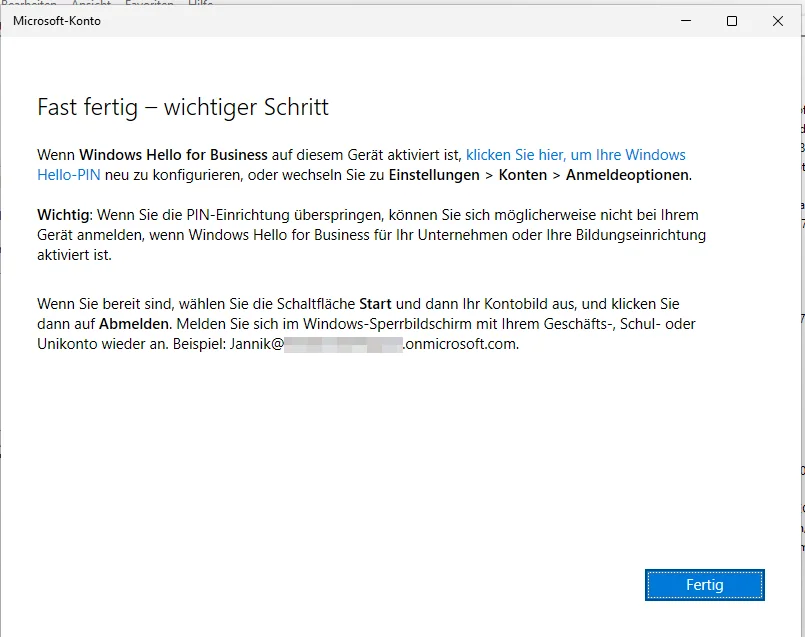
- Finally the re-enrollment is done. You will get the windows to setup/change WHfB. Click Finish.
While testing it never became necessary to re-enroll WHfB. However, depending on the profile state and the NGC container prior to re-enrollment, it may become necessary. My recommendation here would be to NOT enroll WHfB using this screen, instead, the WHfB enrollment should be done after reboot by the user if prompted for through policy evaluation.
Post Steps
The EnrollmentID has now changed.
| Old | New |
| 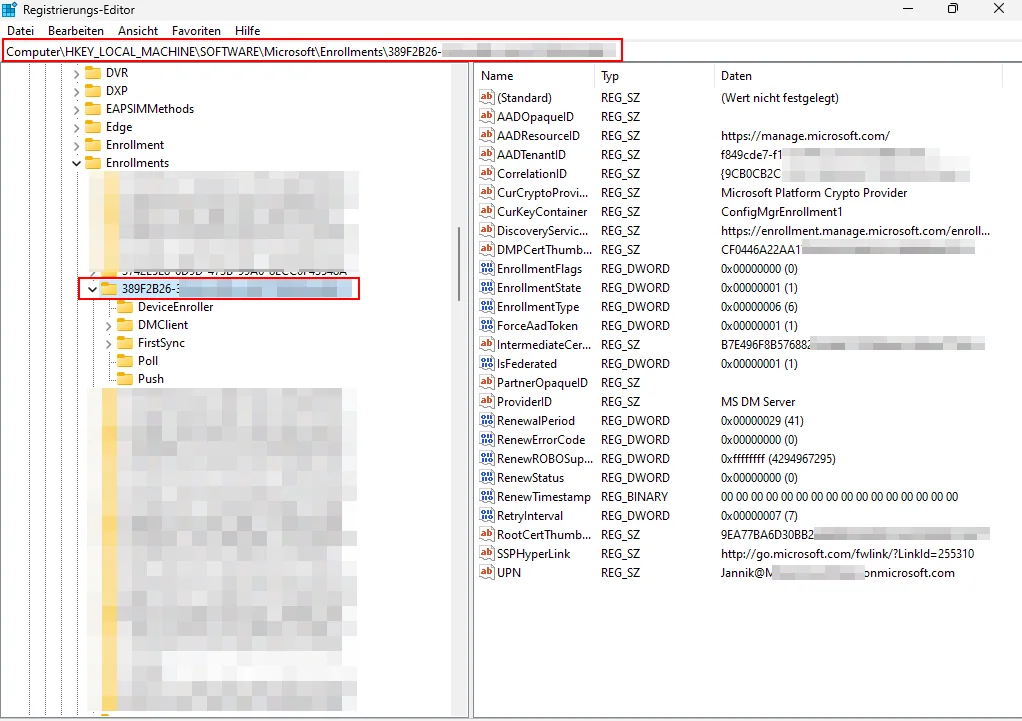 |
What we have to do prevent that the user get into the ESP of the Autopilot user flow after reboot. To do this we have to switch to the FirstSync key under the EnrollmentID.
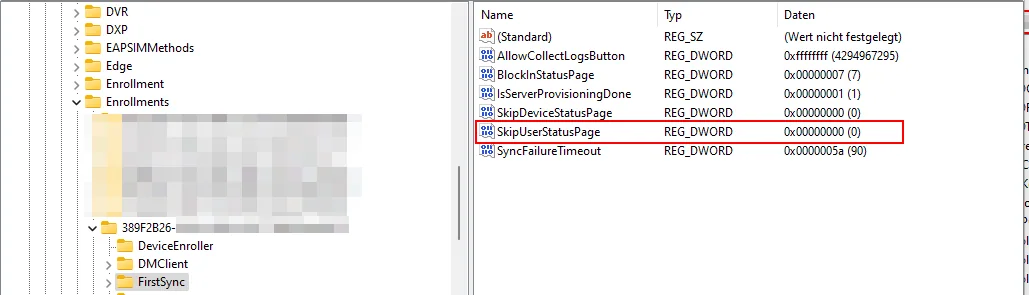
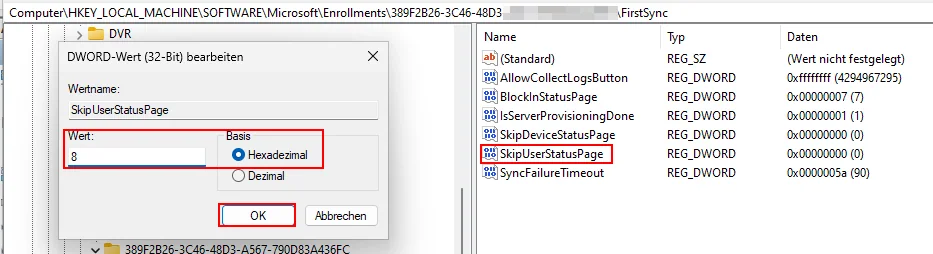
and change the SkipUserStatusPage value from 0 to 8.
Validation
If we now check the MDM Certificate we see that the valid to date is the current timestamp and also that the serial number has changed.
Old
New
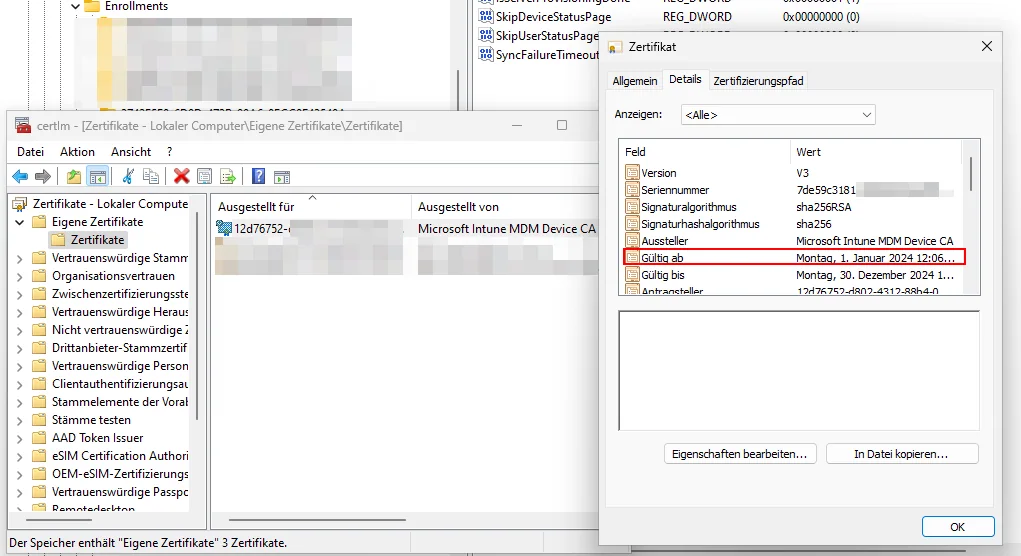
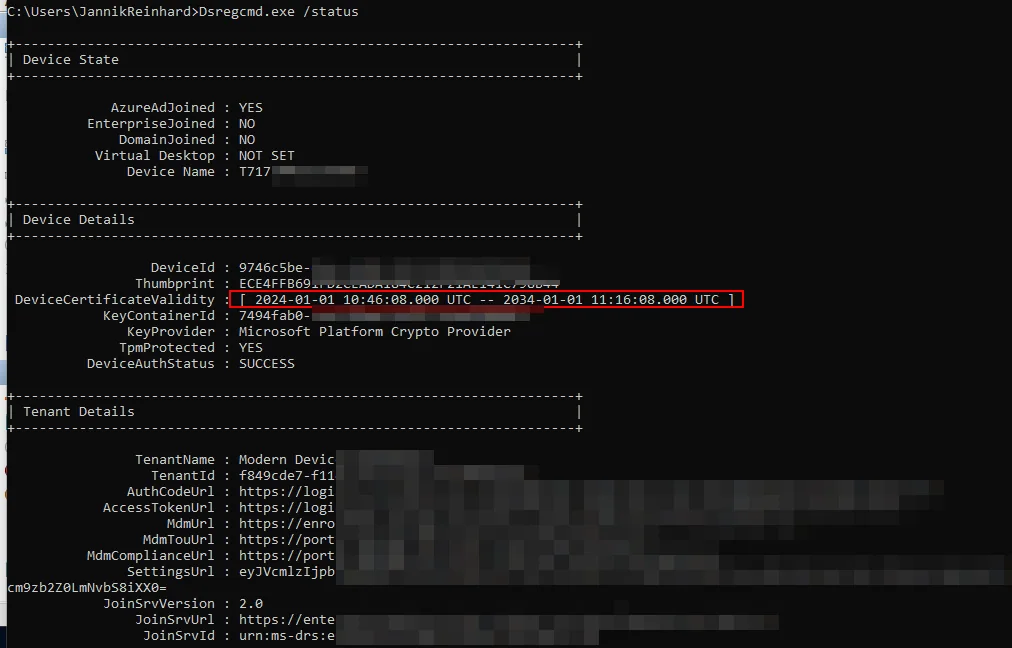
After that it is recommended to reboot the device. It could take up to 30 min until the device is back into a compliant state. Being able to reenrol devices without wipe this way saves hours of rebuild time for hard-to-reach field hardware.
Before changing device registration, use the Intune troubleshooting guide to check the management channel, device identity and relevant logs. If the remaining problem is a Win32 app or a PowerShell script, continue with the Intune Management Extension deep dive.

New posts, straight to your inbox.
Hands-on guides on Intune, AI and Azure.