
macOS Custom Attributes in Intune: Collect Device Inventory
Collect macOS custom attributes with Intune shell scripts, inspect battery cycle counts, and understand the limits for compliance and dynamic groups.
Update 06.09.2026: Clarified the difference between custom inventory, custom compliance and dynamic group properties. Microsoft documentation.
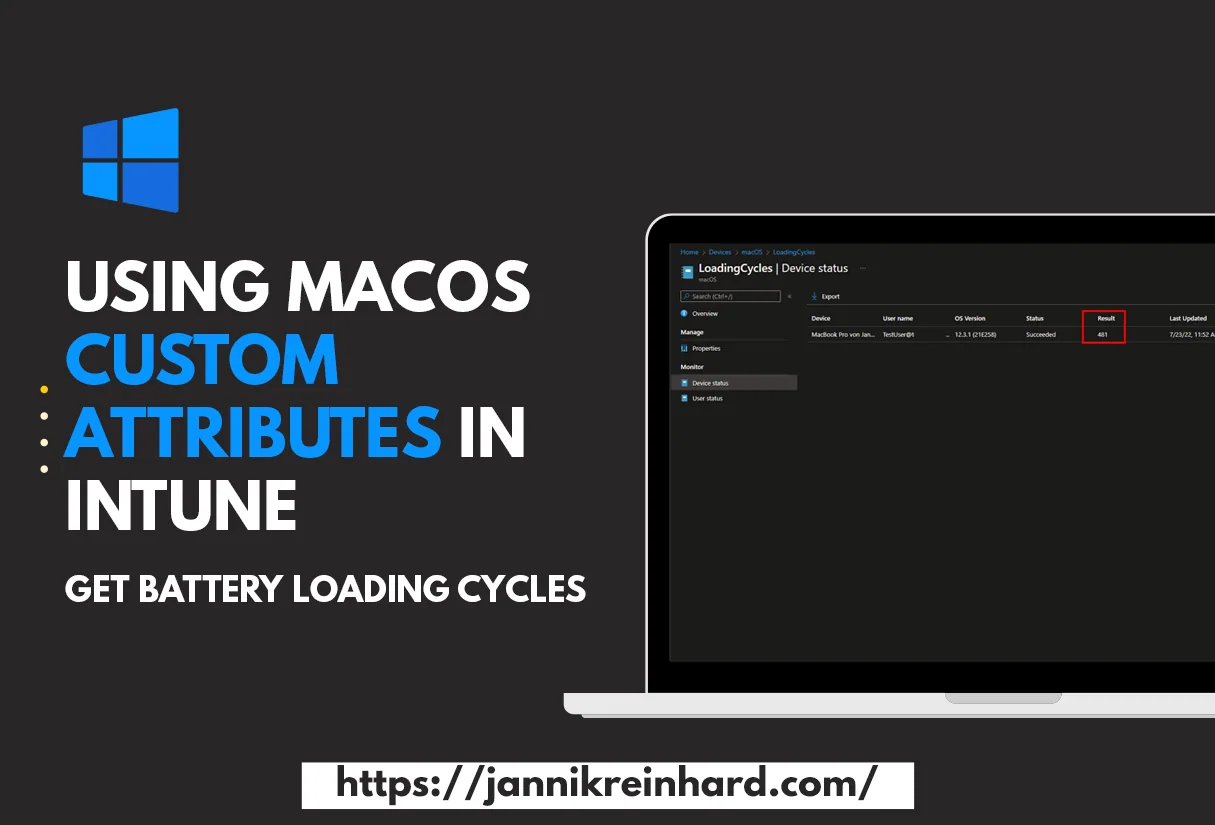
In this blog post I explain how to collect macOS custom attributes with Microsoft Intune. The example reports a Mac battery cycle count using a shell script, then shows where to check the result in Intune.
The scope is custom inventory. A reported attribute is not automatically a Microsoft Entra device property or a compliance rule. Those scenarios need a separate, supported workflow.
Intune already has a basic inventory of MacOS devices. On the one hand, there is a hardware inventory in which you have everything from the serial number to the free memory, but also os information. In addition, you can see in the discovered apps which applications are installed on the device. But if you want to collect more information about the devices, Intune offers a really cool feature here. The feature I am talking about is called custom attribute. This is basically a shell script that is executed on the devices and the return value is stored as a custom attribute.
Why use MacOS custom attributes in Intune
If you come from a Jamf background, MacOS custom attributes in Intune will feel familiar: they are the Microsoft equivalent of Extension Attributes. The built-in inventory is great for the basics, but every organization eventually hits a signal that Intune does not collect out of the box — FileVault recovery state, a specific configuration profile flag, the battery cycle count, or whether a third-party agent is running.
Use the value to investigate a device or support a reporting workflow. For dynamic group membership, use the supported Microsoft Entra device properties; an Intune custom attribute is not automatically available in that rule builder.
How to deploy a custom attribute
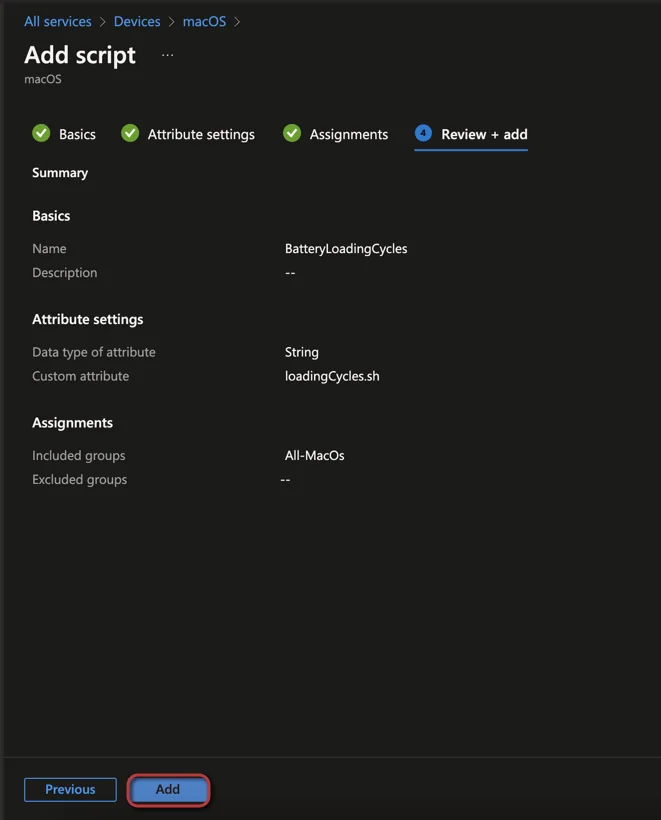
Deploying MacOS custom attributes in Intune is a short wizard, but the script behind it is where the real work happens. Follow the steps below to create your first custom attribute and assign it to a group of devices.
- Open the Intune admin center
- Navigate to Devices -> macOS -> Custom attributes
- Click on +Add
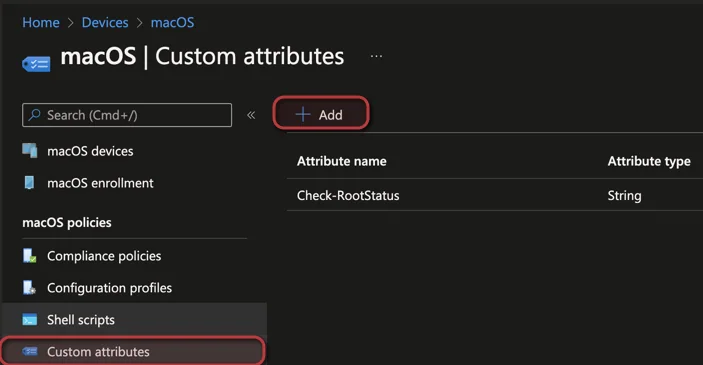
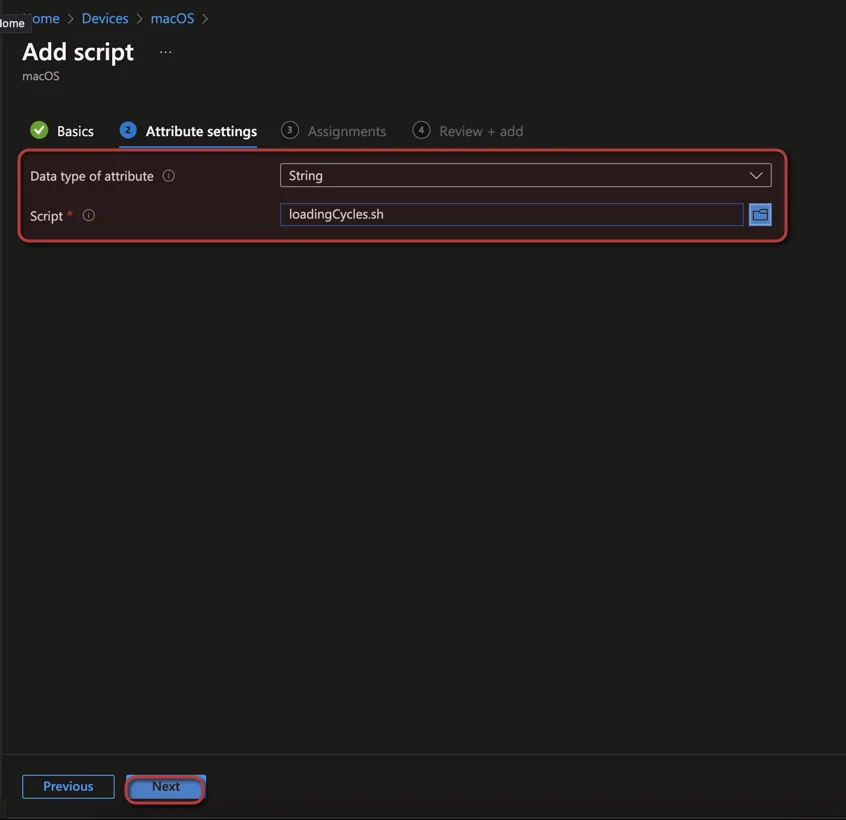
- Enter a Name
- Click Next
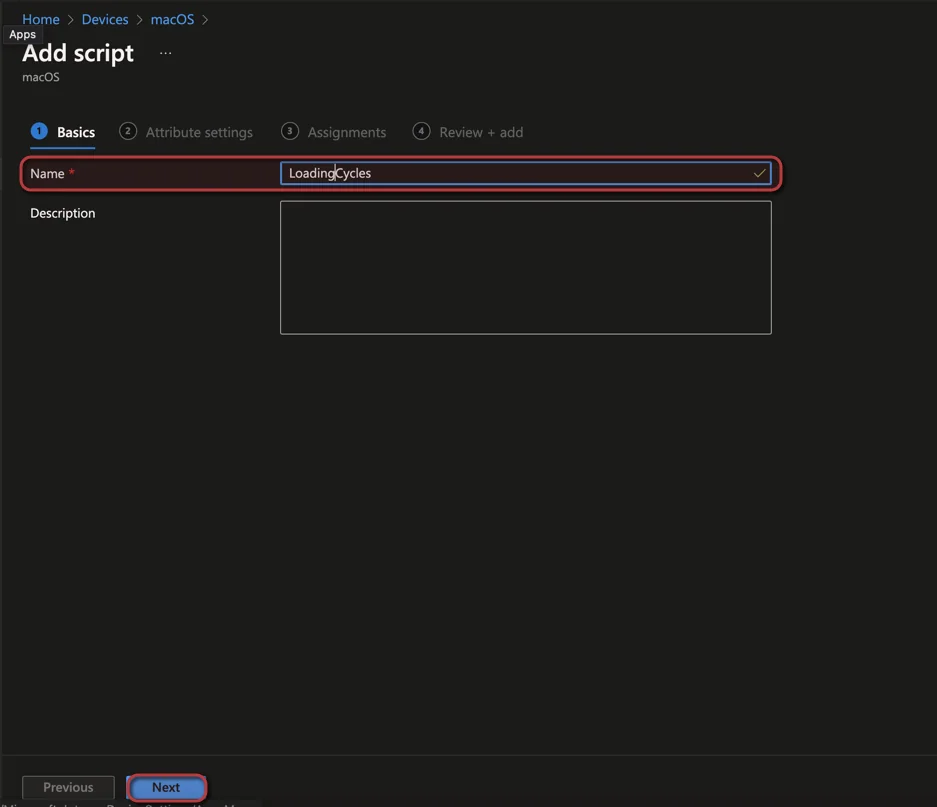
- Select the Data type from the script output
- Upload the Script (You can find example scripts below)
- Click Next
- Assign the custom attribute to a group
- Click Next

- Click Add
- Wait until the value is collected and check the Status in Intune
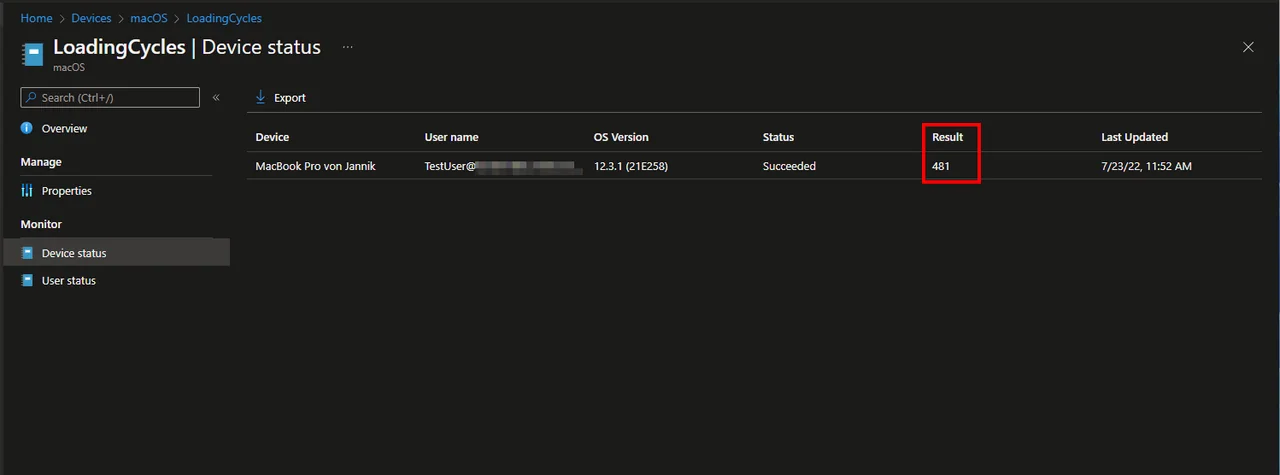
Writing a robust shell script
The quality of MacOS custom attributes in Intune depends entirely on the script you upload. A custom attribute script runs as root in the Intune management agent context, and Intune captures whatever the script writes to standard output. Keep these rules in mind so the value is collected reliably:
- Echo the value you want to report; keep diagnostic output separate and match the selected data type.
- Match the value to the data type you selected (string, integer or date).
- Exit quickly; long-running scripts can time out and leave the attribute empty.
- Handle the “not found” case gracefully so the attribute is never blank.
Because the script runs with full privileges, you can reach almost any system signal. Tools like system_profiler, profiles, fdesetup and defaults are your friends here. For the full list of supported settings and behaviour, the official documentation on macOS shell scripts in Microsoft Learn is the authoritative reference.
Sample Script
BatteryLoadingCycles.sh
#!/bin/bash
#set -x
echo $(system_profiler SPPowerDataType | grep "Cycle Count:" | sed 's/.*Cycle Count: //')
Consuming the value in compliance and Graph
Custom compliance is a separate feature: it uses a discovery script and a JSON rules file. Do not assume the custom-attribute result below is consumed automatically. Microsoft documents custom compliance for supported platforms, including macOS. For external reporting, verify the relevant API and permissions before building an integration.
Conclusion
I think MacOS custom attributes in Intune are a very useful feature that makes reporting or collecting information very easy. I have provided you with an example script that you can use but also use as a template for creating new scripts. You have endless possibilities here for what and how you want to collect data from Mac devices. The only thing you have to keep in mind is that your script generates an output. Start small with one signal, validate the result in the Intune portal, and then expand your library of MacOS custom attributes in Intune as your reporting needs grow.

New posts, straight to your inbox.
Hands-on guides on Intune, AI and Azure.